Workflows library
Every batch run from the AI Assistant, saved as a folder you can open, browse by product, download as a ZIP, or delete.
The Workflows library is where every batch you run in the AI Assistant lands as its own folder. When you ask the assistant to do something across many images or in multiple steps, it saves the whole run here so you can review it, download it in one go, or clean it up. Opening, previewing, and downloading are always free.
At a glance
- Where
- /ai-suite/generations, Workflows tab
- What it holds
- One folder per batch run from the AI Assistant
- Best for
- Reviewing, bulk-downloading, or cleaning up a whole batch
- Each folder shows
- A 2x2 preview, a descriptive name, item count, and status
- Inside a folder
- Outputs grouped by source item, one section per input image
- Cost
- Free to view and download; deleting does not refund credits
You do not have to leave the assistant to watch a run. A slide-in results panel opens directly inside the AI Assistant while a run is live or finished, with per-step tiles showing exactly where each generation stands.
How it works
- 1
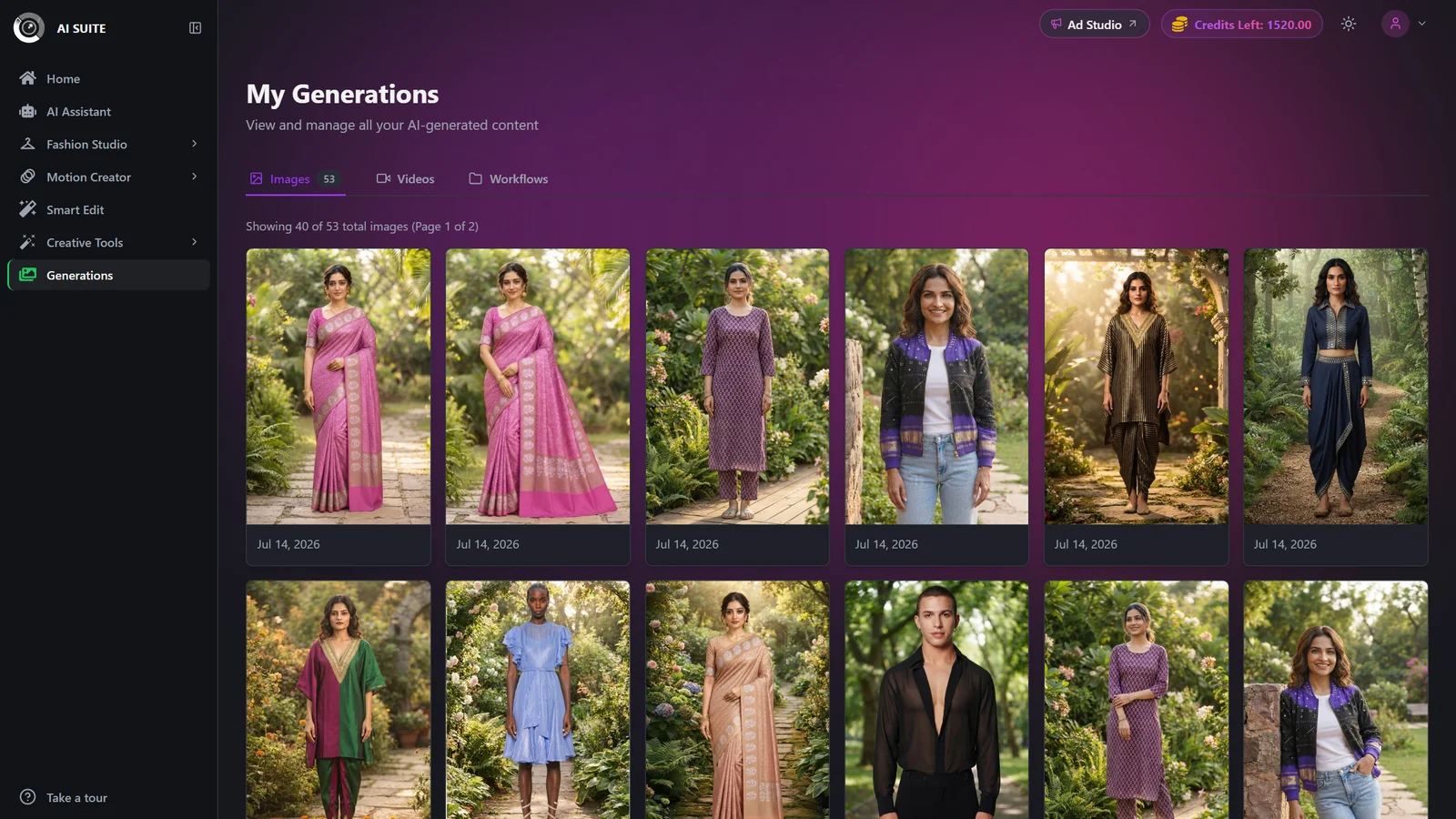
Open the Workflows tab
Go to Generations and click the Workflows tab, or click View all in Generations from a workflow card in the AI Assistant.
- 2
Open a run
Each folder is one batch. Its name describes the shape of the run, for example Product Photo to 3x Smart Edit. Click a folder to open that run's detail in-page.
- 3
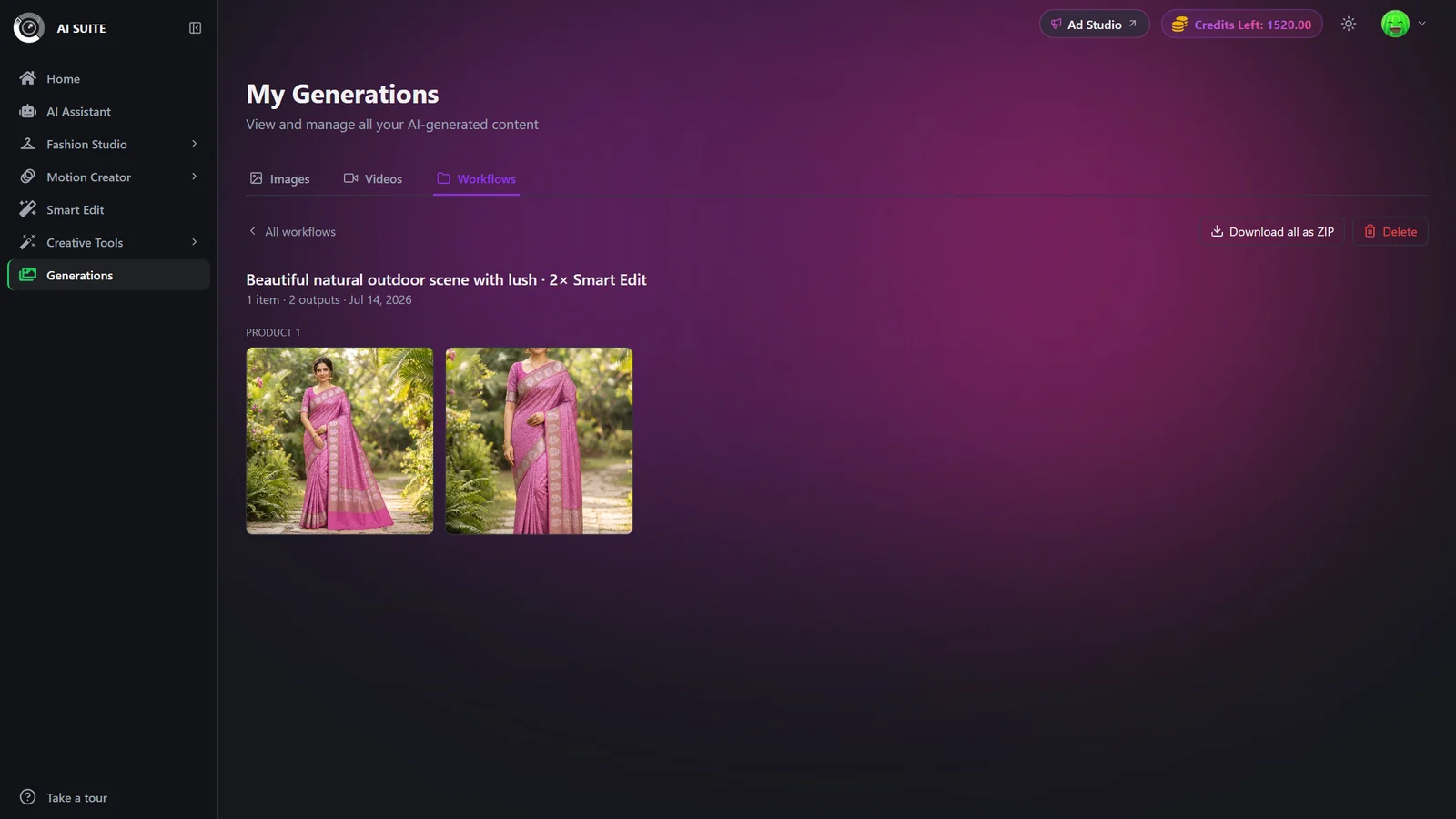
Browse by product
Inside a folder, outputs are grouped by source product, one section per input image. Click any tile to open the full preview with its metadata and download a single asset.
- 4
Download or clean up
Click Download all as ZIP to grab the whole run at once, or use Delete to remove the run and its generated images.
Actions & options
| Setting | Options | What it does |
|---|---|---|
| Folder card | Open, Delete | Open swaps to the run's detail in-page. Delete permanently removes the workflow and all of its generated images, with no credit refund. |
| Detail view actions | All workflows (back), Download all as ZIP, Delete | The ZIP is built on demand and opens in a new tab. Use All workflows to return to the folder grid. |
| In-chat results panel | Completed, generating, waiting, failed, skipped | Open it from a running or finished workflow card in the assistant. A completed step shows its image or video; every other state shows a labeled placeholder so you can see each generation's status at a glance. |
Viewing, opening folders, previewing, and downloading (including the ZIP) do not use credits. Credits are spent only when the batch is generated in the AI Assistant. Failed steps within a run were refunded at generation time, and steps that never ran were never charged. Deleting a workflow does not refund credits.
Best practices
Use Download all as ZIP for client hand-offs instead of saving images one at a time.
Review the per-product grouping to confirm every product got its full set of outputs before you delete a run.
Delete only runs you are sure you no longer need, since deleting also removes the generated images.
All your workflow folders and their downloads are available regardless of plan.
Troubleshooting
You haven't run a batch yet. Start one from the AI Assistant, for example for each of my images..., and it will appear here as a folder.
The ZIP builds on demand and needs at least one completed output. Wait for the run to finish, then try again.
Failed steps were automatically refunded. Open the run to see which products failed, then re-run just those in the AI Assistant.
Deletion is permanent and removes the images too. There is no undo and no credit refund. Re-run it from the AI Assistant if you need it back.