AI Assistant
Chat that plans and runs AI Suite generations for you: it proposes first, you approve, then it generates.
AI Assistant (Beta) is a chat that turns plain requests into AI Suite generations. Attach your image(s), say what you want, and it plans the right tool and settings, shows a proposal card, and only generates once you approve. Its superpower is bulk: drop up to 500 products and it can orchestrate an entire catalogue end to end in one approved run, on-model shots, multiple poses, videos, and UGC clips. Use it when you are not sure which tool fits or want a big batch. If you already know exactly what you need for a single asset, the dedicated tools are cheaper.
At a glance
- You provide
- A request in chat, plus image(s) if you are editing
- You get
- Inline images and videos in the chat, saved to your history
- Best for
- Not sure which tool to use, or running one edit across many product photos
- Image formats
- JPEG, PNG, WebP only, up to 10 MB each
- Attachments
- Up to 6 images per turn, or a bulk batch of up to 100
- Status
- Beta
The assistant always proposes first. Every generation is deducted only when you click Generate on the proposal card, and the card blocks Generate if your balance is too low. A one-time heads-up explains that chatting itself costs a little per message.
How it works
- 1
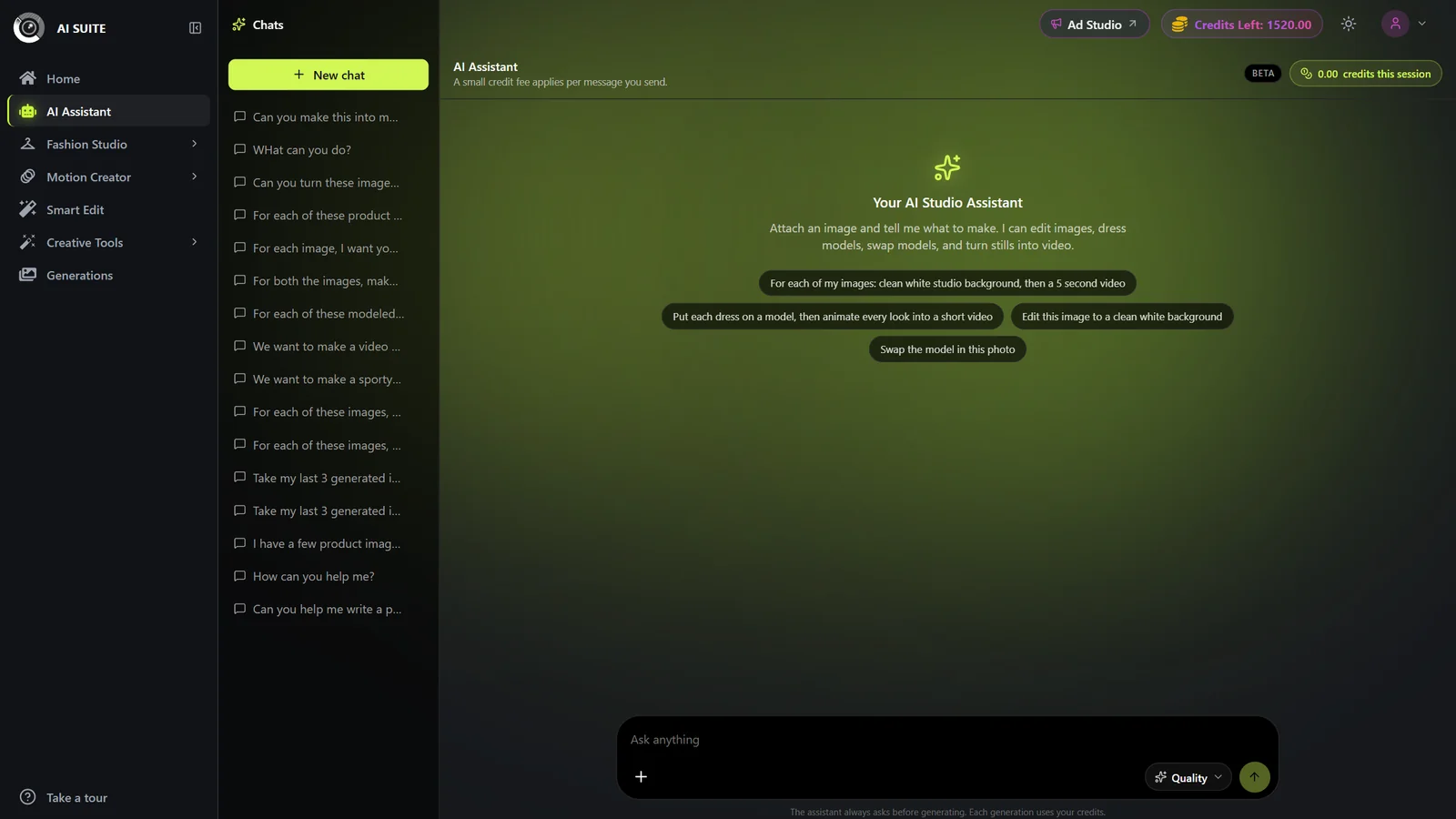
Open the assistant
Open AI Assistant from the sidebar, or start typing on the AI Suite home composer, which hands off into a chat.
- 2
Attach and describe
Add your image(s) with the + button, by pasting (Ctrl/Cmd+V), or by drag-and-drop, then say plainly what you want. For example: "edit this to a clean white background" or "put this dress on a model, then make a 5s video."
- 3
Review the proposal card
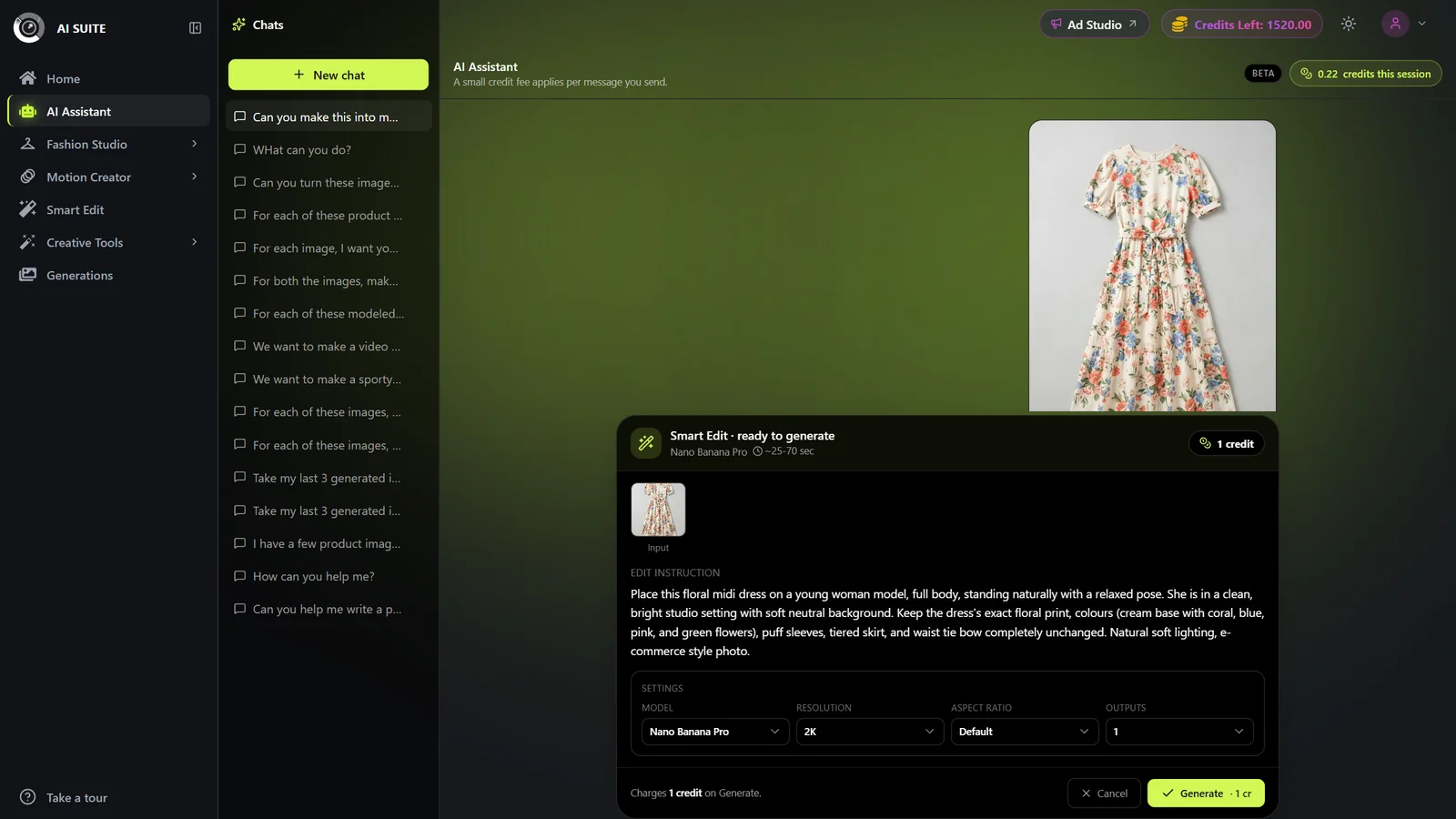
The assistant may ask a clarifying question, then docks a proposal card above the composer showing the tool, settings, input previews, estimated time, and credit cost.
- 4
Tweak and approve
Optionally adjust the card's knobs (model, quality, resolution, and so on); changing a knob reprices the card live. Click Generate to approve, or Cancel to dismiss.
- 5
See the result and iterate
The result appears inline; click it to open the full preview and download. Keep chatting to refine. Everything is saved to your Generations history.
- 6
Run a batch (optional)
Drop many images, or say "for each of my images…", review the Workflow plan card, choose Approve all or Step by step, then Start. The run produces a Workflow folder and a downloadable ZIP. See Workflows.
Bulk catalogue runs
This is where the assistant shines. Drop up to 100 product photos at once, describe the entire catalogue pipeline you want in plain language, approve it once, and it produces the whole catalogue end to end at high quality while you step away.
In a single run you can chain steps like these across all 100 items:
Turn each flat product into a polished on-model shot.
Generate several poses of each product (for example, 10 angles or looks per item).
Produce a short product video for each item from its best shot.
Create a UGC-style video for each item for social and ads.
- 1
Drop your catalogue
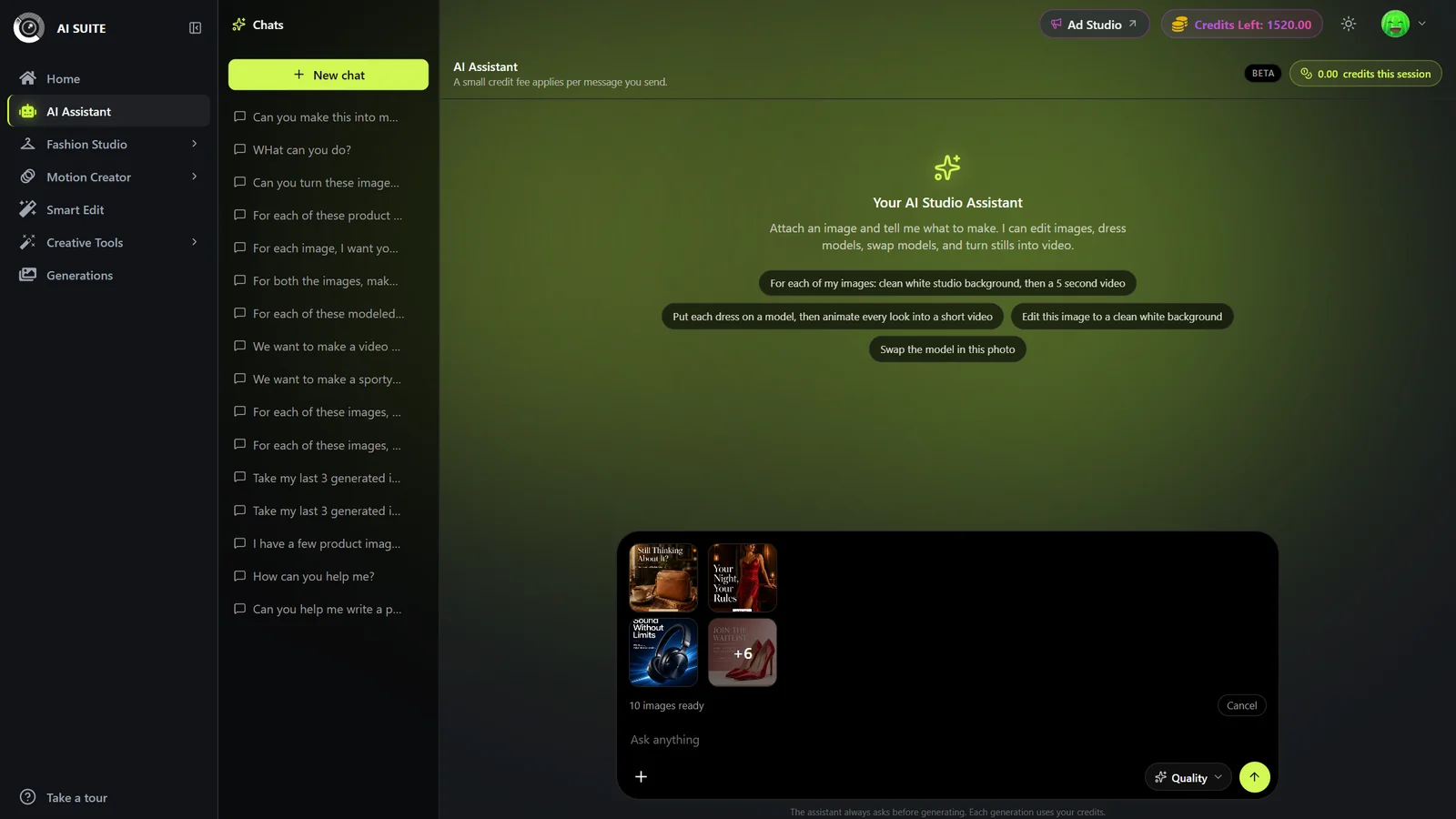
Attach up to 100 images (JPEG, PNG, or WebP, each under 10 MB). Anything over 6 images automatically becomes a bulk batch.
- 2
Describe the full pipeline
Say what should happen to every item, for example: "for each product, put it on a model, make 10 poses, then a 5-second video and a UGC video." The assistant reviews a few samples plus the true count and fans your instruction across the whole set.
- 3
Review the Workflow plan
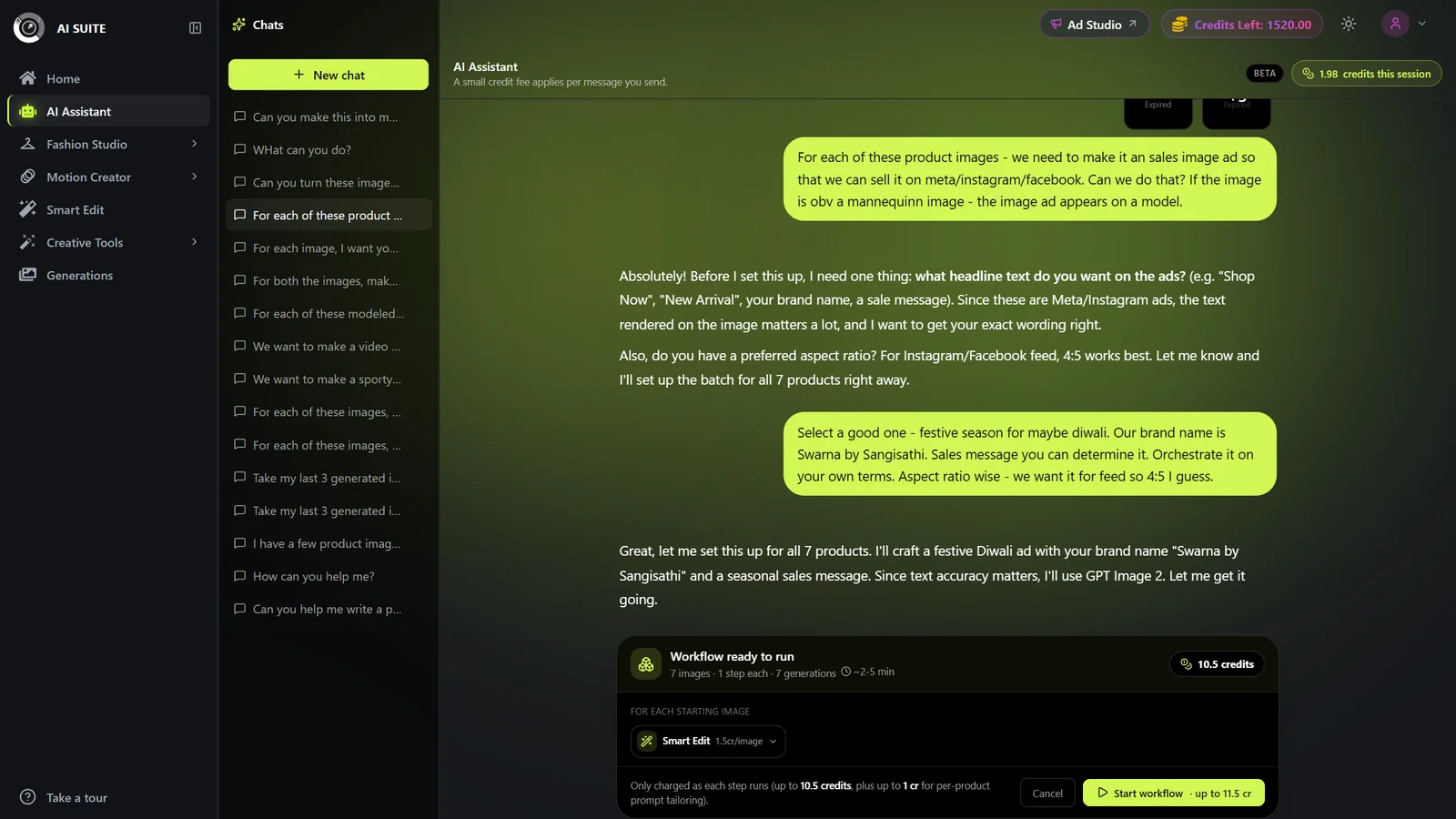
The assistant docks a Workflow plan card listing every step, the per-item and total credit cost, and the estimated time.
- 4
Approve once and let it run
Choose Approve all to run the entire catalogue unattended, or Step by step to check step 1 on one product before committing to all of them.
- 5
Collect the finished catalogue
Outputs land in a Workflow folder, grouped per product, and download as a single ZIP. See Workflows.
- Run Step by step on the first product to lock the recipe, then re-run Approve all across the full set.
- Ask for per-product tailoring so poses, captions, or video scripts vary by item instead of being identical.
- Big runs spend real credits: the plan card shows the total before you approve, and anything that fails is refunded.
Settings & options
| Setting | Options | What it does |
|---|---|---|
| Response mode | Fast, QualityDefault: Fast | The pill next to Send. Fast is free and handles everything, including multi-step batch workflows. Quality uses the strongest reasoning for the trickiest requests and costs a few credits per message. Your choice sticks across chats. |
| Attach image | JPEG, PNG, WebP; up to 10 MB each; up to 6 direct or up to 100 as a bulk batch | Add via +, paste, or drag-and-drop. 6 or fewer are normal attachments, good for multi-input single edits. More than 6 switches to a bulk catalogue batch, where the assistant reviews 4 samples plus the true count and fans your instruction across every image. |
| Proposal card knobs | Model, quality, resolution, aspect ratio, duration, and so on (varies by tool) | Editable on the docked proposal card before you approve. Only legal options for the chosen model are offered, and changing a knob reprices the card live. |
| Workflow run mode | Approve all, Step by step | Offered only for multi-step plans. Approve all runs the whole batch on its own. Step by step runs step 1, then waits for your OK before each next step. |
Costs show live in the credits this session pill (hover for the split):
- Chat (text): free in Fast mode; a small fee per message in Quality mode.
- Generations: the real per-image or per-video cost, deducted only when you approve a proposal. The exact number is on the card.
- Prompt tailoring: for bulk runs with per-product prompts. Free in Fast mode; in Quality mode an approved ceiling billed at actual usage.
Failed generations are refunded. Workflow steps are charged only as they run; steps that never run are not charged.
Best practices
Attach the actual image and say plainly what you want; let the assistant propose settings, then adjust the card's knobs rather than over-specifying in text.
Start in Fast (free) for everything, batches included; switch to Quality when a request needs the strongest reasoning.
For catalogues, phrase it as "for each of my images…" and drop the whole set so one instruction fans across every product.
Review the proposal card's cost and estimated time before approving, especially for big batches.
Pick Step by step for a new batch recipe so you can check step 1's output before spending on the rest, then switch to Approve all once you trust the recipe.
Keep unrelated tasks in separate chats to keep context, and cost, down.
Use Revert to here to branch from an earlier prompt instead of retyping.
Troubleshooting
Only JPEG, PNG, and WebP are accepted. Convert the photo first, then attach it.
Each file is capped at 10 MB. Resize or re-export the image smaller and try again.
A proposal is waiting for your decision, or a generation is running. Approve or cancel the docked card, or wait for the result, to continue.
That is expected for bulk catalogue runs. The assistant reviews 4 samples plus the true count, then applies your instruction to all of them when the workflow runs.
The proposal costs more than your balance. Top up credits, or edit the card to a cheaper model or quality, then approve.
Uploaded images are reclaimed after a while. Re-upload the image(s) and ask again.
Long chats carry more context per message. Start a New chat for unrelated work; it is cheaper.
Hover your message and click Revert to here. It removes that message and everything after it. Your already-generated images and videos stay in your gallery.
What to do next
Keep going with what the assistant makes: