Get access
Request and unlock Ad Autopilot, the AI agent that plans, launches, and optimizes your Meta ad campaigns.
Ad Autopilot is gated behind a one-time access request. The first time you open any Autopilot page you fill in a short form, our team reviews it, and once approved the whole section unlocks for your account. Requesting access is free and takes only a moment. Running campaigns later is what consumes credits and real ad spend, not the request itself.
At a glance
- What it is
- A one-time request that unlocks the full Ad Autopilot section
- You provide
- Your intended use and expected monthly ad spend
- You get
- An access decision: approved, pending, or declined
- Who approves
- Our team reviews each request per account
- Cost
- Free to request and to receive access
- Where it lives
- Any Ad Autopilot page under Ad Studio
Approval is granted to your account by our team and is independent of your plan. The gate is enforced on the server, not just in the interface, so every Autopilot page stays locked until you are approved.
How it works
- 1
Open Ad Autopilot
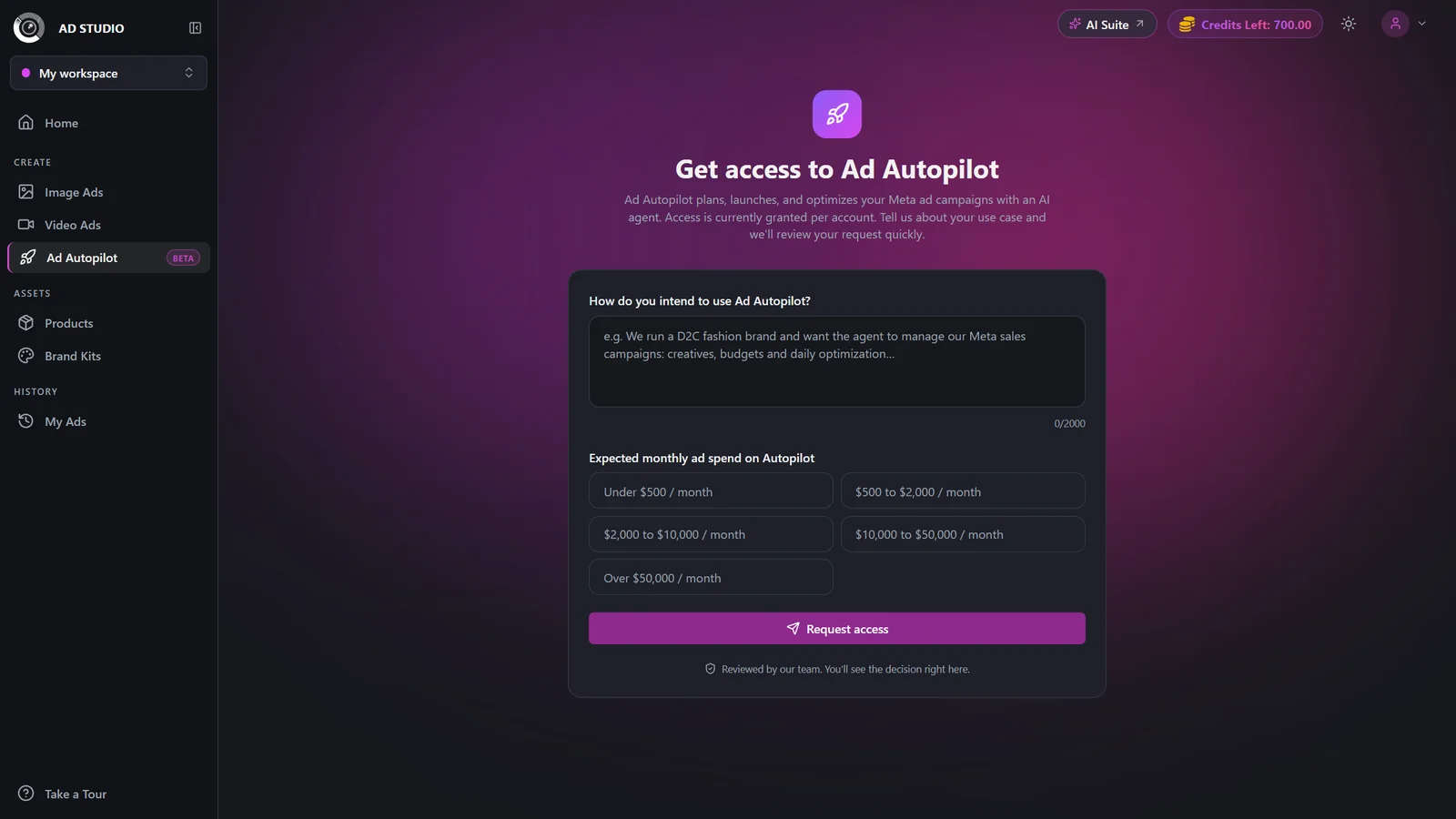
Click Ad Autopilot in the Ad Studio sidebar, or open any Autopilot page. If you are not yet approved, you see the access request screen instead of the feature.
- 2
Describe how you intend to use Autopilot
In How do you intend to use Ad Autopilot? write about your business and what you want the agent to manage. You need at least about 20 characters, and you can write up to 2000.
- 3
Pick your expected monthly ad spend
Choose the band that matches your budget from the preset options. This is required and helps our team review your request.
- 4
Submit the request
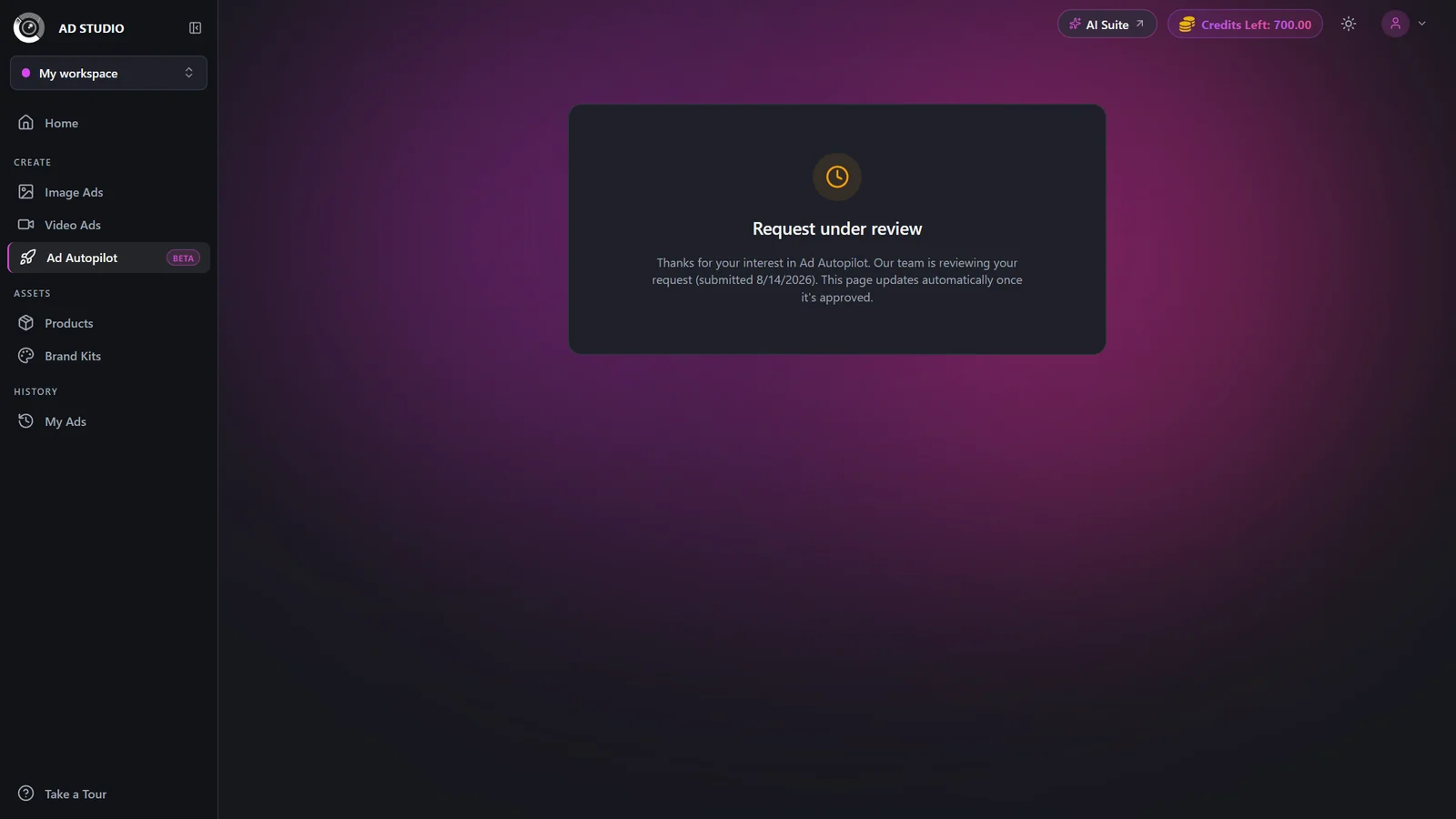
Click Request access. The page switches to a Request under review state while our team looks at your details.
- 5
Wait for approval
Leave the pending page open. It refreshes itself and unlocks automatically once you are approved, usually within about 30 seconds of the decision, so you do not need to hard-refresh.
- 6
If a request was declined
You see the reviewer's note explaining why. Update your answers based on that note and submit again to re-apply. Once approved, head to Connect your Meta account.
Settings & options
| Setting | Options | What it does |
|---|---|---|
| How do you intend to use Ad Autopilot? | Free text, at least about 20 characters, up to 2000 | Describe your business and what you want the agent to plan, launch, and manage. A specific, concrete answer speeds up review. |
| Expected monthly ad spend on Autopilot | Preset spend bands | Required. Pick the band that best matches the budget you plan to run through Autopilot. Our team uses it during review. |
Best practices
Be specific about your business type and what you want the agent to manage. Concrete detail speeds up the review.
Pick an accurate spend band. It informs the review rather than committing you to a budget.
Leave the pending page open. It auto-updates when you are approved, so there is no need to keep refreshing.
If you were declined, read the reviewer's note carefully before you edit and re-apply.
Troubleshooting
This is a transient load error on the first check. Refresh the page and it should clear.
Read the reviewer's note shown on the form, update your intended-use details, and submit again.
The status updates automatically, usually within about 30 seconds. If it still has not changed, refresh the page once.