Remove Background
Cut the background out of any image to get a clean, isolated subject you can drop into new scenes.
Remove Background isolates the subject of an image and strips away everything behind it, leaving a clean cutout. It is the fastest way to get a product ready for a new backdrop, a marketplace listing, or an ad layout. Upload one image, run it, and download the result.
At a glance
- You provide
- A single image
- You get
- The same image with the background removed
- Best for
- Isolating a product or subject from its background
- Cost
- 0.5 credits per image
How it works
- 1
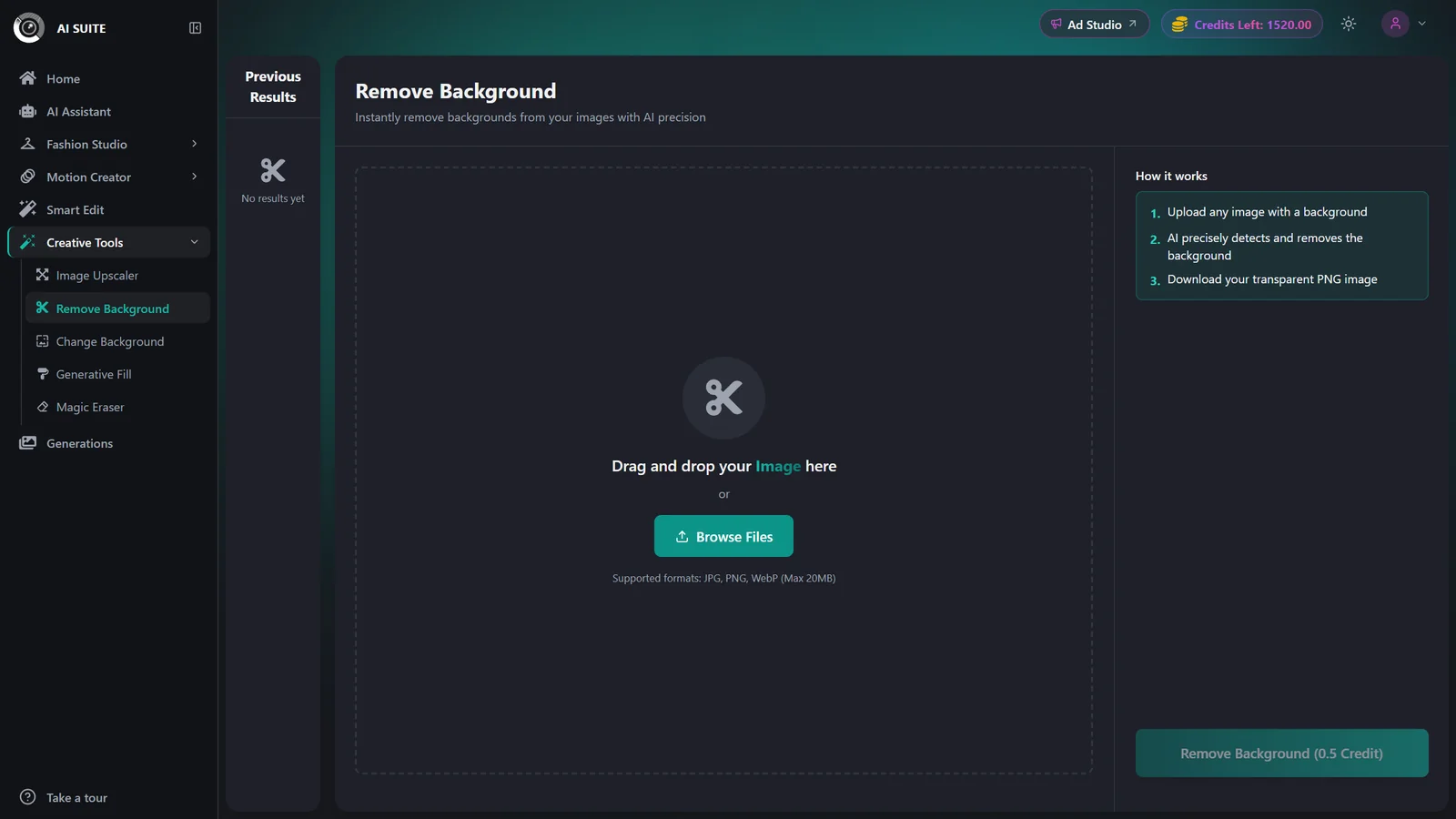
Open Remove Background
Go to the AI Suite and open the Remove Background tool.
- 2
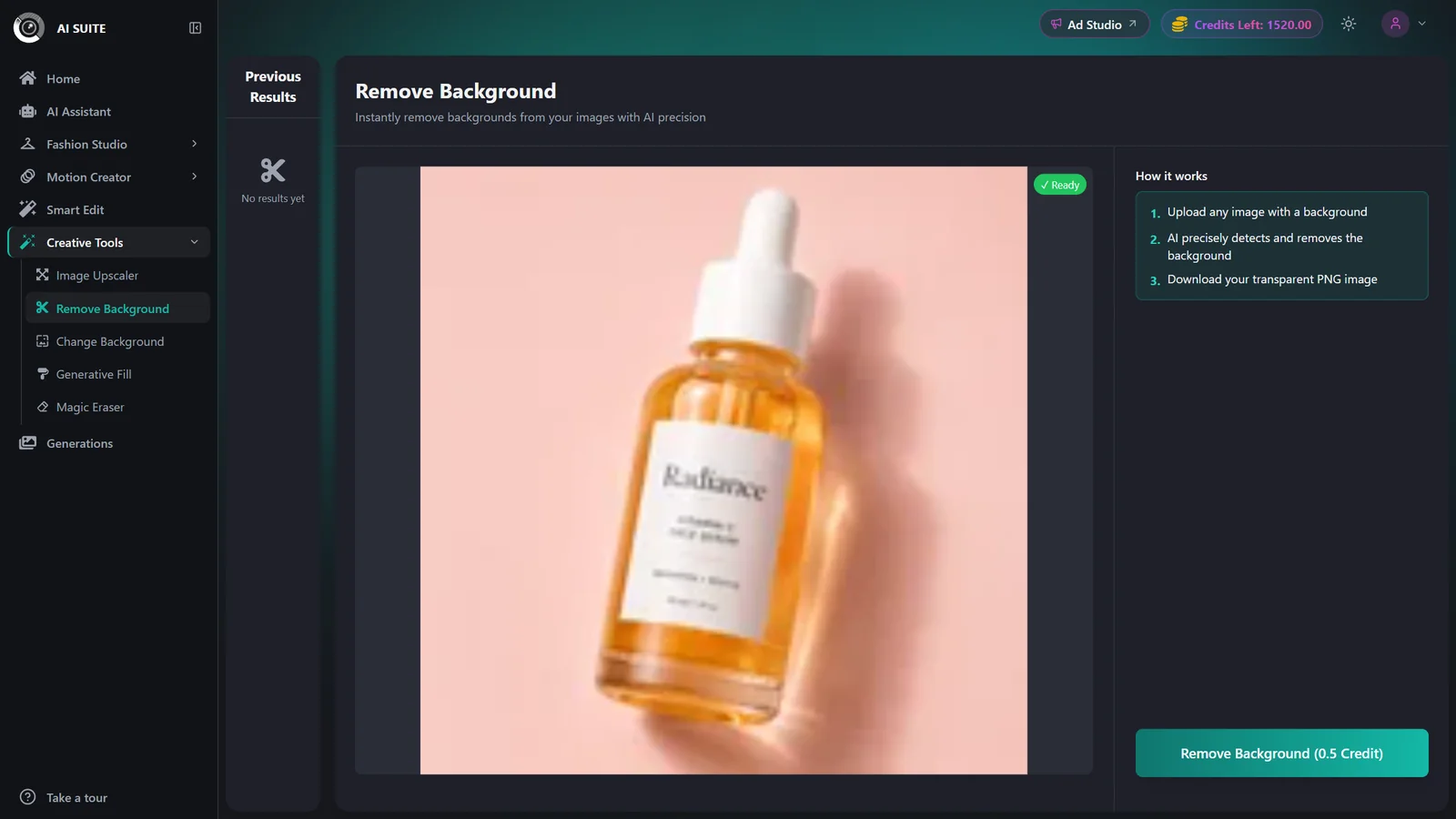
Upload your image
Drag and drop or Browse Files to add the image you want to cut out. Use a clear, well-lit photo where the subject stands out from the background.
- 3
Run
Click Generate to remove the background. The button shows the exact credit cost before you spend anything.
- 4
Download the cutout
Download the finished image with its background removed. It is also saved to your Generations history.
Remove Background costs 0.5 credits per image. The Generate button always shows the live cost first.
Best practices
Use a clear, well-lit image where the subject has good contrast against the background.
Avoid busy or low-contrast backgrounds, which make edges harder to separate cleanly.
Pair the cutout with Change Background to drop your subject into a fresh scene.
Troubleshooting
The image is still uploading. Wait for the upload to finish, then run it again.
Start from a higher-resolution image with a clear, high-contrast background and re-run.
Watermark-free exports are a paid-plan benefit. See Plans & pricing to upgrade.