Account settings
View and edit your profile, check the email you sign in with, and delete your account if you ever need to.
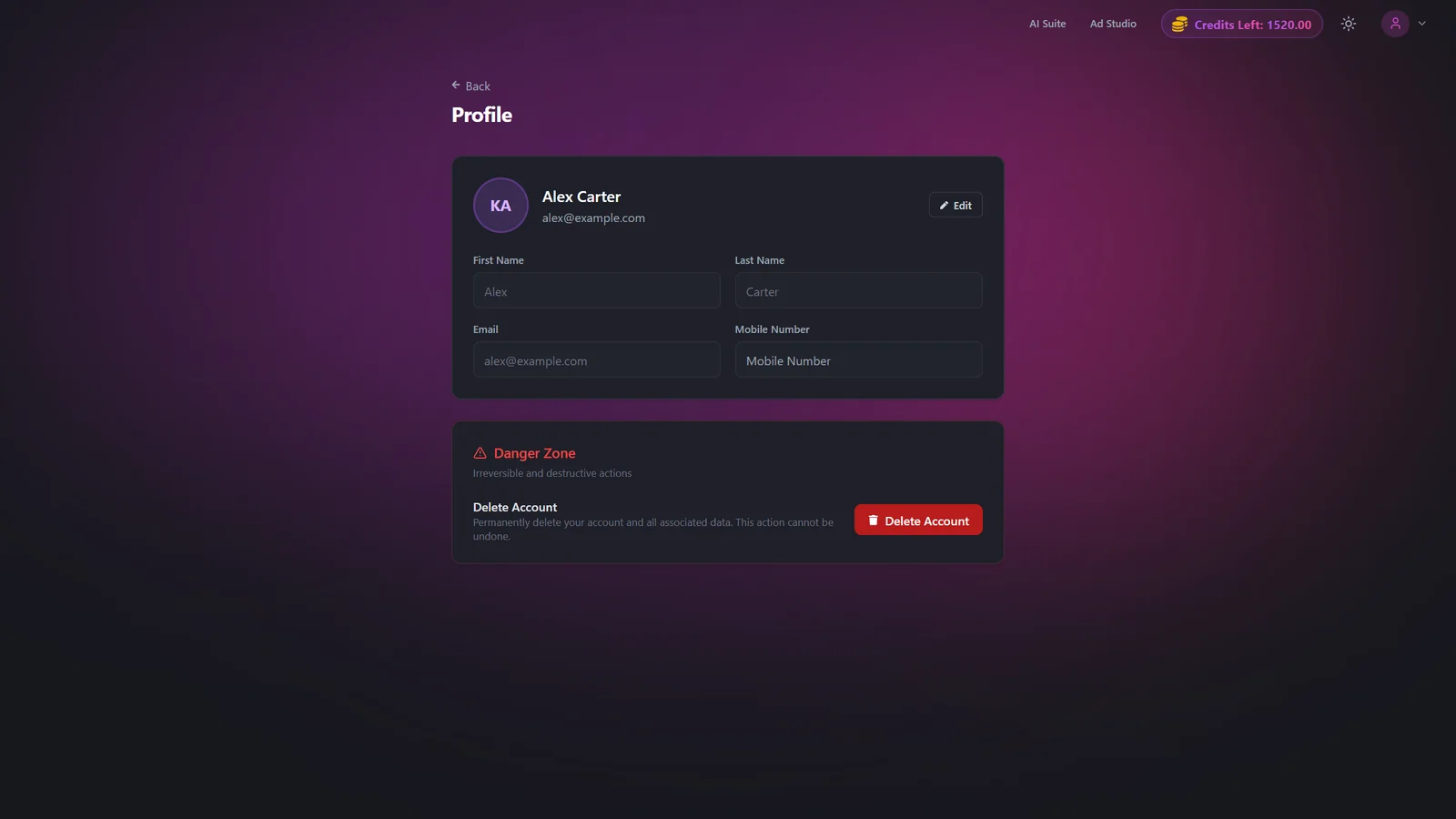
Your Profile page is where you manage your account. Update your display name, see which email and mobile number are on file, and, if you decide to leave, permanently delete your account and data. Open it any time from the account menu at /profile.
At a glance
- Where
- Profile page at /profile
- You can edit
- First Name, Last Name
- Read-only
- Email and Mobile Number
- Sign-in identity
- Your email address
- Danger Zone
- Permanent account deletion
- Cost
- Free for all signed-in users
Edit your profile
- 1
- 2
Click Edit
Update your First Name and Last Name, then click Save Changes to apply.
- 3
Note the read-only fields
Your Email and Mobile Number are shown but cannot be changed here. Your email is your sign-in identity. See Signing in for how login works.
Settings & options
| Setting | Options | What it does |
|---|---|---|
| Editable fields | First Name, Last Name | Letters only, up to 20 characters each. |
| Read-only fields | Email, Mobile Number | These are fixed to your account identity and cannot be edited from Profile. Your email is how you sign in. |
| Delete confirmation | Type DELETE | In the Danger Zone, the Delete button stays disabled until you type DELETE in all caps exactly. |
Delete your account
Deleting your account permanently removes all of your data, including:
- Every generated image and video
- Saved models and custom presets
- All Ad Studio products, brand kits, and ads
- Account settings and preferences
- All credits (both subscription and purchased)
Download anything you want to keep before you delete.
- 1
Cancel any active plan first
Deletion is blocked while a paid subscription is active. If you have one, cancel it first. Profile links you straight to the cancel page.
- 2
Open the Danger Zone
Scroll to the Danger Zone section on your Profile and click Delete Account.
- 3
Confirm by typing DELETE
Type DELETE in all caps in the confirmation field, then confirm. Your account and all associated data are removed and you are redirected to the home page.
Best practices
Download anything you want to keep before deleting. Deletion is irreversible.
If deletion is blocked, cancel your subscription first, then return to the Danger Zone.
Keep your name accurate, since it appears across the app and on your outputs.
Remember your email is your sign-in identity. Sign in with the same email every time.
Troubleshooting
You have an active subscription. Cancel it first, then return to the Danger Zone to delete. See Plans & pricing.
Type DELETE in all caps exactly in the confirmation field.
These are fixed to your account identity and aren't editable from Profile. Your email is your sign-in identity.
Names accept letters only and are capped at 20 characters each. Remove numbers or symbols and try again.