Campaigns
Your fleet view of every Meta campaign, plus the full management page for activating, pausing, and steering each one.
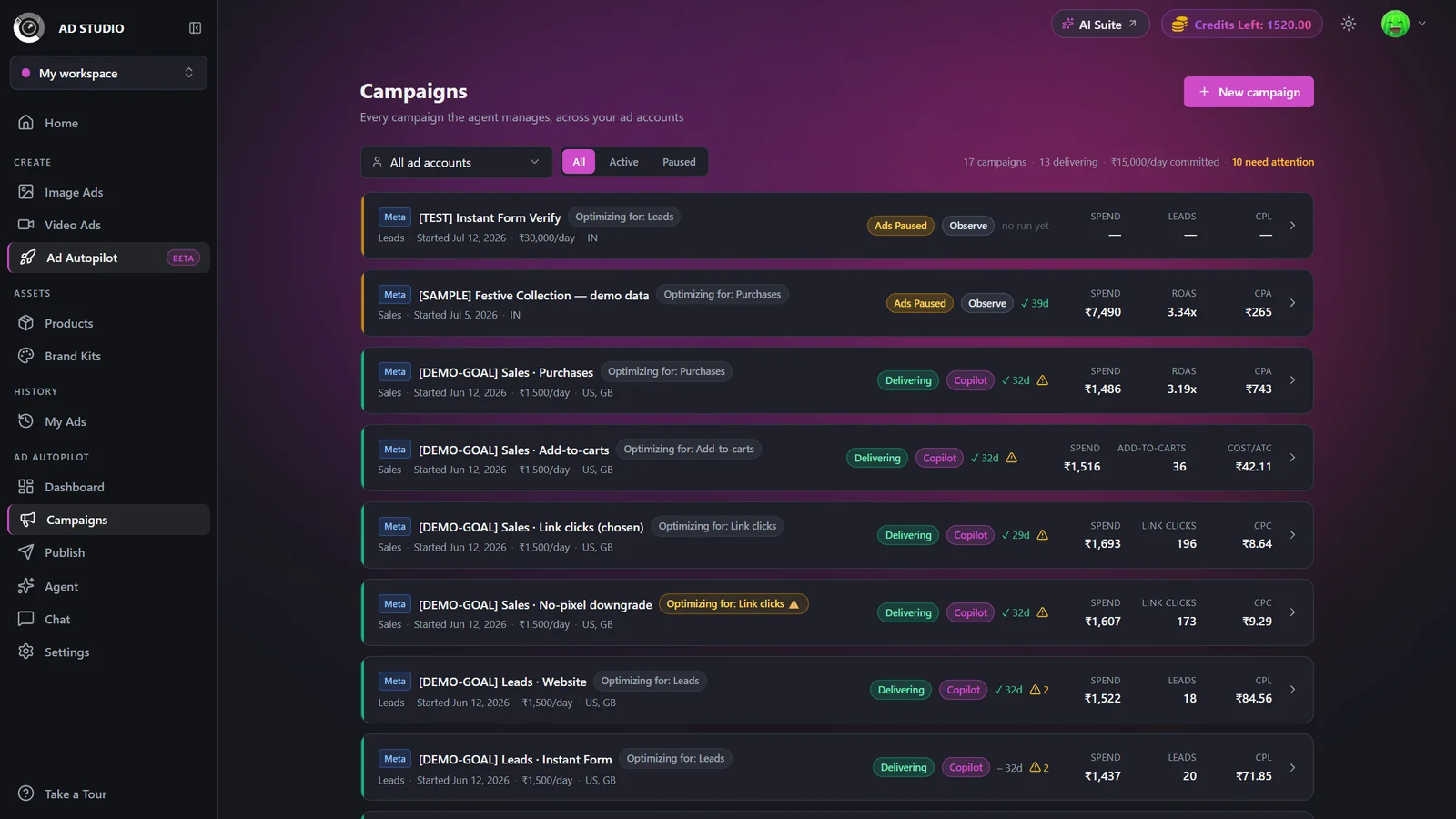
Campaigns is your home base in Ad Autopilot. The list gives you one row-card per campaign across all your connected ad accounts so you can see at a glance which campaign is delivering, which is paused, and which needs you. Click any card to open its detail page, where you activate or pause delivery, set how the agent operates, refresh metrics, and dig into creatives, ad sets, and (for Instant Form campaigns) leads.
At a glance
- Where
- Ad Studio sidebar, Ad Autopilot section (BETA)
- You see
- A prioritized list of every campaign, plus a full detail page per campaign
- Best for
- Triaging which campaign needs you and steering each one
- Platform
- Meta (Facebook and Instagram)
- Cost to view
- Free
- Cost to manage
- 80 credits per 30 days per campaign
Each card has a colored left rail: green means delivering, amber means paused, red means it needs you. Pair that with the needs attention count in the fleet summary to plan your day.
The campaigns list (fleet view)
The list is where you start. It shows one row-card per campaign across all your ad accounts, so it is the fastest way to answer "which campaign needs me and is the fleet healthy?". Use the filters to focus on one ad account or only Active or Paused campaigns.
- 1
Open Campaigns
Open Campaigns from the Ad Autopilot section of the sidebar.
- 2
Read the fleet summary
The summary line reports the totals: how many campaigns you have, how many are delivering, the daily budget committed, and how many need attention.
- 3
Filter to focus
Filter by ad account and by All / Active / Paused to narrow the list down to what you want to act on.
- 4
Scan the left rails
Read the colored left rail on each card to triage: green is delivering, amber is paused, red needs you. Retargeting and Lab (incubator) campaigns are badged so you read their numbers in the right context.
- 5
Open a campaign
Click any card to open its detail page and manage it. The New campaign button starts another launch in the publish wizard.
Each row-card carries a goal-aware stat trio so the numbers match the campaign's objective (for example Spend, ROAS, and CPA for a sales campaign, or Reach and CPM for awareness), along with the campaign status, the agent mode, a last-run indicator, and any alert or approval badges.
The campaign detail page
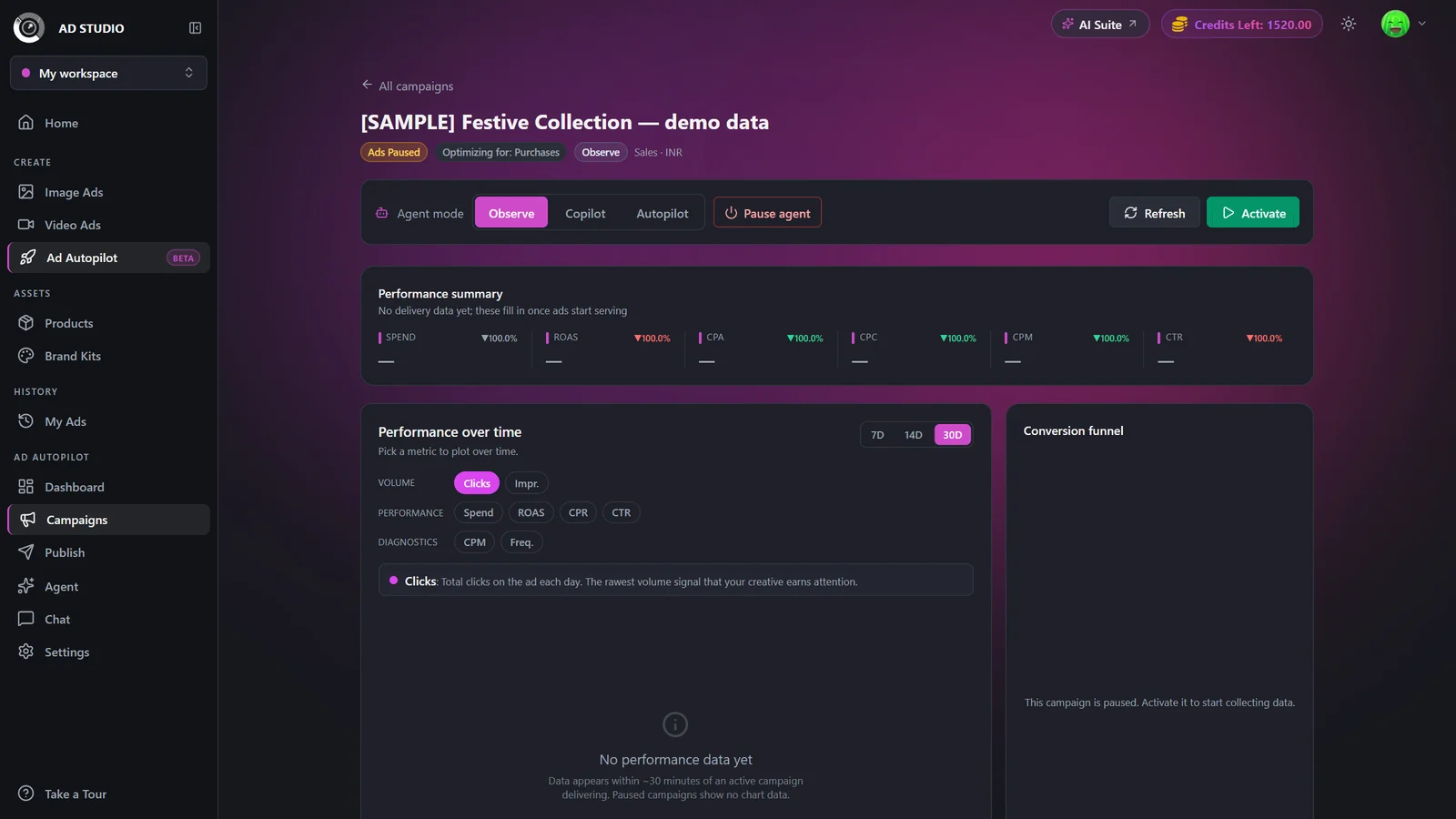
The detail page is the full management view for one campaign. Come here to activate a freshly published campaign, change how the agent operates, refresh the numbers, or dig into creatives and per-market performance.
- 1
Open a campaign from the list
Click a card on the Campaigns list to open its detail page.
- 2
Use the action hub
Switch Agent mode (Observe, Co-pilot, or Autopilot), use Pause agent as a kill switch, Refresh metrics, and Activate or Pause delivery. New campaigns start paused; Activate begins spending your daily budget.
- 3
Review performance
Read the KPI strip, the trends chart, the goal-aware funnel, and the live Meta breakdowns by region, demographics, platforms, and devices.
- 4
Explore creatives and ad sets
Scroll to the Creative map, the per-market Ad sets table, and the Creatives gallery. Winners are shown first with a Winner badge and the caption exactly as it runs on Meta.
- 5
Work leads inline (Instant Forms)
If it is an Instant Form campaign, its Leads inbox appears inline on the page so you can work new leads without leaving.
A brand-new PAUSED campaign is already being planned and monitored by the agent before you ever click Activate. Activating only starts Meta delivery and spend.
Detail page controls
| Setting | Options | What it does |
|---|---|---|
| Agent mode | Observe / Co-pilot / Autopilot | Sets how much the agent can do on its own. See the Agent Console guide for what each mode allows. |
| Pause agent (kill switch) | Pause / Resume | Stops all agent activity for this campaign. Your ads keep delivering on Meta; only the agent is paused. |
| Activate / Pause delivery | Start or stop Meta delivery and spend | New campaigns start paused. Activate begins spending your daily budget; Pause stops delivery. |
| Refresh | Pull the latest Meta numbers now | Metrics also auto-refresh every 15 to 60 minutes. The manual button works about once an hour. |
| Ad-set / market filter | All ad sets or a specific market | For multi-market campaigns, this filters the Creatives grid to one market. |
Viewing the list and the detail page, and activating or pausing, are all free. Management is the paid part: 80 credits per 30 days per campaign. If a monthly renewal cannot be charged, agent management pauses until you top up and click Resume management (80 credits), which charges the overdue fee.
Best practices
Trust the left-rail color and the needs attention count to triage your day, then open the red cards first.
Read the badges: retargeting and Lab (incubator) campaigns show numbers differently, so the badge tells you how to interpret them.
For retargeting campaigns, read the honesty banner. Attributed ROAS over-credits warm buyers by roughly 3 to 5 times, so treat it as a ceiling.
Remember a new PAUSED campaign is already being planned and monitored, so you can review the plan before you Activate.
Set the right Agent mode per campaign so the agent does exactly as much as you are comfortable with.
Troubleshooting
The strategist is still building the plan. It unlocks automatically in a couple of minutes.
The ad account is disconnected. Reconnect it in Settings to resume management; all your data is preserved.
It was deleted directly in Meta Ads Manager. The agent stopped and billing ended automatically. The notice clears after 14 days.
Top up your credits, then click Resume management (80 credits) to clear the overdue fee.
Decide the localization card in the Agent Console. Empty market ad sets stay paused until you do.