Generations & history
Your saved library of every image and video you have created across the AI Suite, with a Workflows tab for batch runs.
Generations is your personal library. Everything you make with any AI Suite tool, or through the AI Assistant, lands here so you can find it, preview it, re-download it, and manage it later. It is read-only: your outputs are already saved, so you never lose a result you liked.
At a glance
- What it is
- A saved library of your own generations
- Tabs
- Images, Videos, Workflows
- Tools covered
- Every AI Suite tool plus the AI Assistant
- You get
- Downloadable images (JPG) and videos (MP4)
- Page size
- 40 images per page, 20 videos per page
- Cost
- Free to browse, preview, and download
Browsing, previewing, and downloading your own generations does not use credits. Credits were already spent when each item was created, so revisiting them later is always free.
What lands here
Your library collects outputs from across the AI Suite: Virtual Try-On, Product Photography, Model Swap, Pose Generator, Smart Edit, Image Upscaler, Remove/Change Background, Generative Fill, Magic Eraser, Image to Video, and Avatar Video. Still images appear on the Images tab; Image to Video and Avatar Video appear on the Videos tab; batch runs from the AI Assistant appear on the Workflows tab.
How it works
- 1
Open your library
Open the AI Assistant menu and click Generations, or go to
/ai-suite/generationsdirectly.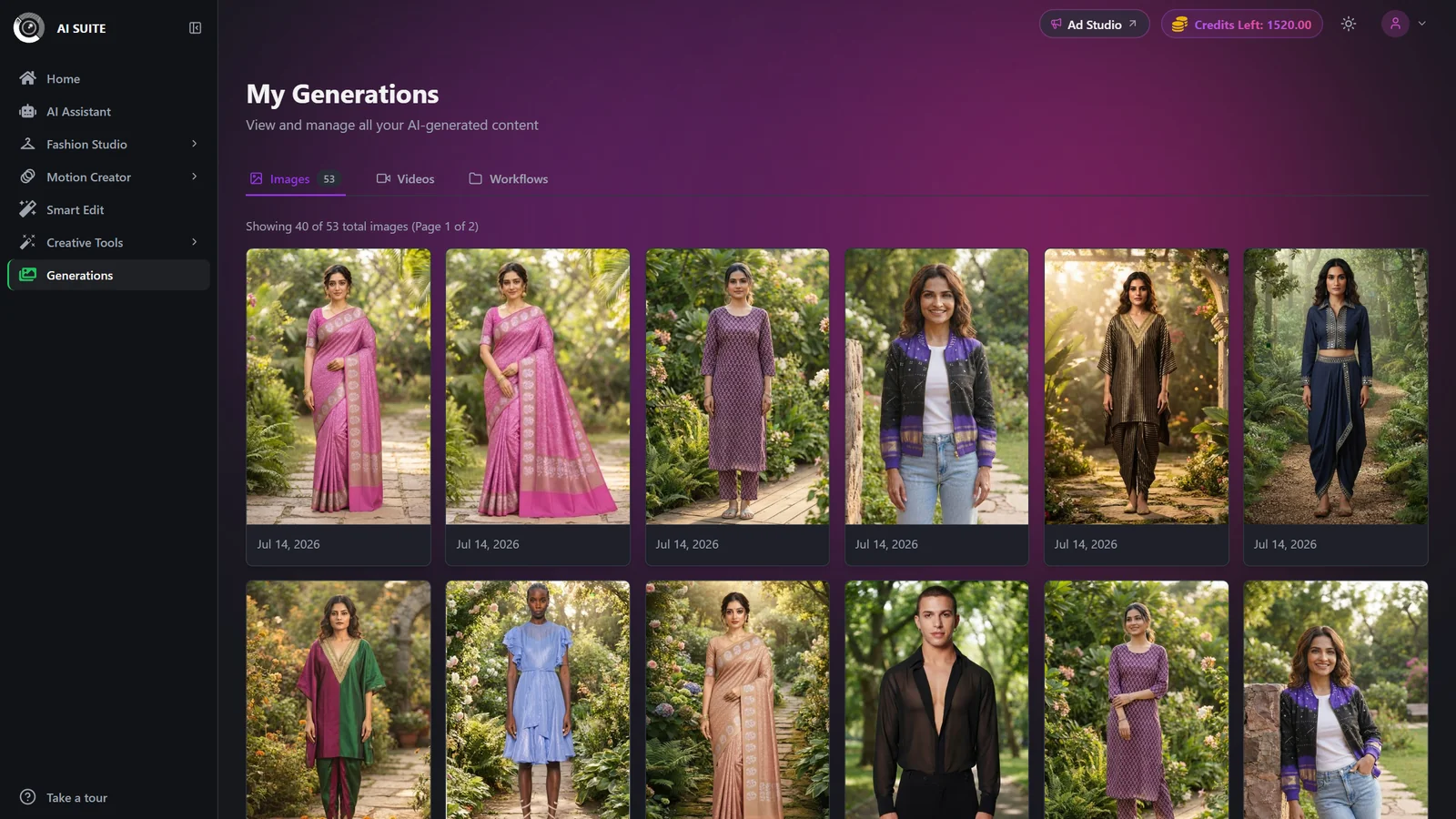
- 2
Pick a tab
Choose Images, Videos, or Workflows. A count badge on each tab shows your totals. Images = all still-image tools, Videos = Image to Video and Avatar Video, Workflows = batch runs from the AI Assistant.
- 3
Preview or download
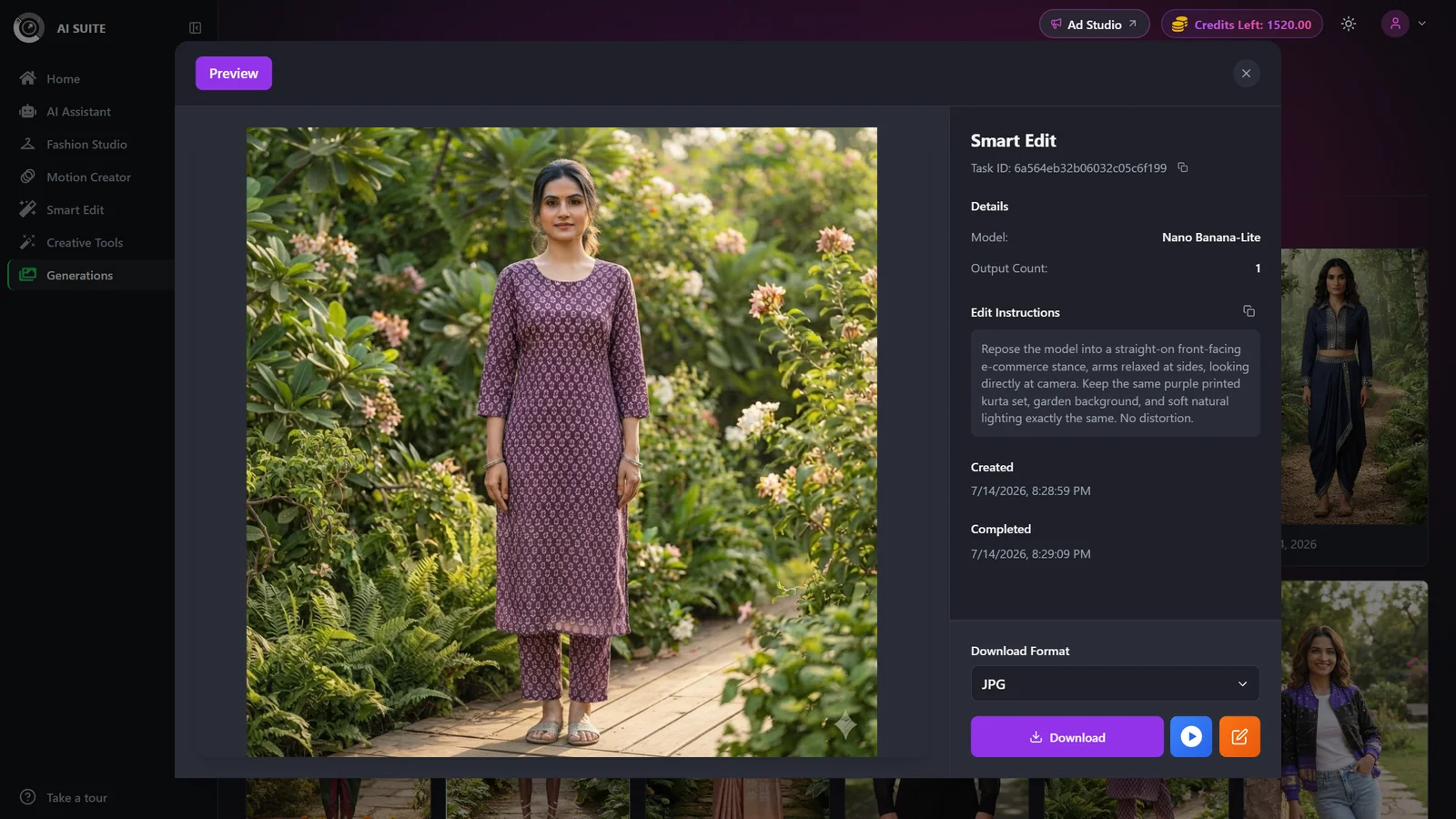
Hover a card and click the download icon for a quick grab, or click the card to open the full preview. The preview shows the tool, model label, prompt, settings, and date.
- 4
Browse older items
Use Previous and Next to page through your history: 40 images or 20 videos per page.
Tabs & options
| Setting | Options | What it does |
|---|---|---|
| Tab | Images · Videos · Workflows | Switches the grid. Images is every still-image tool, Videos is Image to Video and Avatar Video, and Workflows is batch runs from the AI Assistant. |
| Page | Numbered pagination (Previous / Next) | 40 images or 20 videos per page. A count badge on each tab shows your totals. |
| Download format | JPG by default; videos download as MP4 | Remove Background outputs also offer a background choice inside the preview before you download. |
Best practices
Use the Workflows tab to keep batch runs grouped by run instead of scrolling one giant image grid.
Download the exact variation you want from the preview: it carries the full settings, so you can reproduce it later.
Check the Videos tab processing banner before assuming a video failed. Video jobs are slower than images.
To organize, lean on the Workflows folders and downloads. There is no favorite or like action.
Troubleshooting
Give it a moment and refresh. Completed items appear once processing finishes. The Videos tab shows an in-progress banner while videos render, since videos take longer.
The source may still be loading, so reload the page. If it persists, the asset failed to render: open the item's preview or regenerate it.
You arrived with a workflow filter (a ?workflow_id link from a chat run), so only that batch's images show. Remove the filter, or open Generations from the sidebar, to see everything.
Favoriting is not available. Use the Workflows folders and downloads to organize instead.
What to do next
Found the result you want? Take it further: