Model Swap
Swap the person in an on-model photo for a new AI model while keeping the same outfit.
Model Swap takes a photo that already has a person wearing your product and replaces that person with a fresh AI-generated model, keeping the outfit intact. Upload the modeled image, describe the model you want, and generate. It is the fastest way to show the same look on a different face, ethnicity, or vibe without a new shoot.
At a glance
- You provide
- An on-model photo and a prompt (or a face reference)
- You get
- A new modeled image with the person swapped, outfit kept
- Best for
- Showing one outfit on a different-looking model
- Image formats
- JPG, PNG, WebP · up to 10 MB each
- Modes
- Fast, Balanced, Quality
- Resolutions
- 1K, 2K, 4K
- Cost
- 1 to 3 credits by mode and resolution, plus 2 for Face Reference
How it works
- 1
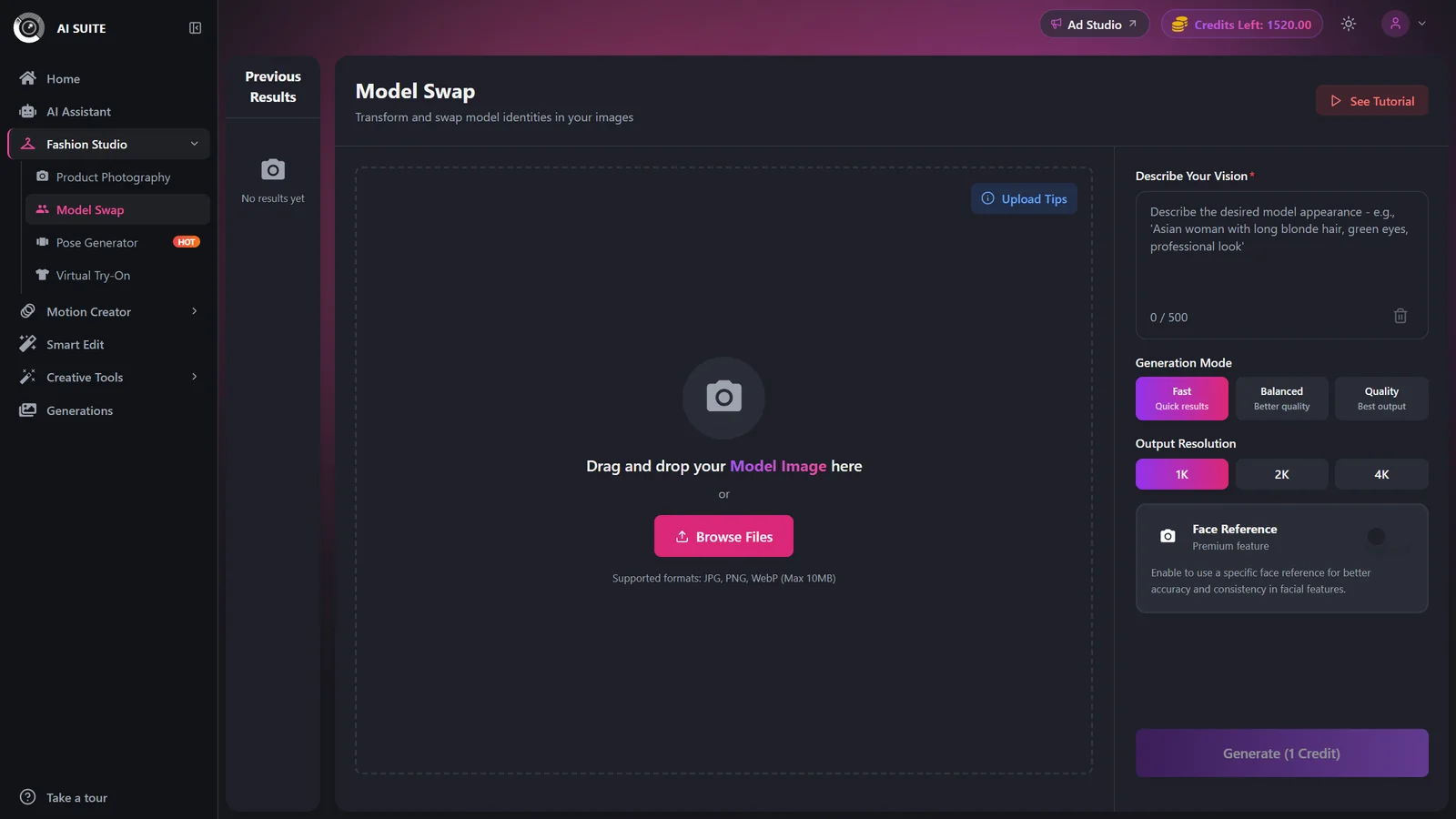
Upload the modeled image
Drag and drop or Browse Files to add the photo that already shows a person wearing your product. Start from a clean, well-lit shot for the most predictable swap.
- 2
Describe the new model
Write a prompt for the model you want: age range, look, and setting. The prompt is required unless you turn on Face Reference. Being specific gives you a more predictable result.
- 3
Choose mode and resolution
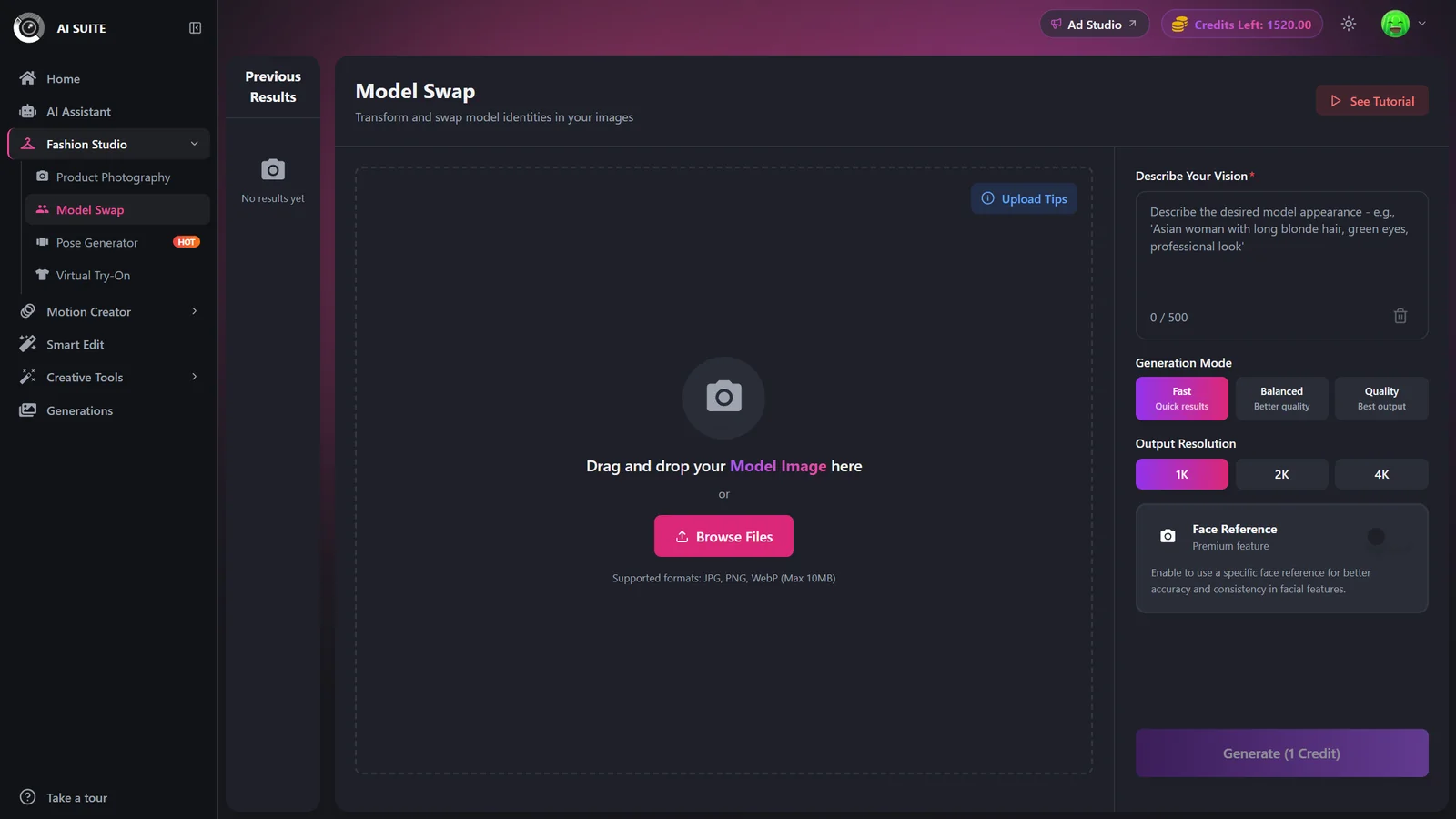
Pick a Generation Mode (Fast, Balanced, or Quality) and an Output Resolution (1K, 2K, or 4K). Fast at 1K is the cheapest preview; higher tiers cost more credits.
- 4
Add a Face Reference (optional)
Turn on Face Reference and upload a face photo to steer the swapped model's face. This keeps a consistent recurring face across shots and adds +2 credits. When it is on, the prompt becomes optional.
- 5
Generate
The Generate button shows the exact credit cost first. Click it and you are taken to the results page while your image renders. Finished images are saved to Previous Results and your Generations history, and are downloadable.
Settings & options
| Setting | Options | What it does |
|---|---|---|
| Prompt | Free text describing the desired model | Required unless Face Reference is on. Keep it under about 500 characters. |
| Generation Mode | Fast · Balanced · QualityDefault: Fast | Fast is quickest and cheapest; Balanced adds quality; Quality is the best output. Balanced and Quality are paid-only for free users. |
| Output Resolution | 1K · 2K · 4KDefault: 1K | Higher resolution costs more credits. 2K and 4K are paid-only for free users. |
| Face Reference | Off · On (plus a face photo)Default: Off | Paid-only feature that steers the swapped model's face from your uploaded photo. Adds +2 credits and makes the prompt optional. |
Cost is set by mode and resolution, and the Generate button always shows the live amount before you spend anything:
- Fast: 1K costs 1, 2K costs 1.5, 4K costs 2
- Balanced: 1K costs 1.5, 2K costs 2, 4K costs 2.5
- Quality: 1K costs 2, 2K costs 2.5, 4K costs 3
Face Reference adds +2 credits on top. Staying at Fast and 1K is the cheapest way to preview the composition.
Free vs paid
Free accounts are limited to Fast mode at 1K resolution.
Balanced and Quality modes need a paid plan or purchased credits.
2K and 4K resolution need a paid plan or purchased credits.
Face Reference is a paid-only feature.
Watermark-free exports are a paid-plan benefit. See Plans & pricing.
Best practices
Start from a clean, well-lit modeled photo so the outfit stays sharp through the swap.
Be specific in the prompt (age range, look, setting) for a predictable model.
Use Fast at 1K to lock the composition before spending on Quality or 4K.
Turn on Face Reference only when a specific, consistent face matters, since it adds +2 credits.
Troubleshooting
Balanced and Quality, plus 2K and 4K, need a paid plan or purchased credits. See Plans & pricing.
Enter a prompt, or enable Face Reference so the prompt becomes optional.
It is a paid feature. Upgrade or buy credits to enable it.
A face reference adds +2 credits on top of the base mode and resolution cost.
What to do next
Happy with the swapped shot? Take it further: