Manage subscription
View your plan, renewal date, credit balance, payment method, and invoices, and make changes from one dashboard.
The Subscription dashboard is where you check your active plan and take action on it. From one page you can see your plan name, price, monthly credits, status, and next renewal, update your payment method, open the billing portal for invoices and tax details, change plans, top up credits, or cancel. Managing your subscription is free and does not cost credits.
At a glance
- Where
- Your account Subscription page
- You can see
- Plan, price, credits per cycle, status, and next renewal
- You can do
- Update payment, change plan, buy credits, cancel
- Billing cycle
- Monthly or yearly, shown on the plan card
- Cost
- Free, no credits used to manage your subscription
- If you have no plan
- The page shows No Active Subscription with links to plans
If you do not have an active, halted, or pending-cancellation subscription, the page shows No Active Subscription with buttons to View Plans or go to Ad Studio. See Plans & pricing to choose a plan.
What you can do
- 1
Review your plan
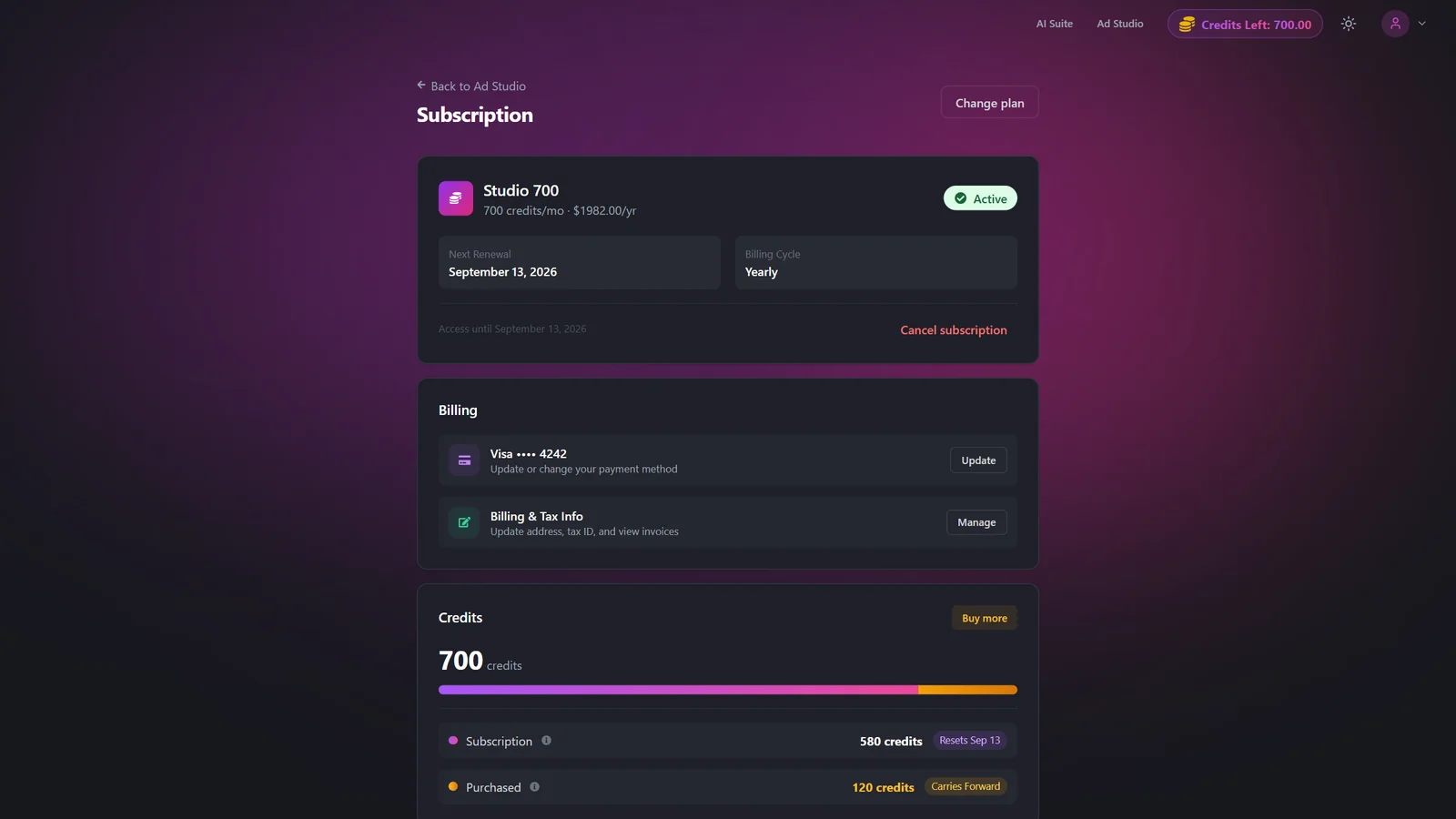
The plan card shows your plan name, credits per cycle, price and billing period, a colored status badge, your next renewal date, and the date your access runs until.
- 2
Change your plan
Use Change plan in the top right to open the plans page and upgrade or downgrade. See Change or upgrade your plan for how upgrades and downgrades take effect.
- 3
Update your payment method
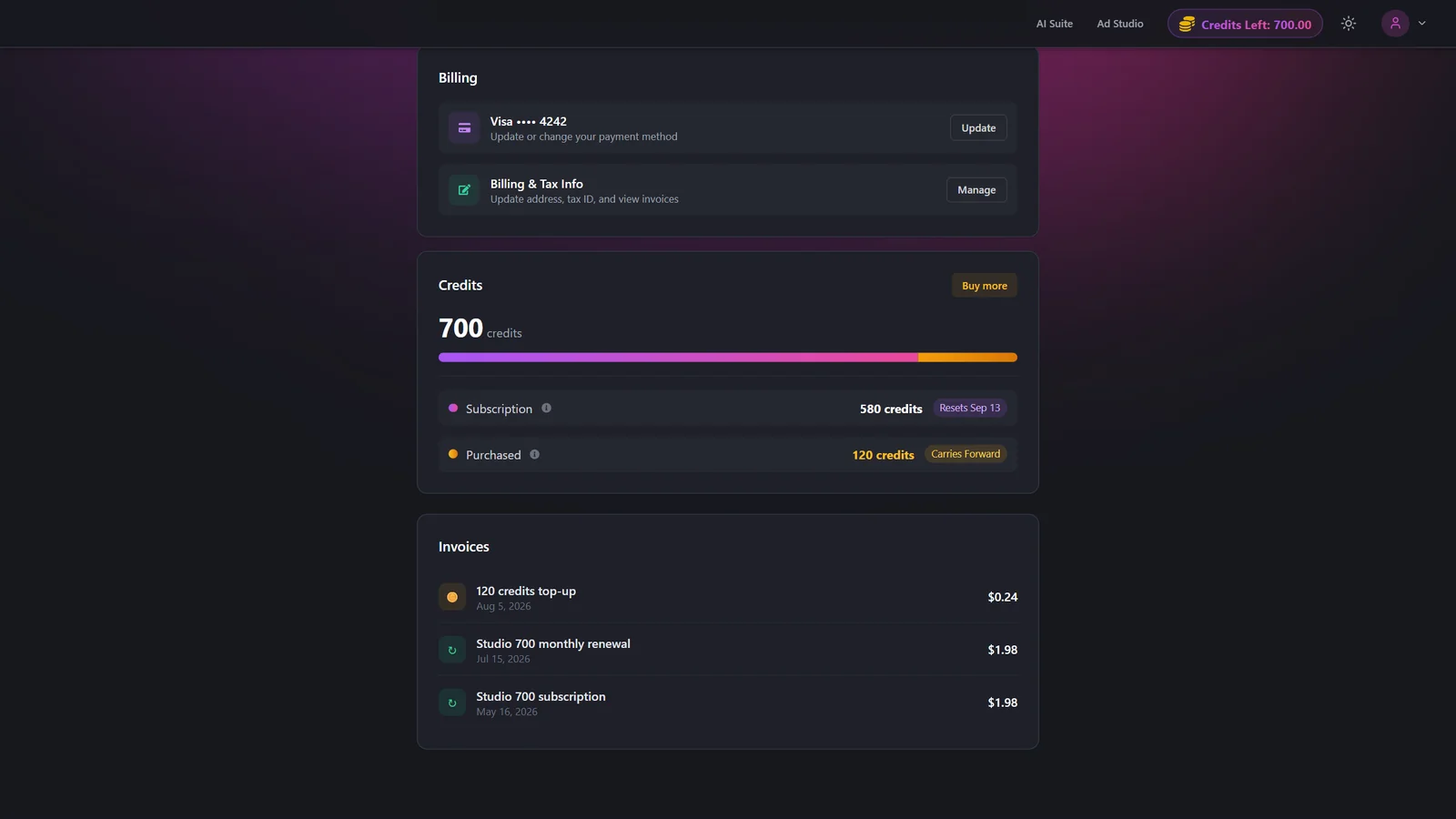
In the Billing card, click Update to change the card or payment details on the secure payment page, which opens in a new tab.
- 4
Open the billing portal
Click Manage next to Billing & Tax Info to open the billing portal, where you can update your address, add a tax ID, and view invoices. See Billing & invoices for details.
- 5
Handle any status alert
If your subscription is Halted or a payment failed, a banner appears at the top with an Update Payment Method link. Resolve it promptly to keep your access.
- 6
Buy more credits or cancel
Use Buy more in the Credits card to top up, or Cancel subscription on the plan card to start the cancellation flow. See Cancel your subscription.
Understanding what you see
| Setting | Options | What it does |
|---|---|---|
| Status | Active, Pending, Authenticated, Halted, Pending Cancellation, Cancelled | Each status shows a colored badge. Halted and Pending trigger a prompt to update your payment method. |
| Next renewal vs access ends | A date | An active plan shows the next renewal date. A cancelled or pending-cancellation plan instead shows the date access ends, along with the number of remaining days. |
| Payment method | Card (network and last 4 digits), UPI, Emandate, or generic | Shows your saved method. Update opens the secure payment page in a new tab. |
| Credits | Subscription credits + purchased credits | The Credits card totals your subscription credits and any purchased credits, and shows when subscription credits reset. Purchased credits carry forward. |
| Next reset or allocation | A date | Monthly plans show the next credit reset on renewal. Yearly plans surface a separate monthly credit allocation date. |
| Scheduled change | Switching to <plan> with an effective date | If you have a pending plan change, the card shows what it is switching to and when. You can undo it inline with Cancel change. |
Your most recent invoices appear at the bottom of the page, with a View all option and filters by type. Each invoice has a View link. You can also reach every invoice from the billing portal via Manage.
Best practices
Fix a Halted or Payment Failed alert quickly by updating your payment method so you do not lose access.
Use the billing portal (Manage) to add a tax ID or download invoices for your records.
Changed your mind about a scheduled downgrade? Use Cancel change before it takes effect.
Top up with Buy more when you are low on credits rather than waiting for the next reset.
Remember purchased credits carry forward, while subscription credits reset each cycle.
Troubleshooting
All payment retries failed. Click Update Payment Method and add a valid card to restore access.
The payment is being retried automatically. You can update the payment method to resolve it sooner.
It opens in a new tab, so allow pop-ups and try again. The button also falls back to fetching a fresh update link.
You have no active, halted, or pending-cancellation plan. Use View Plans to subscribe. See Plans & pricing.