Connect your account
Link your Meta ad account so Ad Autopilot can publish, monitor, and optimize your Facebook and Instagram campaigns.
Ad Autopilot manages your Facebook and Instagram ad campaigns with an AI media-buyer that plans, launches, monitors, and optimizes for you. Before it can do any of that, you connect your Meta ad account once. Connecting is free, takes under a minute, and you can disconnect any time. This is the first step for every new customer.
At a glance
- You provide
- Access to your Meta (Facebook and Instagram) ad account
- You get
- A connected ad account the agent can publish and optimize with
- Best for
- Getting set up before your first campaign, or adding another ad account
- Platforms
- Meta is live now; Google Ads shows Coming soon
- Cost
- Free to connect, and you can disconnect any time
- Where
- Ad Studio, under Ad Autopilot
If your account is already linked, the entry page sends you straight to the dashboard. You do not need to connect again to start a new campaign.
How it works
- 1
Choose your ad platform
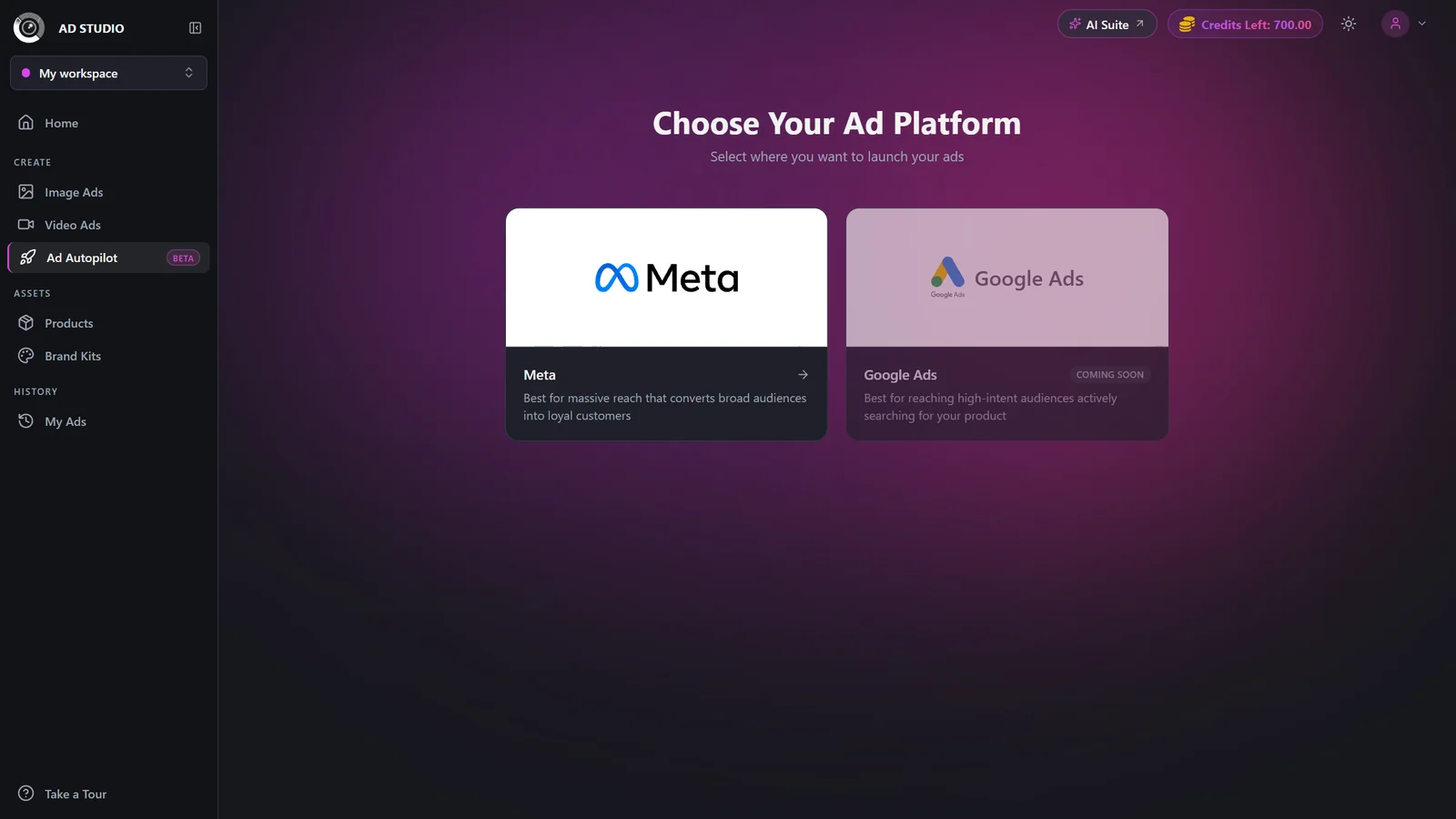
On the Choose Your Ad Platform screen, click the Meta tile. Google Ads is shown as Coming soon and cannot be selected yet.
- 2
Review what access enables
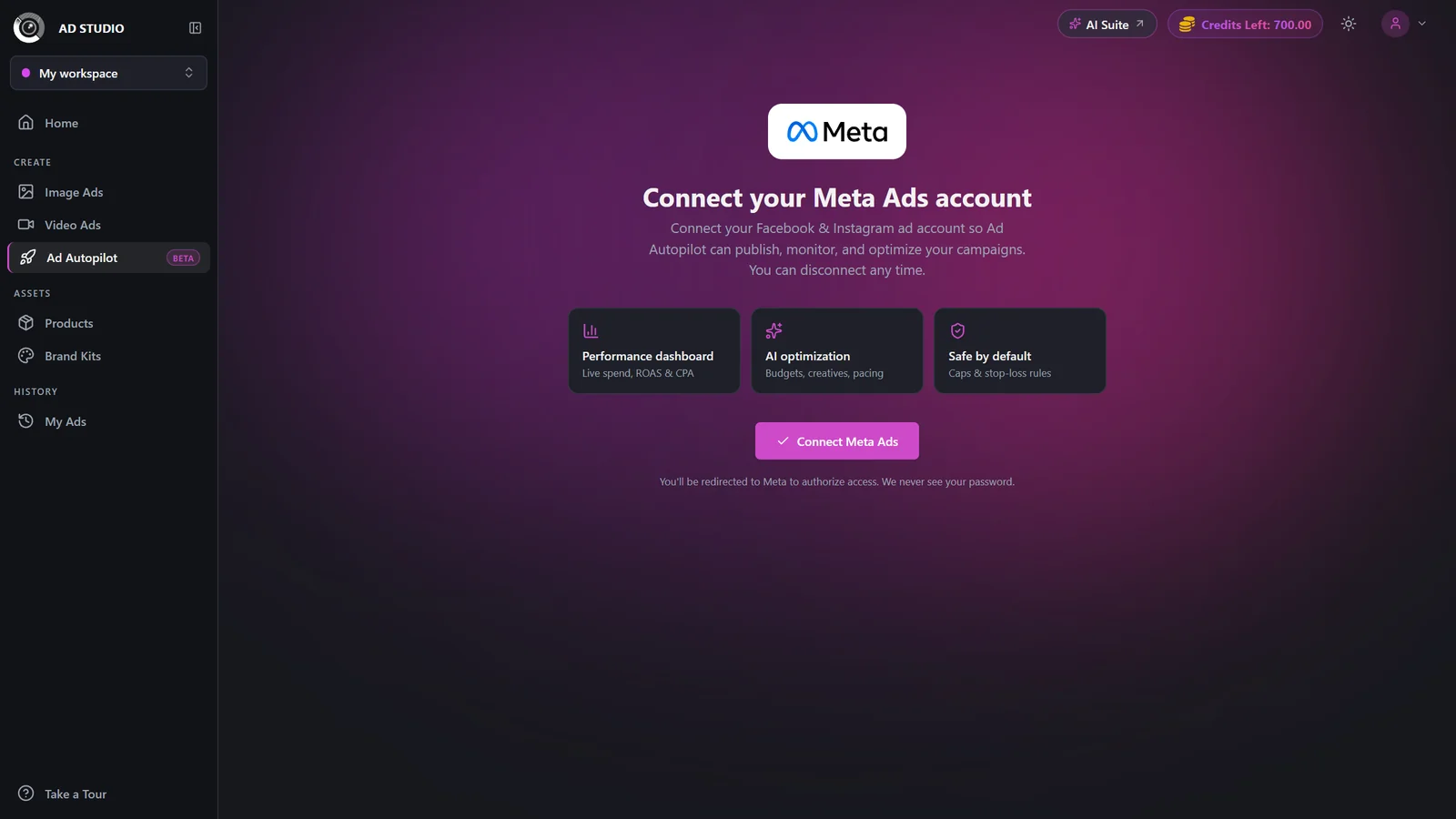
The connect screen explains what linking your account unlocks: the performance dashboard, AI optimization, and safe-by-default spend caps. When you are ready, click Connect Meta Ads.
- 3
Authorize in Meta's login window
Meta's own login window opens. Sign in and grant access there. We never see your password. Approve access to the ad account and the Facebook Page you plan to advertise from.
- 4
Return to Ad Autopilot
You are brought back with a Meta account connected confirmation. If you started from New campaign, you go straight to the publish wizard; otherwise you land on the dashboard.
One or more connected Meta ad accounts, each showing its currency and status, available across all your workspaces.
Settings & options
| Setting | Options | What it does |
|---|---|---|
| Ad platform | Meta (active); Google Ads (Coming soon) | Only Meta is live for autopilot management today. Google Ads is not yet selectable. |
Best practices
Connect with a login that has access to both the ad account and the Facebook Page you will advertise from.
You can manage, refresh, or re-authenticate a connection later in Settings without fully disconnecting.
Add a separate connection for each ad account you manage; every connected account is available across your workspaces.
Troubleshooting
This means you declined access or Meta returned an error. Click Connect again and complete the authorization in Meta's login window.
The connection was not granted access to the Page that runs your ads. Reconnect and grant Page access from Settings under Connections.