Guardrails & controls
Set account-wide defaults for the autopilot agent, keep a kill switch handy, and manage your connected ad accounts.
Settings is where you decide how much freedom the autopilot agent has before any campaign launches. Set your default autonomy, quiet hours, and the changes the agent must always ask about, keep a one-click kill switch for when you want to freeze automation, and manage which ad accounts and conversion pixels the agent works with. Open it from the Ad Autopilot section under Ad Studio at /ad-studio/autopilot/settings.
At a glance
- What it controls
- Default guardrails, the kill switch, and connected accounts
- Scope
- Defaults apply to new campaigns; each campaign can still be tuned after launch
- Autonomy modes
- Observe, Co-pilot, Autopilot
- Kill switch
- Freeze automation per campaign or account-wide (ads keep delivering)
- Cost
- Free to configure
Everything you set here seeds new campaigns. To change a campaign that is already live, tune it individually from its campaign page or from the agent chat.
Set your default guardrails
The Default guardrails panel is the starting rulebook every new campaign inherits. Set it once and each launch begins with sensible limits already in place.
- 1
Open Default guardrails
Go to Settings > Default guardrails.
- 2
Choose the default autonomy mode
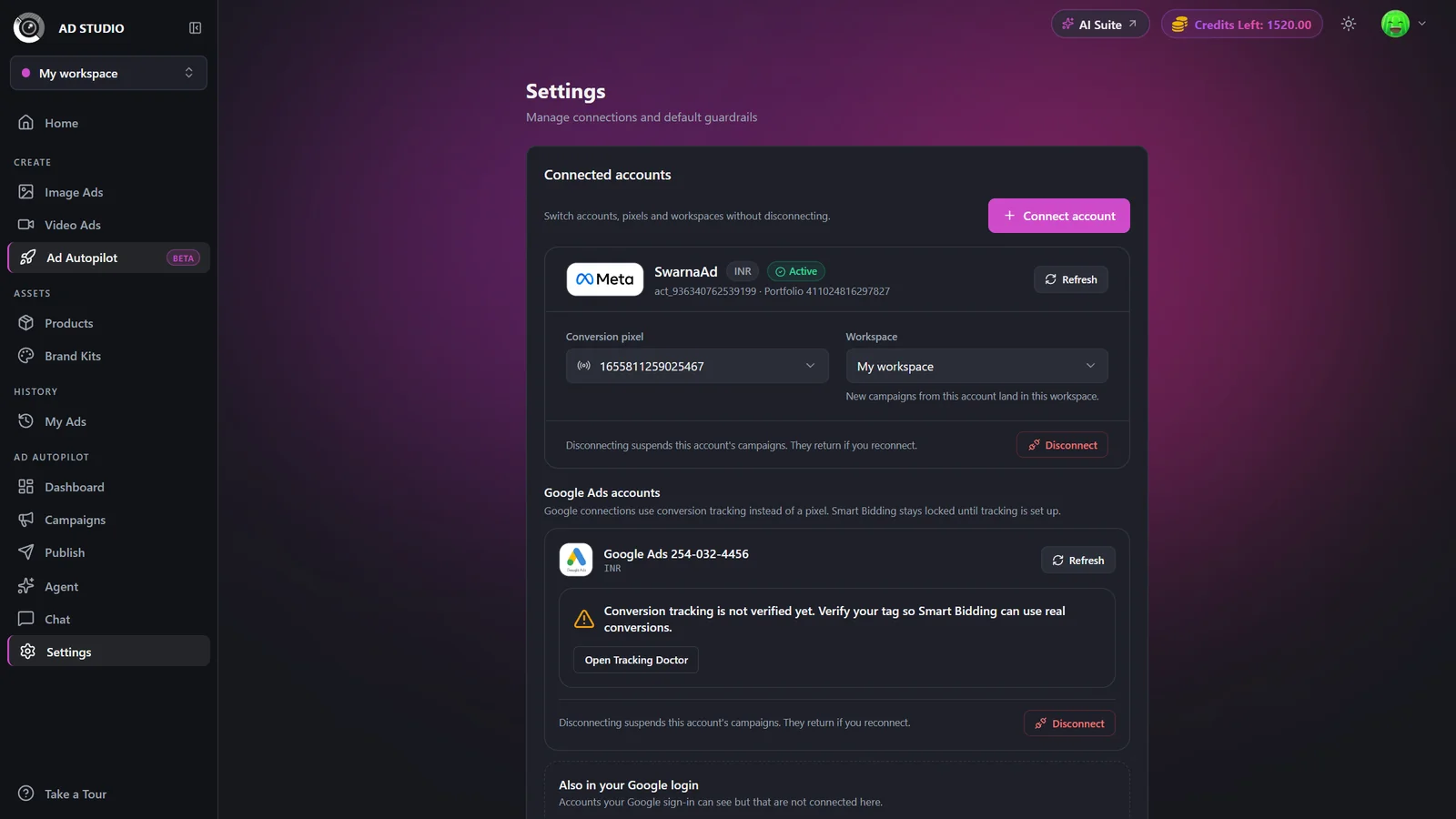
Pick Observe (the agent only watches and reports), Co-pilot (it proposes changes for your approval), or Autopilot (it acts on its own within your rules). This seeds the autonomy step in the launch wizard.
- 3
Set quiet hours (optional)
Enable a window during which Autopilot never acts on its own. Anything it wants to do is queued for your approval until the window ends. Hours use your ad account timezone.
- 4
Pick your 'always ask' categories
Choose the changes the agent must always ask about before acting: budget changes, budget increases only, targeting changes, new creatives, creative swaps, or pausing ads. Selecting Budget changes covers increases too.
- 5
Toggle the automatic behaviors
Turn Creative auto-refresh, Retargeting proposals, and the Weekly email digest on or off. These set the default for every new campaign.
Guardrail options
| Setting | Options | What it does |
|---|---|---|
| Default autonomy mode | Observe · Co-pilot · Autopilot | How much the agent can do on its own. This seeds the autonomy step in the launch wizard. |
| Quiet hours | On / Off, plus a start and end hour | A window when Autopilot never acts on its own. Changes are queued for approval until it ends. Uses your ad account timezone. |
| Always ask before… | Budget changes · Budget increases only · Targeting changes · New creatives · Creative swaps · Pausing ads | The categories the agent must get your approval on. 'Budget changes' includes increases. |
| Creative auto-refresh | On / OffDefault: On | When ads fatigue, the agent proposes fresh creatives. It is evidence-gated and spends credits when a refresh actually runs. |
| Retargeting proposals | On / OffDefault: On | Lets the agent suggest a linked retargeting campaign. Launching one always needs your approval. |
| Weekly email digest | On / OffDefault: Off | A free weekly performance summary for each new campaign. |
Setting your guardrails costs nothing. The actions they enable do spend credits when they actually run: creative auto-refresh uses credits when a refresh is approved and generated, and a retargeting campaign spends its own budget and credits once you approve its launch.
Kill switch and automation controls
Need to stop the agent fast? You can freeze automation for a single campaign or for every campaign at once. Your ads keep delivering on Meta the whole time, so freezing the agent does not pause spend.
- 1
Freeze all automation (account-wide)
In Settings, use the Kill switch to pause all automation across every campaign. No cycles, proposals, or approvals run while it is on. Use Resume automation to hand control back to the agent.
- 2
Pause one campaign's agent
On a campaign page action hub, Pause agent stops that campaign's cycles, actions, and triggers. Resume agent restarts them. This is the surgical option when you only want to intervene in one campaign.
The kill switch and per-campaign pause only stop automation. Your ads keep spending on Meta. If you also want delivery to stop, pause the campaign or ad set delivery separately with its Activate/Pause control.
Manage connected accounts
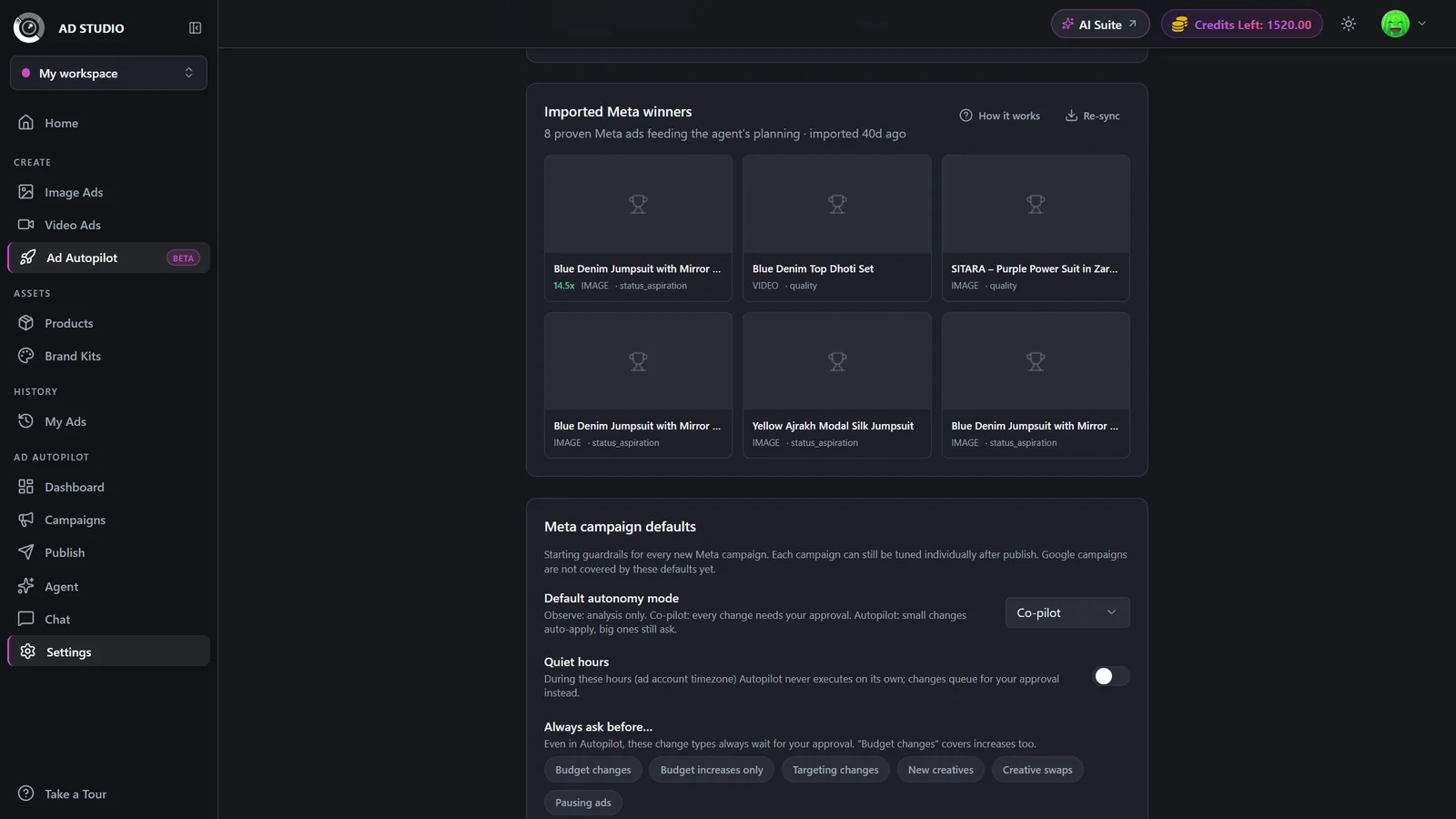
The Connected accounts panel lists every Meta ad account your login can reach, each with its currency and status. From here you switch accounts, choose the conversion pixel, assign a workspace, refresh an account, re-authenticate an expired session, or disconnect.
- 1
Review your connections
Open Settings. Each ad account appears as a card showing its currency and current status.
- 2
Refresh to re-sync
Use Refresh on a card to re-sync your accounts with the existing session. No login dialog appears.
- 3
Connect or re-authenticate
Use Connect account to run the Meta login. This adds new accounts and re-authenticates expired ones in place, so your campaigns and history stay attached.
- 4
Set the pixel and workspace
Choose the Conversion pixel the agent should optimize toward and the Workspace where new campaigns from this account should land.
- 5
Disconnect only if you must
Disconnecting suspends that account's campaigns without deleting them. Reconnect later and everything returns in place. On Meta the campaigns are untouched.
| Setting | Options | What it does |
|---|---|---|
| Conversion pixel | Any pixel on the account | Determines which conversions the agent optimizes toward. Pick it before publishing so conversions are attributed correctly. |
| Workspace | Any of your workspaces | New campaigns from this account land in this workspace. See Workspaces. |
| Refresh vs Connect | Refresh · Connect account | Refresh re-syncs with the existing session. Connect runs the Meta login to add or re-authenticate accounts. |
Best practices
Start conservative: Co-pilot mode plus quiet hours, then loosen as you build trust in the agent.
Use the per-campaign pause for surgical control and the account kill switch for a full stop.
Remember the kill switch does not stop spend. Pause delivery separately if you also want spend to stop.
Pick the right conversion pixel before you publish so conversions attribute correctly from day one.
Reconnecting an account revives suspended campaigns in place, so the agent resumes where it left off.
Troubleshooting
These settings are defaults for new campaigns only. Tune an existing campaign individually from its campaign page or from the agent chat.
Automation may be paused. Resume it, either per-campaign with Resume agent or account-wide with Resume automation.
Use Connect account to re-authenticate. Your connections update in place with no loss of history.
Reconnect it. The campaigns and history come back, and on Meta they were never touched.