Comment moderation
The agent reads comments on your Facebook and Instagram ads and hides or deletes spam, scams, and abuse to your policy.
Comment moderation keeps the comment threads on your live ads clean without you watching them. The agent reads new comments on your campaign's Facebook and Instagram ads, labels each one, and hides or deletes the harmful ones based on your policy. It is on by default, and everything it touches is logged so you can review and override it. It runs at no credit cost.
At a glance
- What it does
- Reads ad comments and hides or deletes spam, scams, and abuse
- Platforms
- Facebook and Instagram ad comments
- Default action
- Hide first; delete only when you opt in
- On by default
- Yes, per campaign, adjustable any time
- Cost
- Free
- Where
- Agent Console (Comment moderation panel) and Settings
The Ad Autopilot section appears in the left nav once a Meta account is connected. Open the Agent console for the moderation log, and Settings for the policy that applies to new campaigns.
How it works
- 1
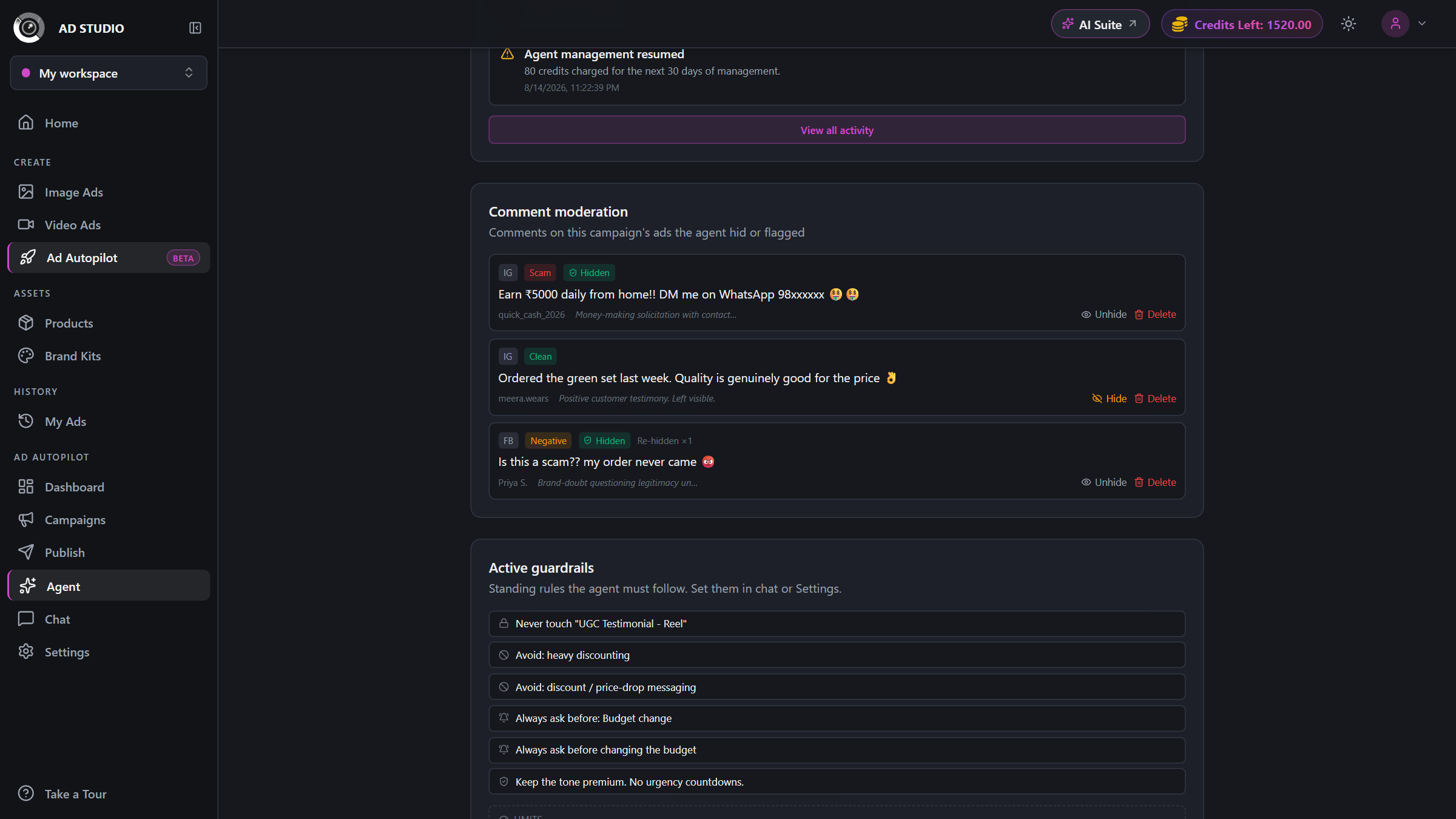
Open the Comment moderation panel
In the Agent Console, open the Comment moderation panel to see the moderation log for your campaign.
- 2
Review how each comment was labelled
Every comment shows its label (scam, spam, abusive, negative, or clean), the platform it came from (Facebook or Instagram), and why it was classified that way.
- 3
Override anything by hand
You stay in control. Manually Hide, Unhide, or Delete any comment when the automatic action was not what you wanted.
- 4
Tune the policy for new campaigns
Adjust the thresholds, hide-negative behavior, permanent-delete permission, and term lists in Settings under New campaign defaults.
Settings & options
| Setting | Options | What it does |
|---|---|---|
| Per-campaign toggle | On (default) / Off, with optional permission to permanently deleteDefault: On | Set when you publish a campaign and adjustable later. When off, no comments are moderated for that campaign. |
| Advanced policy (Settings) | Hide negative, allow delete, auto-hide confidence, negative sensitivity, always-hide terms, never-touch terms | Controls how aggressively the agent acts. It hides first by default and only deletes when you have opted in. |
| Log filters | By label, by platform (Instagram / Facebook), by date range | Available in the View all moderated comments modal so you can find a specific comment quickly. |
Comment moderation is free. It does not consume any generation credits.
A moderation log with each comment's hide or delete status (including re-hide counts when someone re-posts) plus the manual override controls.
Best practices
Add product-specific safe words to Never touch (for example delivery, size, refund) so genuine customer questions always stay visible.
Keep the allow delete permission reserved for high-confidence scam and abuse. Leave everything else on hide, which is reversible.
Check the log after a big launch to confirm the labels match your judgement, then adjust negative sensitivity if needed.
Set your preferred policy once in Settings so every new campaign starts with it.
Troubleshooting
Enable it on that campaign, or set the default for all new campaigns in Settings.
Open the panel and Unhide it, then add the relevant word to Never touch in Settings so it stays visible next time.
The agent re-hides repeat posts automatically; the log shows the re-hide count. If you have opted in to deletion, delete it to remove it permanently.
What to do next
Keep tuning how the agent looks after your campaigns: