Brand Kits
Save your logo, colors, and font style once, then apply them to any ad so every creative stays on-brand.
Brand Kits store your reusable brand styling: a logo, three brand colors, and a font style. Once saved, a kit appears as a selectable chip in the Image Ads and Video Ads creators so your ads carry a consistent look. Brand kits are entirely optional, and creating or editing them is always free.
At a glance
- You provide
- A brand name, plus optional logo, colors, and font style
- You get
- A saved kit you can apply to any ad
- Best for
- Keeping a consistent, on-brand look across campaigns
- Logo formats
- JPG, PNG, SVG, WEBP (one per kit, optional)
- Colors
- Primary, Secondary, Accent (hex or color picker)
- Cost
- Free. Creating, editing, and URL extraction use no credits
Use one when you want ads to carry your logo or brand colors, or to keep a consistent style across campaigns. If you do not set one up, ads simply generate without your branding.
How it works
- 1
Open Brand Kits
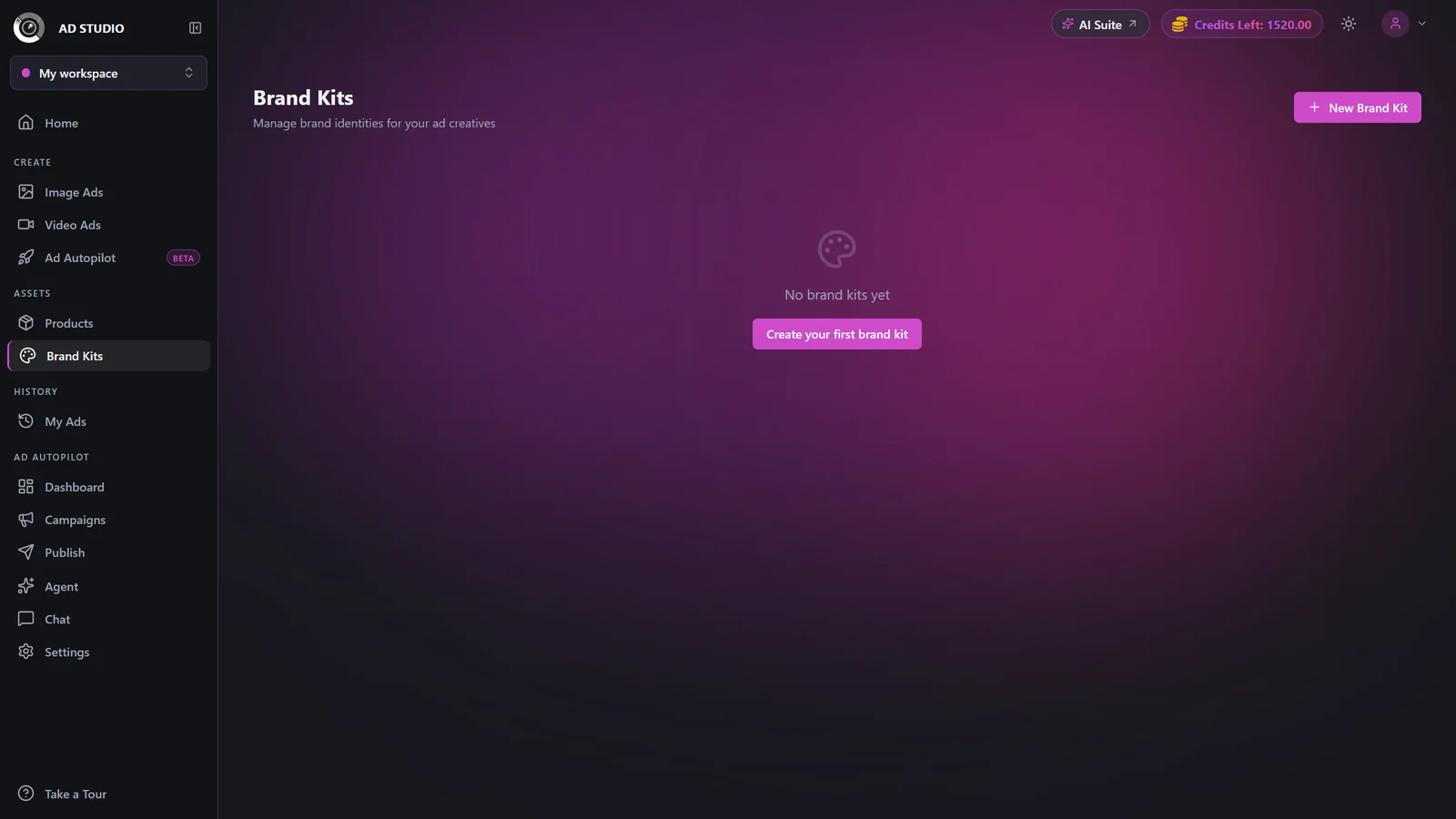
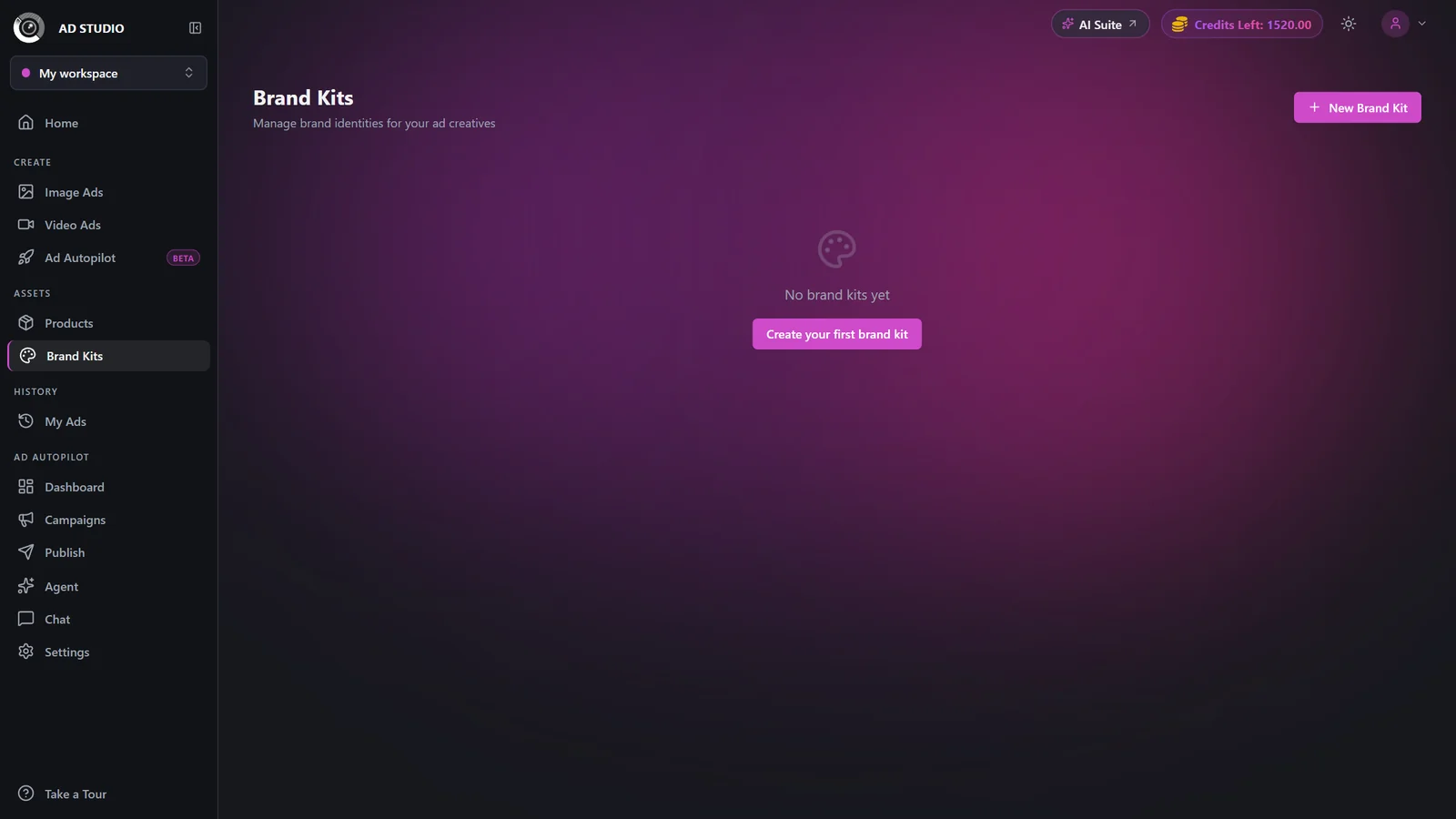
Find Brand Kits in the Assets section of the sidebar, then click New Brand Kit.
- 2
Extract from your website (optional)
Paste your website URL and click Extract to auto-detect the brand name, colors, logo, and font. Treat this as a quick first draft you can fine-tune.
- 3
Name your kit
Enter a brand name. This is the only required field and identifies the kit.
- 4
Add a logo (optional)
Upload a logo in JPG, PNG, SVG, or WEBP. A logo is required if you want the Brand Logo toggle to be available when generating ads.
- 5
Set your colors
Choose Primary, Secondary, and Accent colors with the color pickers or hex fields. These are applied sparingly as accents, so the product's own colors always lead.
- 6
Pick a font style
Choose a font style (Modern, Serif, Playful, Minimal, Bold, Elegant, Handwritten, or Retro) or type your own. This guides the typographic feel of your ads.
- 7
Settings & options
| Setting | Options | What it does |
|---|---|---|
| Brand Name | Free text (required) | Identifies the kit. This is the only required field. |
| Logo | JPG, PNG, SVG, WEBP (optional) | Required if you want the Brand Logo toggle available when generating ads. |
| Colors | Primary, Secondary, Accent (hex or color picker) | Used sparingly as accents in ads. The product's own colors always dominate the design. |
| Font Style | Modern, Serif, Playful, Minimal, Bold, Elegant, Handwritten, Retro, or custom text | Guides the typographic feel of your creatives. |
| Set as default | Toggle | The default kit is auto-selected in Image Ads and Video Ads. |
Brand colors are applied as light accents so they harmonize with the product rather than compete with it. The logo composites into the ad when you enable the Brand Logo toggle in the ad creator (available only when the selected kit has a logo).
Best practices
Use URL extraction for a quick first draft, then fine-tune the colors and logo by hand.
Upload a transparent PNG or SVG logo so it composites cleanly into ads.
Set your most-used kit as default so it is auto-applied every time.
Remember brand colors show as light accents. The product's own colors always dominate, so pick colors that harmonize with your products.
Troubleshooting
The selected brand kit has no logo. Edit the kit and upload one in JPG, PNG, SVG, or WEBP.
Enter the brand name, colors, and logo manually instead.
This is intended. Colors are used sparingly as accents so they harmonize with the product rather than clash with it.
What to do next
With a kit saved, apply it when you create: