The AI agent
The command center for one campaign's AI media buyer: what it has done, what needs your approval, and every rule it follows.
The Agent page is where you run one campaign's AI media buyer. It plans, launches, monitors, and optimizes your Meta (Facebook and Instagram) campaigns, then brings every proposal back to you for approval. From here you approve or reject changes, respond to things only you can provide, review the full activity trail, and manage the guardrails and learnings that shape how the agent behaves. Ad Autopilot is in BETA and appears in the left nav once a Meta account is connected.
At a glance
- Where
- Ad Studio sidebar, Ad Autopilot, Agent
- Scope
- One account and one campaign at a time
- What it does
- Plans, launches, monitors, and optimizes Meta campaigns
- You control
- Approvals, guardrails, and learnings
- Console cost
- Free to view and approve
- Action cost
- Some approved actions spend credits, always shown first
The agent proposes; you decide. Nothing that changes your campaign happens without your approval, and every executed action can be undone from the activity feed.
How it works
- 1
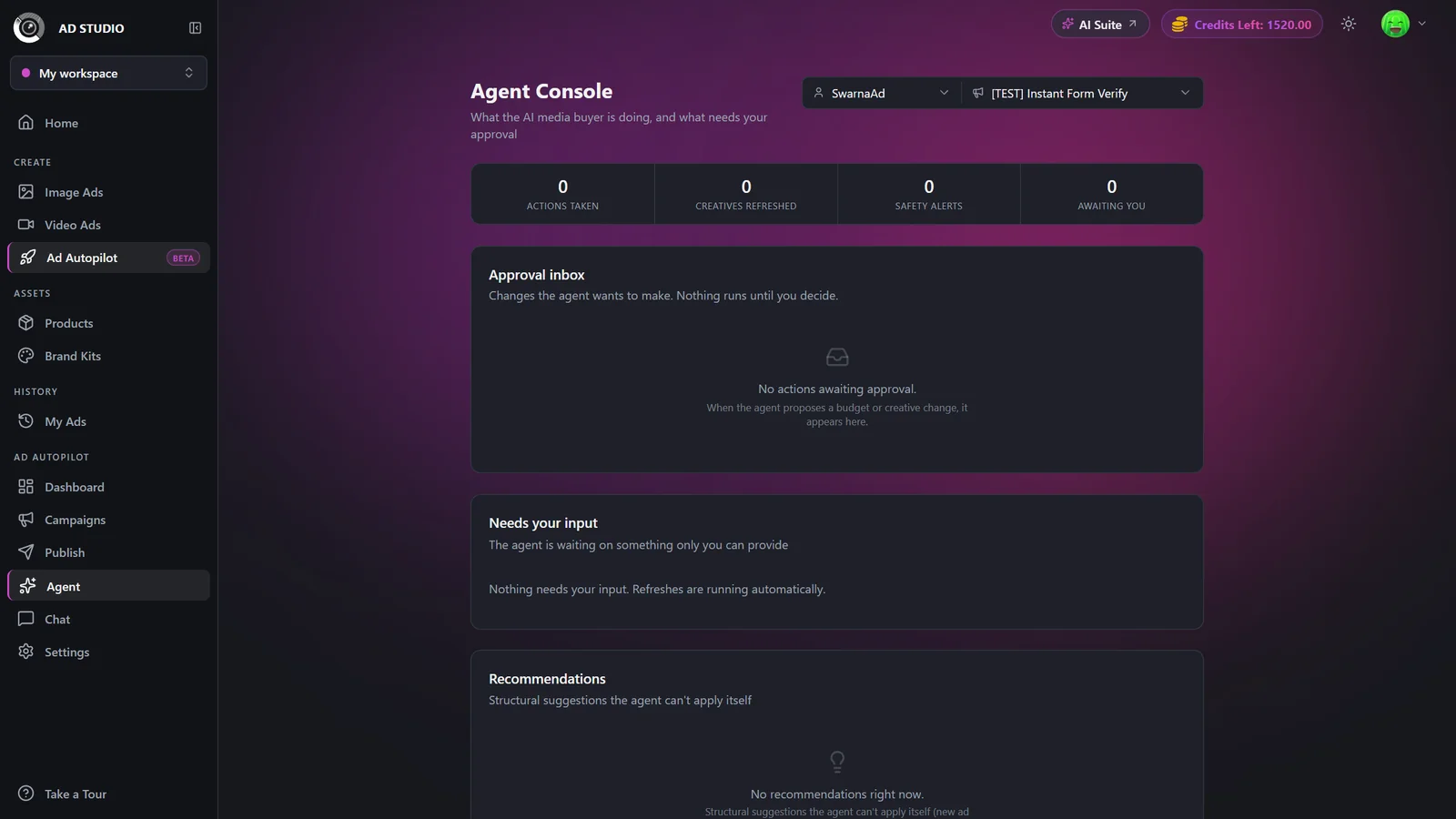
Open the Agent page and pick your campaign
Open Agent from the Ad Autopilot sidebar, then choose the account and campaign you want to review. Both selectors are type-to-search.
- 2
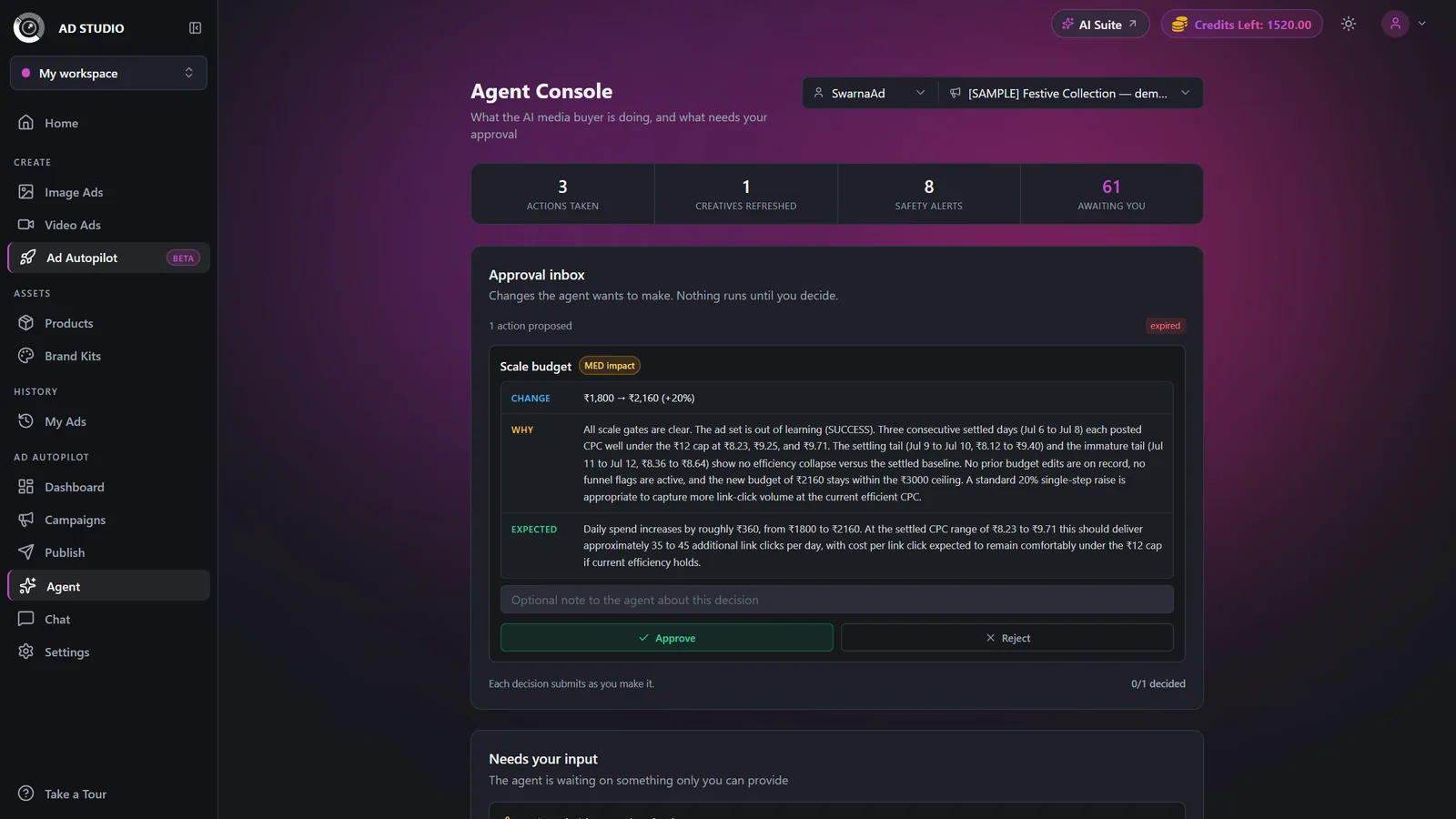
Read the Impact strip
The strip at the top summarizes actions taken, creatives refreshed, safety alerts, and how many items are awaiting you. It is your quick pulse on the campaign.
- 3
Work the Approval inbox
Each proposed change appears in the inbox. Approve or reject it. When an action carries a credit cost (for example a creative refresh, a localization, or a launch), the exact amount is shown on the Approve button before you spend anything. See Approving agent proposals.
- 4
Handle 'Needs your input' and 'Recommendations'
Needs your input covers things only you can provide, like uploading a creative the agent asked for. Recommendations are structural ideas the agent cannot apply on its own, so you decide whether to act on them.
- 5
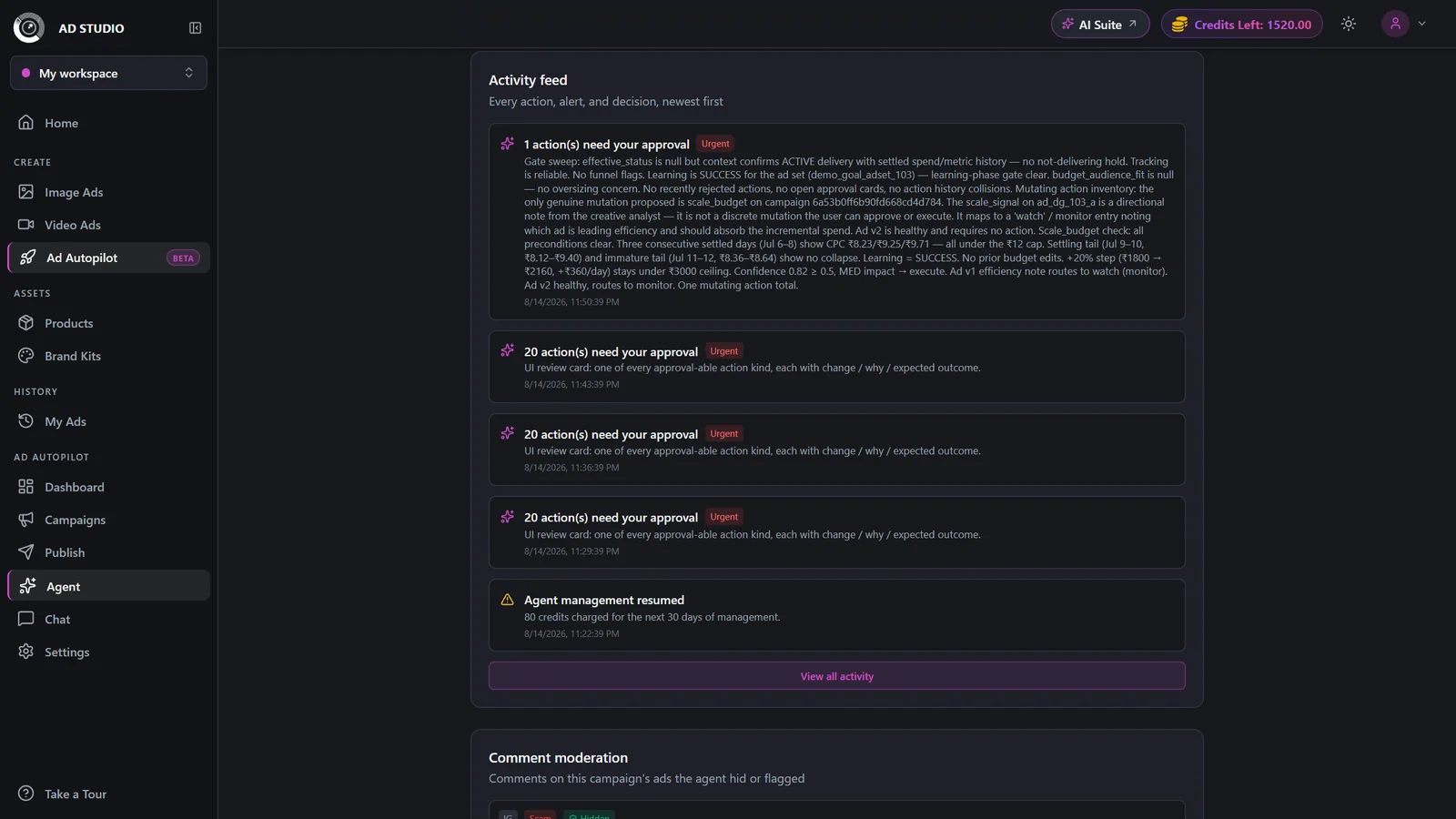
Review activity and what the agent knows
Scroll to Site recommendations (landing-page issues), the Activity feed (every action, alert, and decision, with Undo on executed actions), Active guardrails, and What the agent knows (its self-cleaning memory).
Settings & options
| Setting | Options | What it does |
|---|---|---|
| Account + Campaign selector | Type-to-search on both | Choose which account and campaign the page is showing. |
| Activity feed filters | All, Actions, Alerts, Approvals, Cycles, Recommendations, plus date range | Available in the 'View all activity' modal to narrow the audit trail. |
| Active guardrails | Protect an ad, avoid an angle, CPA or ROAS limits | The live set of rules the agent must follow. Set them via Agent chat; they appear here and are removable anytime. |
| What the agent knows | View and delete learnings | The agent's memory of what has and has not worked. Delete any wrong learning and it will not relearn it. |
Viewing the console and approving decisions is free. Some approved actions carry their own credit cost, such as a creative refresh, a localization, or a launch. The exact amount always appears on the Approve button before you confirm, so you never spend without seeing the price first.
Best practices
Delete any wrong learning in What the agent knows so the agent stops acting on it.
Set guardrails (protect an ad, avoid an angle, CPA or ROAS limits) via Agent chat; they show up here and are removable anytime.
For retargeting campaigns, read the ROAS-honesty banner and judge results on incremental lift, not raw ROAS.
Use the Undo on executed actions in the activity feed if a change did not land the way you wanted.
Check Needs your input regularly so the agent is not waiting on a creative or a decision only you can give.
Troubleshooting
The agent may be paused (kill switch) for this campaign or account-wide. Resume it first, then try again. See Agent settings.
There are no campaigns yet. Launch one, and the agent will start reporting activity here.
Open What the agent knows and delete that learning. It will not relearn a memory you have removed.
Retargeting campaigns show an ROAS-honesty banner. Judge them on incremental lift rather than the raw ROAS number.