Billing & invoices
Find, view, and download your past charges, and manage the tax and billing details that appear on your invoices.
Every charge on your account (subscriptions, renewals, credit top-ups, and plan changes) shows up as an invoice you can open and download. This page lives inside your subscription dashboard, where you can also add a tax ID or billing address so they appear on future invoices.
At a glance
- Where to find it
- Subscription page, Invoices section
- What you get
- Viewable and downloadable invoices
- Charge types
- Subscription, Renewal, Credits, Upgrades
- Shown inline
- Your 5 most recent invoices, with a modal for the full history
- Each row shows
- Description, date, and amount in USD
- Billing & Tax
- Add a tax ID or billing address in the billing portal
The Invoices section only shows when you have billing history, so it appears after your first successful charge. Brand new subscriptions may not have an invoice yet.
View and download an invoice
- 1
Open your subscription dashboard
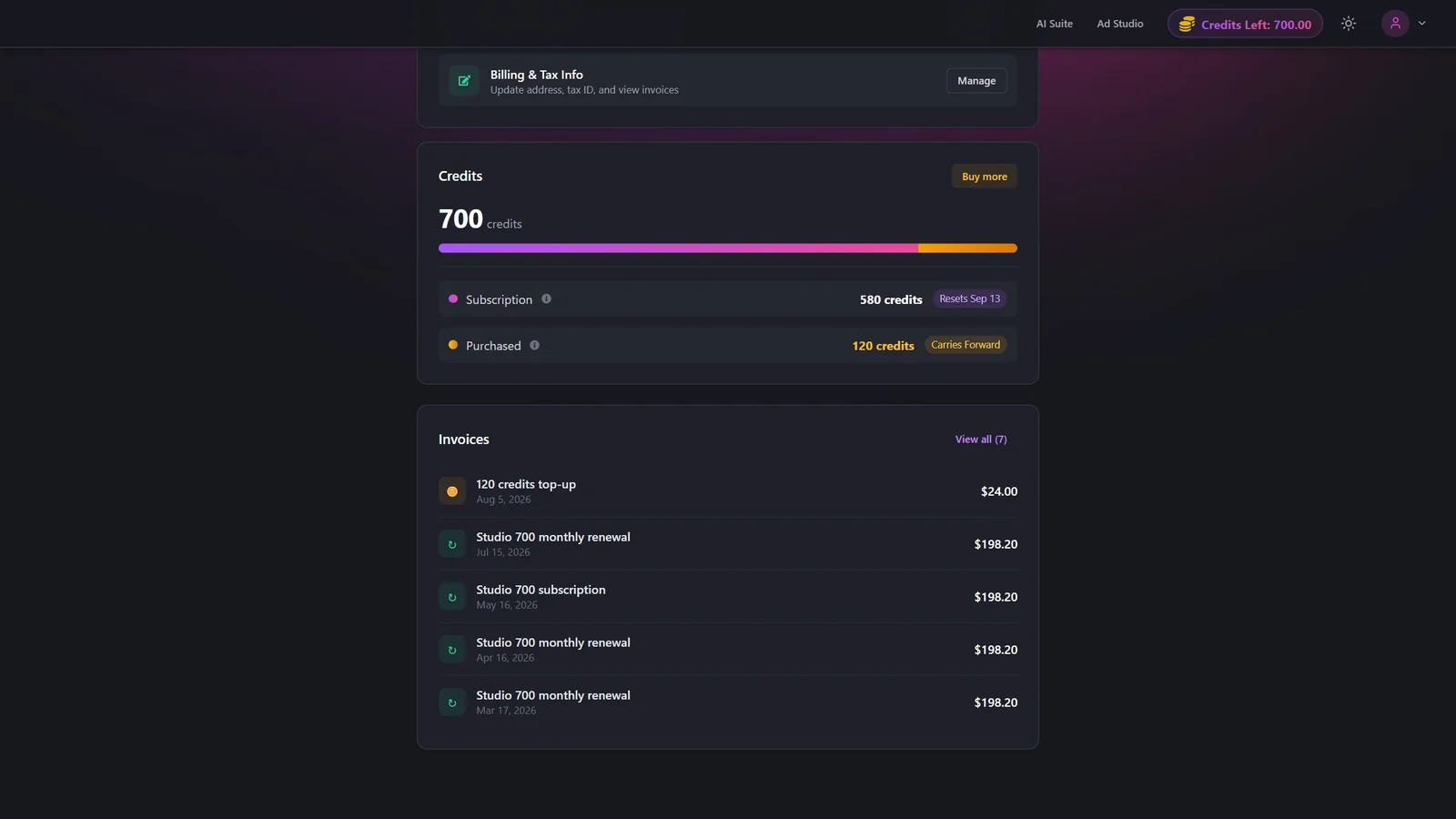
Go to your Subscription page and scroll to the Invoices section to see your most recent charges.
- 2
View a specific invoice
Click View on any invoice row to open the hosted invoice, where you can read or download it.
- 3
Open the full history
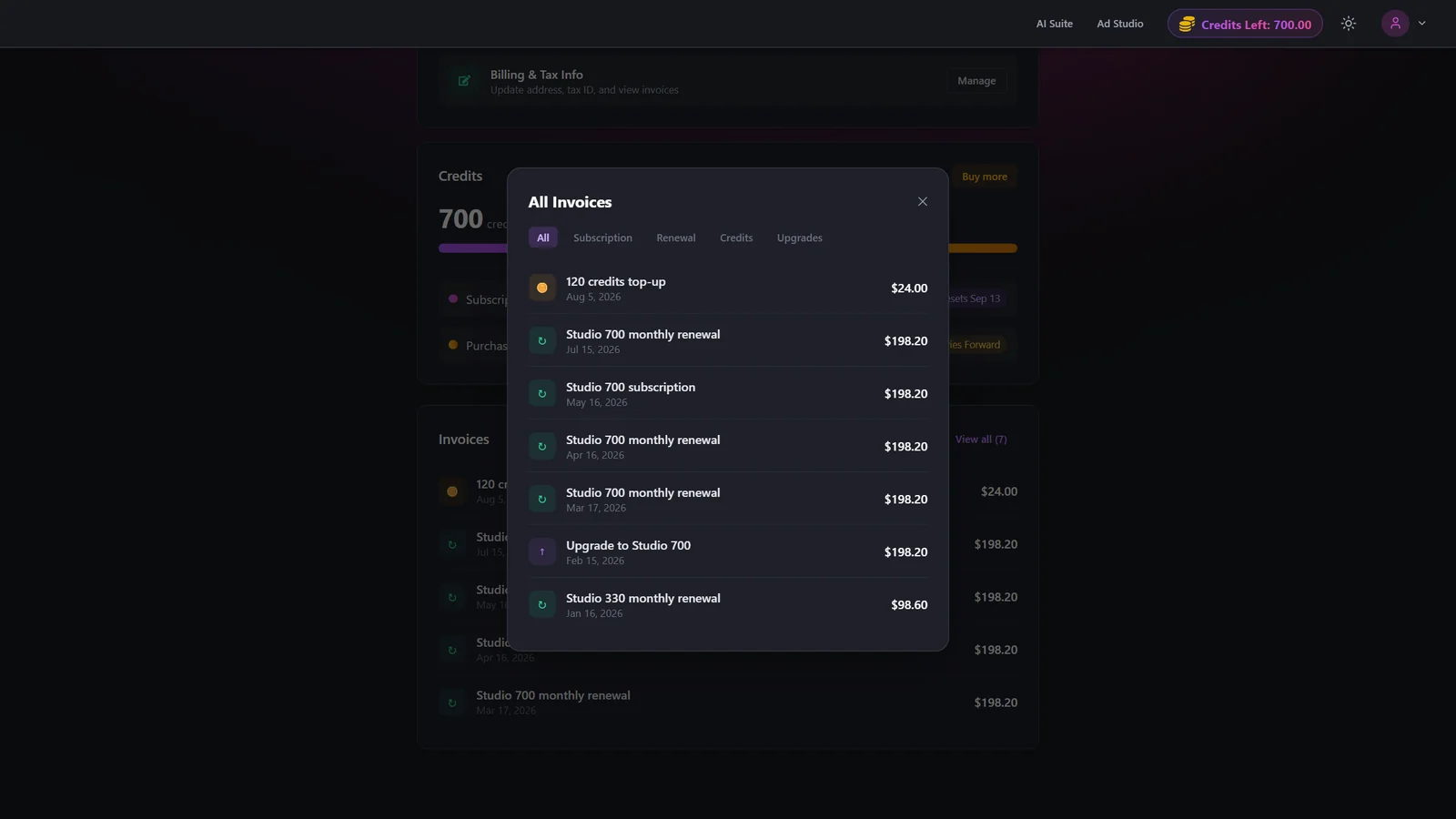
The Invoices section shows your 5 most recent charges. If you have more, click View all to open the complete list in a modal.
- 4
Filter by charge type
Inside the full list, filter by All, Subscription, Renewal, Credits, or Upgrades to jump straight to the charge you need. Icons help you tell credit purchases, plan changes, and renewals apart at a glance.
- 5
Manage tax and billing details
To add a business tax ID or billing address, find Billing & Tax Info and click Manage to open the secure billing portal.
Invoice filters
| Setting | Options | What it does |
|---|---|---|
| Invoice filter | All · Subscription · Renewal · Credits · UpgradesDefault: All | Narrows the full invoice list to a single charge type. Icons distinguish credit purchases (coin), plan changes (arrow), and renewals. |
Viewing and downloading your invoices is free. Charges only appear here after they happen, such as a subscription renewal, a plan upgrade, or a credit top-up.
Best practices
Add your business tax ID in the billing portal before your next charge so it appears on that invoice.
Use the type filters to quickly find a specific credit top-up or upgrade charge instead of scrolling.
Keep your billing address current so receipts match your accounting records.
Download invoices as you go if you need them for expense reports or bookkeeping.
Troubleshooting
Invoices appear after your first successful charge. A very new subscription may not have one yet. Check back once you have been billed.
Add it in the billing portal via Manage on Billing & Tax Info. Details you add apply to future invoices, so set them up before your next charge.
Retry Manage. If it still fails, refresh the page and make sure pop-ups are allowed for the site.