Approvals inbox
The decision cards where the agent asks permission before making any campaign change, so nothing runs until you approve.
The Approvals inbox is where your Ad Autopilot agent asks permission before it touches a campaign. Every proposed change (budget, creative, targeting, expansion, retargeting, testing labs, or localization) shows up as a decision card with the before and after, the reasoning, the expected outcome, and any cost. Nothing runs until you approve. You will find it in the Agent panel at /ad-studio/autopilot/agent.
At a glance
- Where
- Ad Autopilot > Agent > Approval inbox panel
- What it is
- Decision cards for changes the agent wants to make
- You do
- Read each card, adjust any knobs, then Approve or Reject
- Reviewing
- Always free
- Approving
- Free for most operational changes; some actions spend credits
- Result
- Approved changes applied or queued, receipts logged to the Activity feed
In Co-pilot mode the agent surfaces everything for approval. In Autopilot mode it acts on its own within your guardrails and only surfaces high-impact and credit-costing decisions. Learn more in the agent guide.
How it works
- 1
Open the Approval inbox
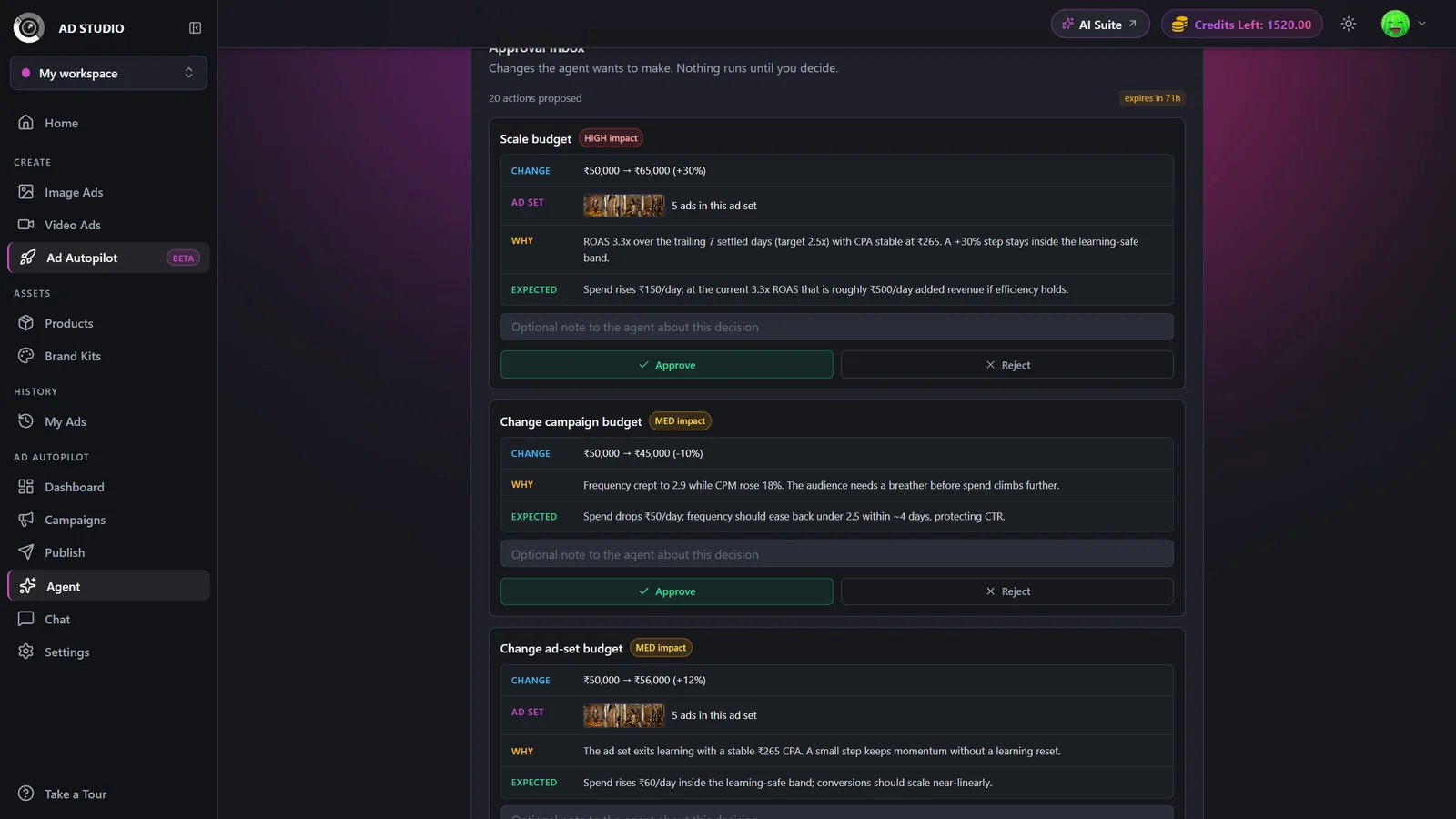
Go to Ad Autopilot > Agent. Pending proposals appear as cards at the top of the panel. Each card renders the real creative or ad set it targets, not raw IDs.
- 2
Read the card
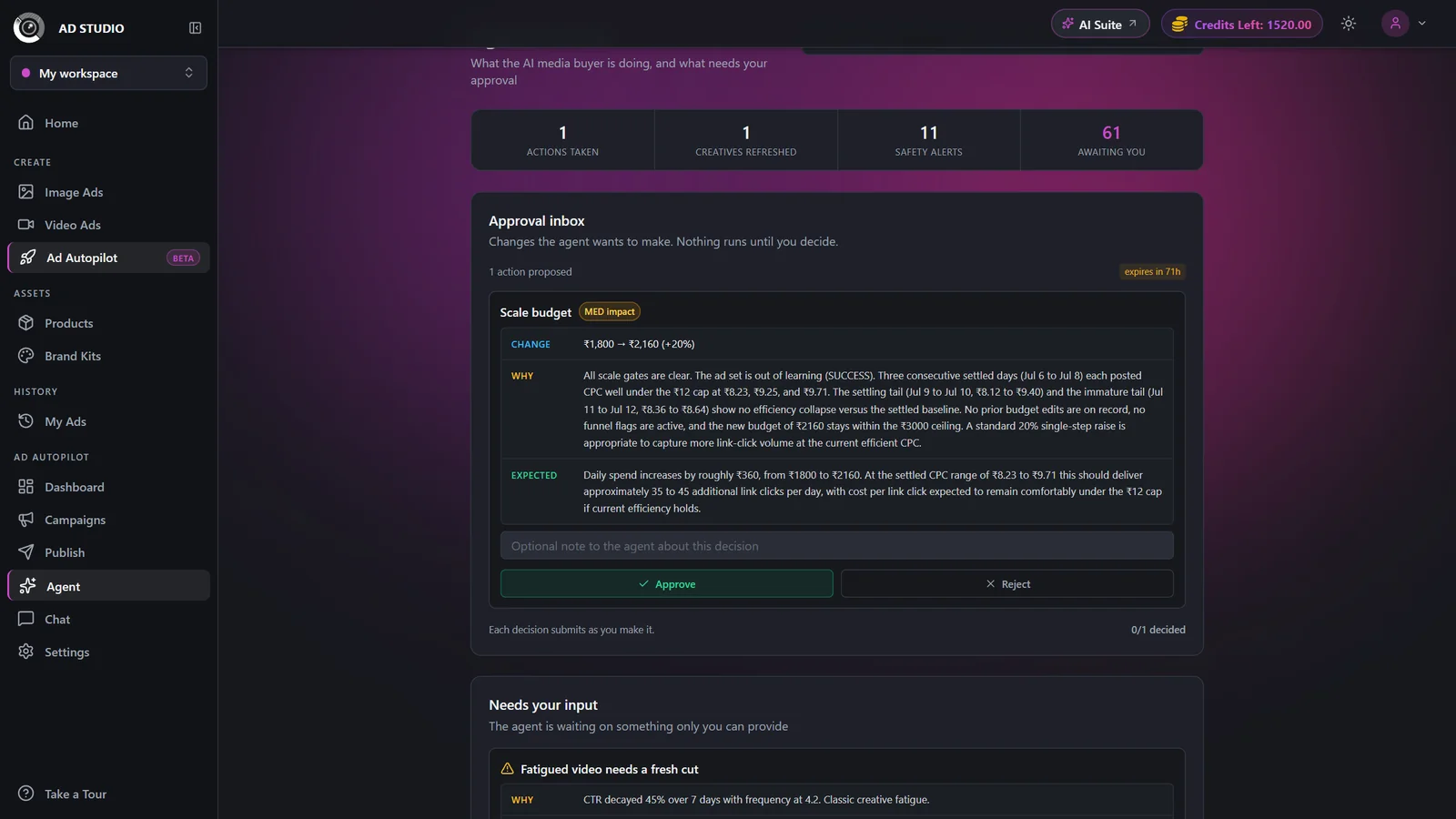
Every card shows the Change (before to after), the Why, the Expected outcome, and any Cost. Take a moment to understand what will happen before you decide.
- 3
Adjust the knobs (where available)
Some cards are editable. For a retargeting launch you can set the daily budget, lookback window, and offer text. For incubator tests you can set the budget, and for localization you choose how each market is handled. Adjust these before you approve.
- 4
Add a note (optional)
You can attach a short note explaining your decision. It is stored with the receipt so you and your team have a record of why the change was made.
- 5
Approve or Reject
Click Approve to apply the change (the button shows any credit cost) or Reject to dismiss it. On cards that support it, you can turn off auto-activate so the result launches paused for you to review first.
Card types & options
| Setting | Options | What it does |
|---|---|---|
| Proposal types | Change campaign / ad-set budget, Scale or Reallocate budget, Pause or Resume an ad or ad set, Update or Broaden targeting, Refresh creative, Change optimization event, Change bid strategy, Create ad set, Exclude segment, Expand to new countries, Launch retargeting campaign, Create a testing campaign (lab), Graduate a proven concept, Retire a testing campaign, Localize creatives or video | The full range of changes the agent can propose. Each card renders the real creative or ad set it targets so you always know exactly what is affected. |
| Localization choice (per market) | Generate native versions (1 credit each) / Use English creatives here / Use my uploaded creatives | For an expand-to-country or localization card, pick how each new market is handled. The cost tracks your selection. |
| Retargeting knobs | Daily budget, lookback window (7, 14, 30, or 90 days), offer text | Pre-filled by the agent and editable before you approve a retargeting launch. |
| Auto-activate toggle | On or Off (per card, where supported)Default: On | When off, the result launches paused so you can review it before it starts spending. |
Reviewing is always free, and most operational approvals (budget, pause or resume, targeting) are free too. Credits are spent when you approve actions that create new work:
- Creative refresh generates fresh creative.
- Expand to a new country or localization costs about 1 credit per creative when you choose native versions.
- Retargeting and incubator launches bill at the launch rate; retargeting launches bill per month.
The exact cost is always shown on the Approve button before you click, so you never spend anything by surprise.
Best practices
Read the Cost on every credit-costing card before you approve. High-impact and paid actions always ask you to confirm.
For a retargeting launch, turn auto-activate off and review the paused campaign first until you trust the setup.
Use the note field to record why you approved or rejected a card, so your team can follow the reasoning later.
Adjust the knobs (budget, lookback window, offer, localization choice) to match your plan before approving, rather than approving and editing afterward.
If you want to see fewer cards, switch the agent to Autopilot mode so routine changes run inside your guardrails automatically.
Troubleshooting
Nothing is pending. The agent only acts on its own within the guardrails you set, and it surfaces a card here whenever it wants to go further.
For video localization the Approve action is a video upload. Choose the localized cut to proceed, or Skip that market.
Turn off the auto-activate toggle on the card. The retargeting or testing campaign will launch paused so you can inspect it first.
Read the Why and Expected outcome on the card. You can also ask the agent directly in Chat for more context.