My Ads
Browse, search, and manage every ad you have generated, with live status while new ones render.
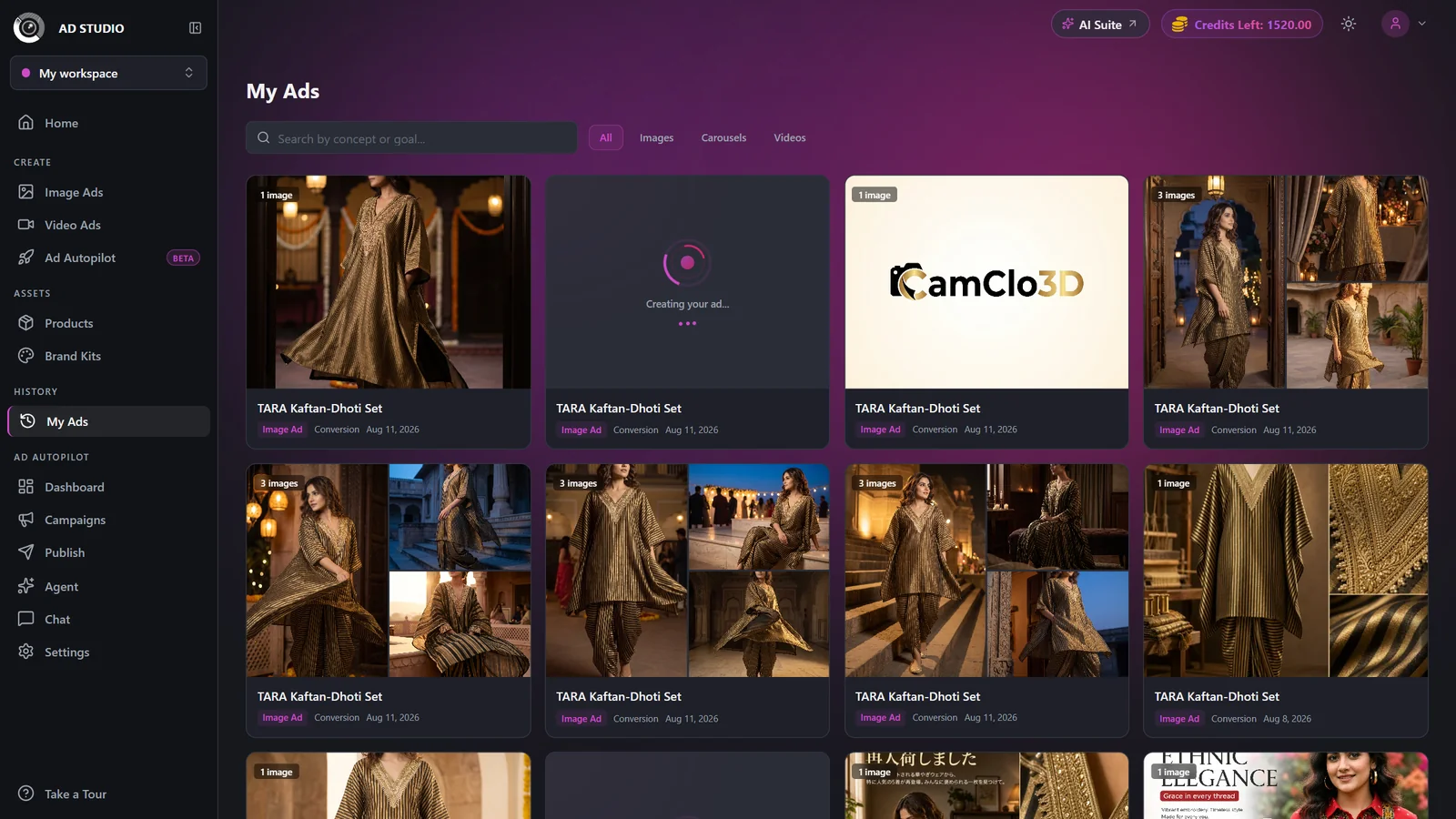
My Ads is a searchable gallery of every ad you have created in Ad Studio: image ads, carousels, and video ads. Filter by type, search by concept or goal, and watch processing ads update on their own. Click any card to open its full detail view, where you download, edit, extend, or rate the result. Browsing your history is free.
At a glance
- What it is
- A gallery of all your Ad Studio generations
- Shows
- Image ads, carousels, and video ads
- Filter by
- All, Images, Carousels, or Videos
- Search
- By ad concept or goal
- Per page
- 20 ads, with pagination for older ones
- Cost
- Free to browse, open, and manage
How it works
- 1
Open My Ads
Find My Ads in the History section of the Ad Studio sidebar to see every ad you have generated.
- 2
Filter by type
Switch between All, Images, Carousels, and Videos to focus on one kind of creative at a time.
- 3
Search to narrow the list
Type in the search box to match ads by their ad concept or goal, so you can quickly find a specific set.
- 4
Watch live status
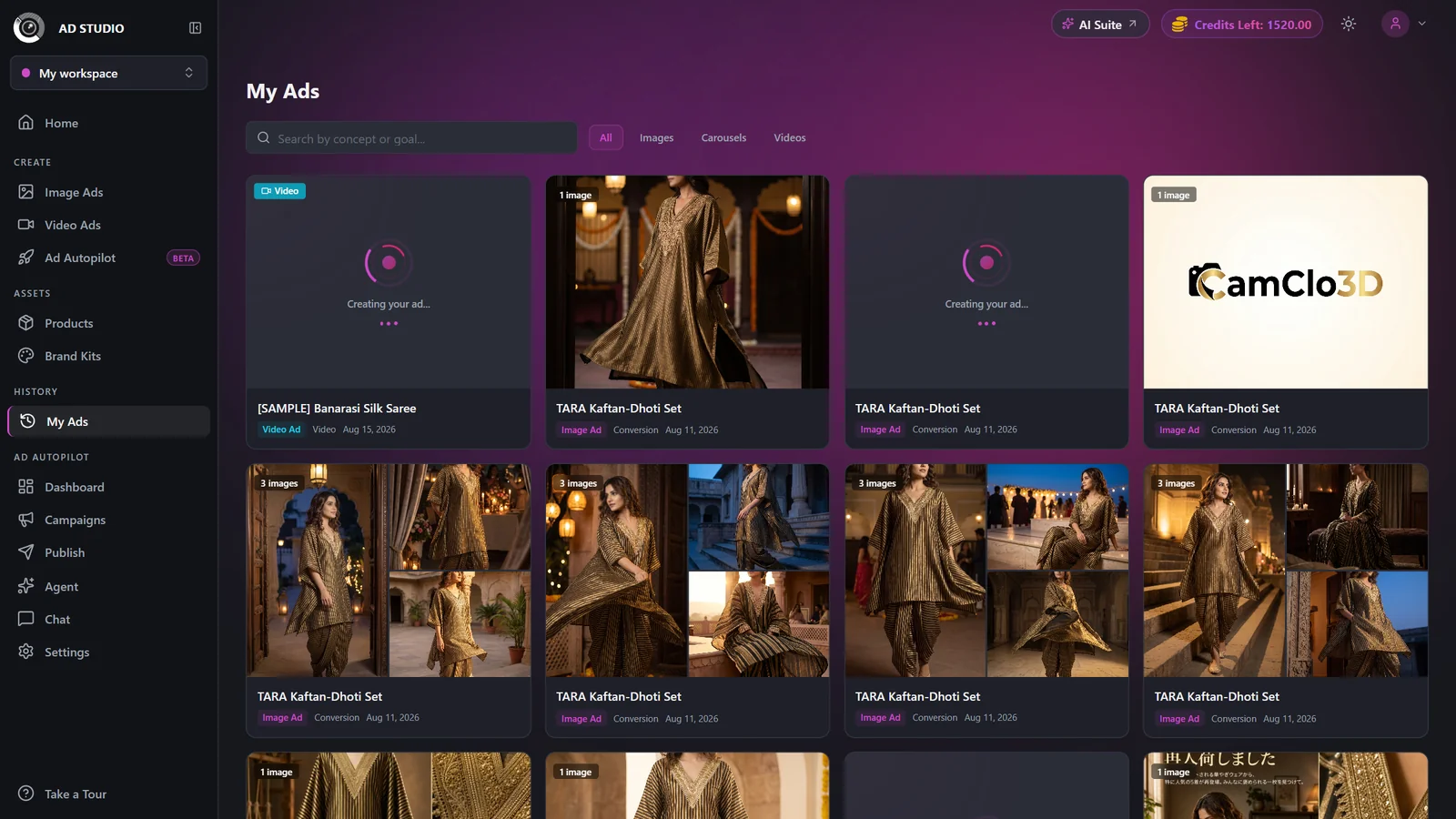
Ads still rendering show an animated Creating / Processing badge and refresh on their own every few seconds. Video ads carry a Video badge, carousels a Carousel badge, and single sets an image-count badge.
- 5
Open an ad
Click any card to open its generation detail page, where you can download, edit individual images, add variations, rate the result, or play a video ad.
- 6
Page through older ads
The gallery shows 20 ads per page. Use the pagination controls to reach earlier work.
Filters & search
| Setting | Options | What it does |
|---|---|---|
| Type filter | All, Images, Carousels, Videos | Filters the gallery to one kind of creative. |
| Search | Free text | Matches your ad concept and goal to narrow the list. |
Leave My Ads open while ads render. The gallery polls and updates status automatically, so processing cards become finished results without a manual refresh. Larger sets and video ads take longer to complete.
Opening, searching, downloading, and deleting ads cost nothing. From an ad's detail page you can edit a single image (1 credit) or add a variation with Generate More (1 credit each, up to 10 outputs per generation). The original generation cost was already charged when you clicked Generate.
Best practices
Use the type filter to separate video ads from static ones in one click.
Search by goal (for example,
sales) to compare creatives you made for the same objective.Leave the page open while ads render so status updates arrive on their own.
Open a card and delete weak variations, then use Download All so you keep only your best.
Copy the Task ID from the detail page if you ever need to reference a specific generation with support.
Troubleshooting
The list auto-refreshes every few seconds. Larger sets and video ads take longer, and the card updates when it is done.
Open it and use Try Again, or start a fresh generation from Image Ads.
You have no ads yet. Use the Create your first ad button to open Image Ads and generate one.
It appears only for completed image ads that are under 10 outputs and whose product still exists. A deleted product disables it.
What to do next
Ready to create more or put your ads to work: