Image to Video
Turn a still image into a short, scroll-stopping video by describing the motion you want.
Image to Video animates a still image into a short clip, perfect for Reels, TikTok, product pages, and ads. Upload an image, describe the motion, choose a video model, then generate. The models range from a fast, low-cost option to the highest resolution and to Seedance 2.0 for ultimate cinematic quality. The default model is Kling 2.6 Pro.
At a glance
- You provide
- A starting image and a motion prompt
- You get
- A short MP4 clip (with sound on some models)
- Best for
- Social video, product motion, and ad clips
- Image formats
- JPG, PNG, WebP up to 10 MB, shortest side 300px+
- Length
- 5 or 10s on most models, up to 15s on some
- Default model
- Kling 2.6 Pro
Jump to Choosing a video model for a full comparison with strengths and trade-offs.
How it works
- 1
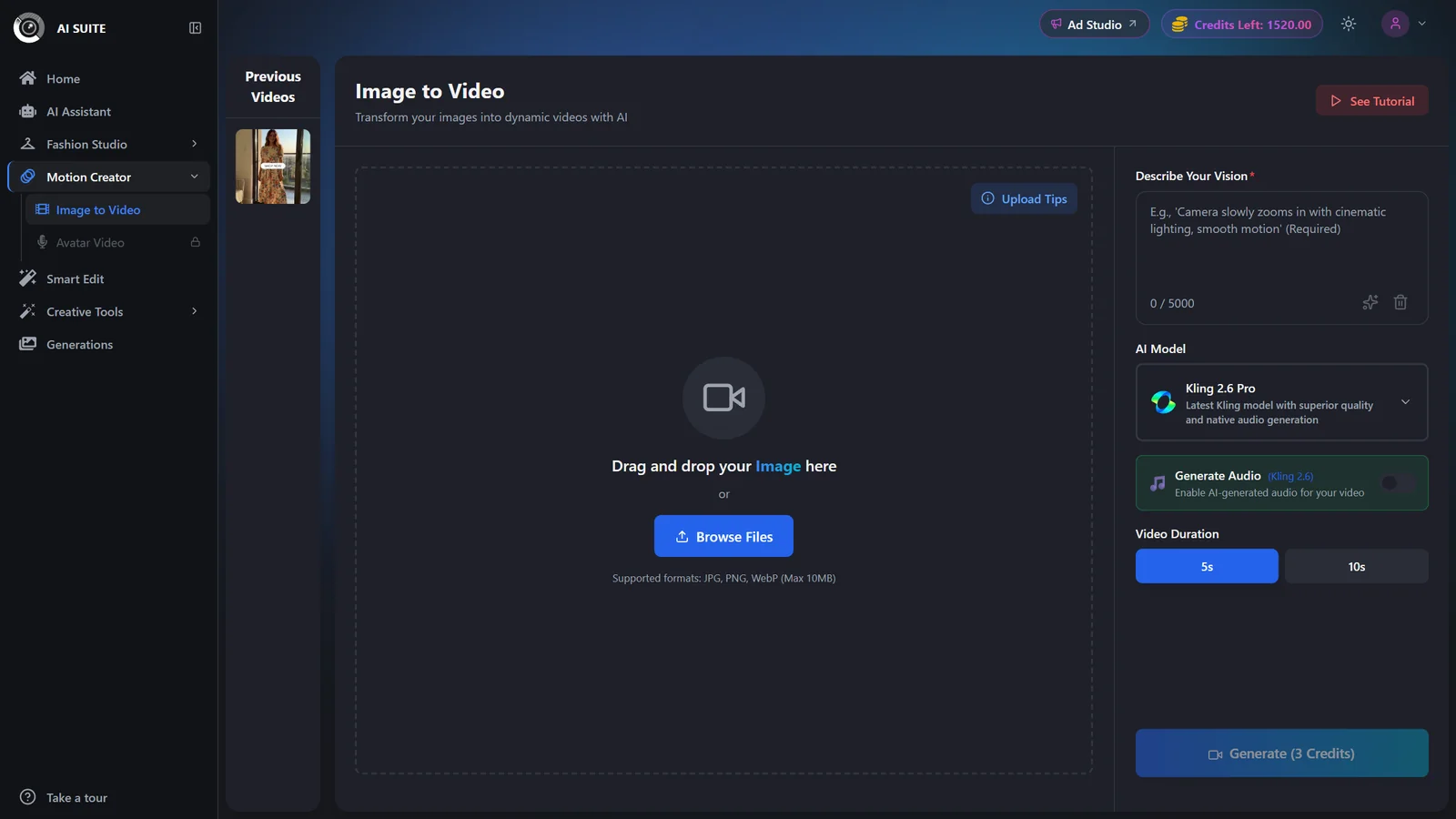
Upload your starting image
Drag and drop or Browse Files. Use a high-resolution image with a clear main subject. The shortest side must be at least 300px.
- 2
Describe the motion
Write what should move and how: camera moves, subject action, atmosphere. Example: "slow push-in, fabric sways gently in the breeze, soft natural light." The prompt is required. See the prompting guide for motion-prompt tips.
- 3
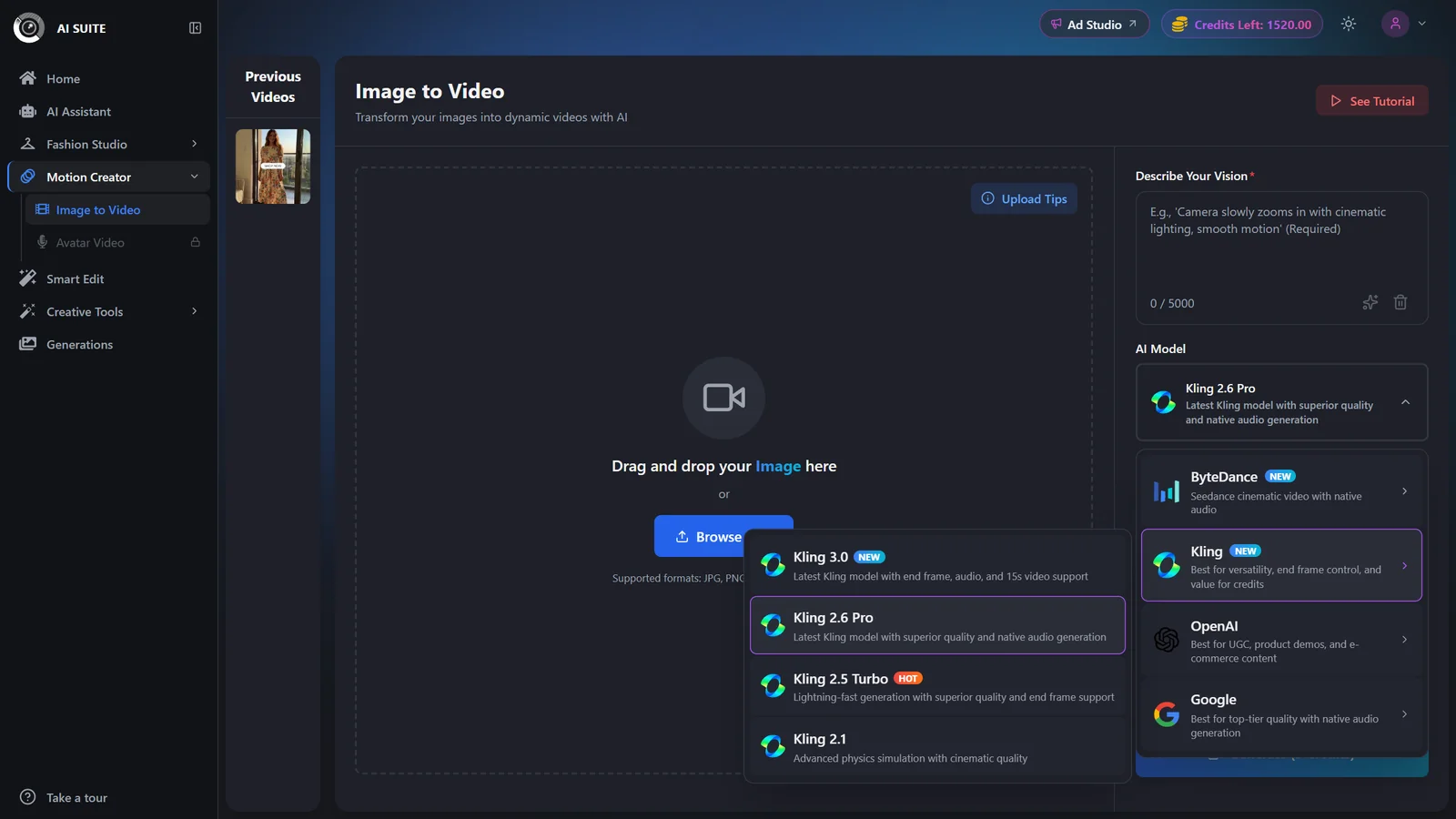
Pick a video model
Choose the model that fits your goal (see the comparison below), then set its mode / quality tier if it has one. Higher tiers unlock features like audio, an end frame, or higher resolution.
- 4
Set length, aspect ratio and resolution
Choose your duration, aspect ratio, and resolution where available. Toggle an End Frame if the model supports one. Audio is available on the models that generate sound.
- 5
Add reference images (Seedance 2.0 only)
Only Seedance 2.0 supports reference images. Add up to 8 extra images (9 including your start image) and it blends them into one video.
- 6
Generate
The Generate button shows the exact live cost. Click it and you are taken to the results page while the clip renders. Finished videos are saved to Previous Videos and your Generations history.
Choosing a video model
These are the actual models in the picker. Each is tuned differently. Match the model to what this specific clip needs.
Kling 2.6 Pro
DefaultThe reliable everyday choice for social and product clips.
- Superior quality with native audio
- Simple: no modes to choose
- Output matches your input image's aspect ratio
- Balanced cost (5s from 3 credits)
- 5s or 10s length
- No end frame
Kling 2.5 Turbo
FastestQuick drafts and high-volume testing before you commit credits.
- Lightning-fast (about 1 to 2 minutes)
- Lowest cost (5s from 2 credits)
- End frame in Pro mode
- Output matches your input image's aspect ratio
- No audio
- 5s or 10s length
Kling 2.1
Believable physical motion and cinematic movement.
- Advanced physics simulation
- End frame in Pro mode
- Master mode for premium 3D motion
- Output matches your input image's aspect ratio
- No audio
- Master mode needs a paid plan
- 5s or 10s length
Kling 3.0
PaidThe latest Kling model when you need the longest clips.
- Clips up to 15 seconds
- End frame and native audio
- Standard and Pro modes
- Output matches your input image's aspect ratio
- Paid plans only
Google Veo 3.1
Up to 4KState-of-the-art quality and audio at the highest resolution.
- Resolution up to 4K
- Native audio
- Lite, Fast, and Quality modes
- End frame supported
- Paid plans only
- 4, 6, or 8s length
- 16:9 or 9:16 only
Seedance 2.0
Ultimate qualityThe highest-quality cinematic clips, and the only model that blends reference images.
- Best-in-class cinematic quality
- Native audio always included
- Widest aspect-ratio choice, including 21:9
- Flexible 4 to 15s length
- Up to 9 reference images blended into one video
- Highest cost (up to 40 credits)
- No end frame
- Free accounts are capped at 480p
- Testing an idea cheaply? Use Kling 2.5 Turbo.
- A dependable default with sound? Use Kling 2.6 Pro.
- Realistic physical motion? Use Seedance 2.0 or Kling 3.0.
- The longest clips (up to 15s)? Use Kling 3.0 or Seedance 2.0.
- Highest resolution (up to 4K)? Use Google Veo 3.1.
- Ultimate cinematic quality or multiple reference images? Use Seedance 2.0.
Settings & options
| Setting | Options | What it does |
|---|---|---|
| Prompt | Free text | Describe the motion and mood. Required. |
| Quality / Mode tier | Standard, Pro, Lite, Fast, Quality, Master (varies by model) | Kling 2.6 Pro and Seedance 2.0 have no modes. Higher tiers add features (audio, end frame, higher resolution) and cost more. Some tiers need a paid plan. |
| Duration | Kling: 5 or 10s (Kling 3.0 also 15s). Veo: 4, 6, 8s. Seedance: 4 to 15s | Longer clips cost more. |
| Aspect ratio | 16:9, 9:16, 1:1, 4:3, 3:4, 21:9 (varies by model) | Kling models keep your input image's aspect ratio automatically. Seedance 2.0 offers the widest explicit choice, including 21:9. Match the platform: 9:16 for Reels and TikTok, 16:9 for YouTube. |
| Resolution | 480p, 720p, 1080p. Up to 4K on Google Veo 3.1 | Shown where the model supports resolution control. Higher costs more. |
| Generate Audio | On / Off | Available on Kling 2.6 Pro, Kling 3.0, and Google Veo 3.1. Seedance 2.0 always includes audio. Kling 2.5 Turbo and Kling 2.1 have no audio. |
| End Frame | Off / On (plus an end image) | Supported on Kling 2.5 Turbo, Kling 2.1, Kling 3.0, and Google Veo 3.1 (some only in Pro mode). Not on Kling 2.6 Pro or Seedance 2.0. |
| Reference images | Up to 9 total (start image plus 8 more) | Only Seedance 2.0 supports reference images. It blends them all into one video. |
Cost depends on the model, mode, length, resolution and audio, and the Generate button always shows the exact amount first. Representative examples (in credits):
- Kling 2.5 Turbo: 2 for a 5-second clip, 4 for 10 seconds
- Kling 2.6 Pro: 5 for 5 seconds with audio (3 without audio)
- Kling 2.1: 4 for 5 seconds on Pro, 10 for 5 seconds on Master
- Kling 3.0: 7 for a 5-second Pro clip with audio, up to 21 for 15 seconds
- Google Veo 3.1: 10 for 4 seconds with audio on Quality, 20 for 8 seconds, up to 32 at 4K
- Seedance 2.0: 7 for 5 seconds at 720p, 13 for 5 seconds at 1080p, up to 40 for 15 seconds at 1080p
Shorter clips at a lower resolution are the easiest way to spend fewer credits while testing.
Free vs paid
Kling 3.0 and Google Veo 3.1 need a paid plan.
Kling 2.1 Master mode also needs a paid plan.
Free accounts have resolution limits. For example, Seedance 2.0 is capped at 480p on free accounts.
Watermark-free exports are a paid-plan benefit. See Plans & pricing.
Best practices
Start from a high-resolution image with a clear subject and good lighting.
Describe the motion explicitly: name the camera move and the subject's action.
Avoid text-heavy images and extreme close-ups. They animate poorly.
Test at a short length and lower resolution first, then re-render your favorite at full quality.
Troubleshooting
Those models need a paid plan. Upgrade or buy credits to unlock them. See Plans & pricing.
Upload an image whose shortest side is at least 300px.
480p is the free-account cap for Seedance 2.0. Upgrade to unlock 720p and 1080p.
What to do next
Once your clip looks right: