
Instagram Reels safe zone checker
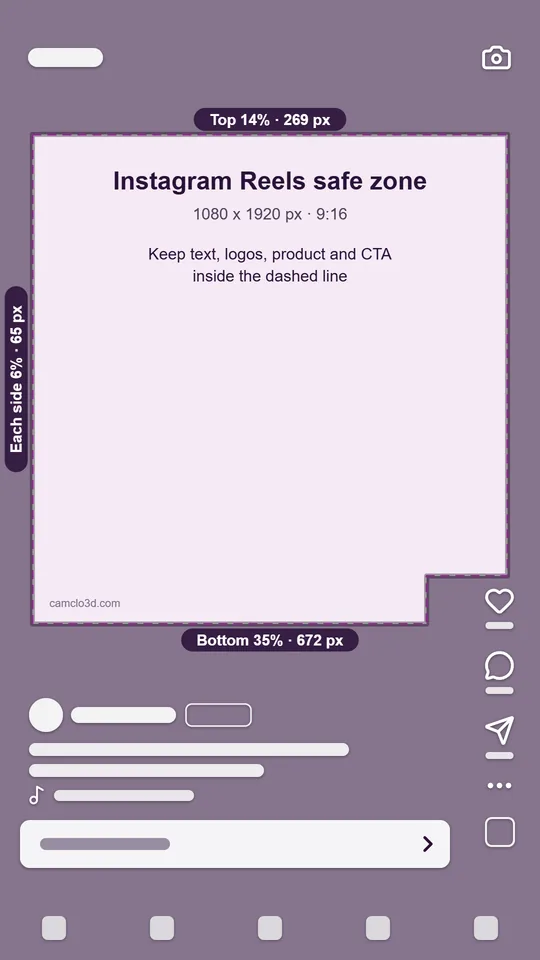
Free. Runs in your browser, nothing is uploaded.Meta's safe zone for Instagram Reels ads: keep text, logos and key visuals out of the top 14% (269 px), the bottom 35% (672 px) and 6% (65 px) on each side of a 1080 x 1920 frame. Upload your Reel below to see exactly what the app covers.
Drop a 9:16 image or video
JPG, PNG, WebP, MP4 or MOV. It stays on your device.
Your ad shows here
Instagram Reels safe zone
Keep text and logos out of these areas. Pixels on a 1080 x 1920 frame.
- Top
- 14%269 px
- Bottom
- 35%672 px
- Each side
- 6%65 px
- Lower-right corner, w x h
- 21% x 40%227 x 768 px
- Safe area, w x h
- 88% x 51%950 x 979 px
Sizes marked w x h are measured from the frame edges. The white shapes stand in for the app's captions and buttons; they are not its exact layout.
The checked-ad download turns on once you add a file. The template and overlay are 1080 x 1920 and work in any video or image editor.
The Instagram Reels safe zone in pixels
Meta sets the Reels safe zone as shares of the frame: leave at least 14% of the top, 35% of the bottom and 6% on each side free of text, logos and other important creative elements. Meta's safe zone diagram also blocks a corner at the lower right, 21% in from the right edge and 40% up from the bottom. In pixels:
| Keep clear | Share of frame | On 1080 x 1920 | On 1440 x 2560 |
|---|---|---|---|
| Top | 14% | 269 px | 358 px |
| Bottom | 35% | 672 px | 896 px |
| Left and right, each | 6% | 65 px | 86 px |
| Lower-right corner (wide x high) | 21% x 40% | 227 x 768 px | 302 x 1024 px |
| Bottom, if the ad has a disclaimer | 40% | 768 px | 1024 px |
| Safe area left in the middle | 88% x 51% | about 950 x 979 px | about 1267 x 1306 px |
Meta recommends 1440 x 2560 px for Reels ads; 1080 x 1920 is the same 9:16 shape. The pixel values are our conversion of Meta's percentages, rounded to the nearest pixel. Facebook Reels uses the same 14%, 35% and 6% guidance, so the checker has it as a separate option with the same zone.
Two more things to know. On phones taller than 9:16, Meta may zoom your ad to fill the screen, which crops anything outside the safe zone, or show it at 9:16 on a black background. And Ads Manager has a Safe Zone guardrail you can switch on to see the zone over your ad preview.
How to use the Reels safe zone checker
- Pick the placement. Instagram Reels is selected. Switch to Instagram Stories, TikTok or Facebook Reels to compare the same file across placements.
- Add your ad. Drop a 9:16 image or video on the frame, or choose a file. It opens in your browser and is never uploaded.
- Read the overlay. Shaded areas are where the app draws its interface, and the dashed line is the edge of the safe zone. Simple shapes stand in for the profile row, caption, buttons and call-to-action button. Adjust the shading or switch the overlay off to compare.
- Check every frame of a video. Play, pause or drag the slider to the frames that carry text, such as the hook, the offer and the end card.
- Download. Save the checked frame as a PNG to share with your team, or download the guide template or a transparent overlay to design against in your video or image editor.
If your file is not 9:16, the checker warns you and shows it both ways: cropped to fill the screen, or fitted with bars, with how much the crop cuts. If your ad carries a disclaimer, turn on the disclaimer switch to see the larger 40% bottom band that Reels ads with a disclaimer need.
What to keep inside the Reels safe zone
- The hook text. Put the first line people read just under the top band, from about 270 px down on a 1080 x 1920 frame.
- Subtitles. Keep burned-in captions above 1248 px, where the bottom 35% starts. Many editors place subtitles lower than that by default.
- Your logo. Corners are the riskiest spot: the top corners sit in the header band and the lower right sits under Meta's blocked corner. A logo inside the dashed line, near the top of the safe area, stays visible.
- The product. Frame it in the middle of the frame. A product in the bottom third is partly covered by the caption and the call-to-action button.
- Price, offer and CTA wording. Anything people must read goes inside the zone. Meta draws its own call-to-action button in the bottom band, so a "Shop now" painted at the very bottom ends up under the real one.
The bands are not wasted space. Background, texture, movement and anything that still reads when half covered can run to the edges; the bands just should not carry the message.
Common Reels safe zone mistakes
- Designing to rounded or wrong pixel numbers. Some widely read guides set the top at 220 px and the bottom at 420 px, and Google's AI overview pairs the bottom 35% with about 320 to 420 px. 35% of 1920 is 672 px. Work from the percentages: 269 px at the top and 672 px at the bottom on 1080 x 1920.
- Letting a 4:5 feed ad crop. A non-9:16 file in a full-screen placement is cropped or shown with bars, depending on your ad settings, and text near its edges can disappear. Make a 9:16 version for Reels.
- Running text to the right edge. Meta's diagram blocks the right 21% of the frame from 40% up, so a long line just above the bottom band ends under the buttons.
- Only checking the first frame. A video can pass on frame one and fail on the end card. Scrub to every frame with text.
- Adding a disclaimer at the bottom. Meta asks for the bottom 40% to stay free when a Reels ad has a disclaimer, which moves the line up to 1152 px.
- Treating the side lines as the edge. Tall phones can zoom a 9:16 ad to fill the screen and crop the sides, so keep text comfortably inside the 6% lines, not touching them.
How CamClo AI sizes vertical ads
Video Ads makes 9:16 vertical videos for Reels, TikTok and Shorts at 480p, 720p or 1080p, alongside 16:9, 1:1, 4:3, 3:4 and 21:9. On-screen text is off unless you turn it on; when it is on, the script keeps the words in clear parts of the frame, away from the product. Video Ads does not apply a placement safe zone for you, so run the finished video through this checker before you publish.
Image Ads has a 9:16 Story canvas for Stories and Reels. For that canvas the image brief includes a safe zone instruction to keep important content away from the top and bottom of the frame. It is an instruction, not a hard crop, so check each result here as well.
Make 9:16 video ads from your product photos
CamClo AI's Video Ads turns your product photos into vertical video ads for Reels, Stories and TikTok, ready to check here. 7-day free trial with 20 credits.
Try Video AdsQuestions
What is the Instagram Reels safe zone?
Meta asks advertisers to keep text, logos and key visuals out of the top 14%, the bottom 35% and 6% on each side of a 9:16 Reels ad. On a 1080 x 1920 frame that is 269 px at the top, 672 px at the bottom and 65 px on each side, which leaves a safe area of about 950 x 979 px. Meta's diagram also blocks a lower-right corner 21% wide and 40% high.
Is the safe zone the same for Facebook Reels?
Yes. Facebook Reels ads have the same safe zone as Instagram Reels: keep roughly 14% of the top, 35% of the bottom and 6% on each side free of text, logos and key elements. Pick Facebook Reels in the checker to see it.
What size should an Instagram Reels ad be?
9:16. Meta recommends 1440 x 2560 px, and 1080 x 1920 is the same shape. Reels video ads can run up to 15 minutes and 4 GB, with a minimum width of 250 px for ads under 30 seconds and 500 px for longer ones. Reels image ads take JPG or PNG files up to 30 MB.
Will Meta reject a Reels ad with text outside the safe zone?
Meta words the safe zone as a recommendation ("consider leaving"), so the ad can still run. The cost is that the caption, profile row, buttons or call-to-action button cover that text for everyone who sees it. Ads Manager has a Safe Zone guardrail toggle that shows the zone over your preview.
Where should subtitles go on a Reels ad?
Inside the safe zone and above the bottom band. On a 1080 x 1920 frame, keep the bottom edge of your subtitles above 1248 px, and if a line runs close to the right edge, above 1152 px, where Meta's lower-right corner starts.
Is my video uploaded anywhere?
No. The checker opens your file in your browser and draws the overlay on your device. Nothing is sent to CamClo AI or anyone else, and the PNG downloads are made on your device too.