


Table of Contents
Meta Pixel Helper is now called Meta Ads Data Advisor: it is the same free Meta extension for Google Chrome and Microsoft Edge, it updates to the new name on its own, and the checks it ran before still work. Its icon now opens a side panel, and it can set up and fix your pixel and Conversions API tracking with your approval.
Many people still search for it as Facebook Pixel Helper. Below: where to get the real one, how to test a pixel with it, what each status means, what to do when it finds nothing, and where Meta Events Manager takes over.
Every fact here about the extension, Events Manager and the Conversions API comes from Meta's developer documentation, Meta's Business Help Centre and the Chrome Web Store and Edge Add-ons listings. Here is how we checked.
Meta Pixel Helper at a glance
| Question | Answer |
|---|---|
| Name today | Meta Ads Data Advisor (formerly Meta Pixel Helper) |
| Made by | Meta (developer on both store listings: Meta Platforms, Inc.) |
| Price | Free |
| Browsers | Google Chrome and Microsoft Edge |
| Log in needed? | Not for basic pixel detection and troubleshooting. Setup and automation need a Facebook profile and admin access to the ad account |
Meta Pixel Helper is now Meta Ads Data Advisor
Meta's documentation and both store listings now use the new name. Your old install updates itself, and Meta says the existing checks keep working. What it adds:
- Setup without code. The pixel and the Conversions API through Google Tag Manager, a Shopify or WooCommerce store (with its catalog), CRM data from Salesforce or HubSpot, and catalogs for Advantage+ catalog ads.
- Monitoring. It watches your setup over time and alerts you to issues.
- Fixes you approve. It suggests fixes, applies them from your browser after you consent, and reports what it did with screenshots.
Two things to know before you accept the update. It asks for broader permissions: the page debugger backend, reading and changing your data on all websites, and managing your tab groups, which Meta says let it read pages, act on other sites for you and group the tabs an automation opens. And since August 2026, a new pixel set up through it has automatic event detection ticked by default; you can untick it, or turn it off later in Events Manager under Settings > Track events automatically without code.
Where to get the real extension: Chrome, Edge, Firefox and Safari
| Browser | Where Meta lists it | What Meta says |
|---|---|---|
| Google Chrome | Chrome Web Store | Supported: Add to Chrome, then Add extension |
| Microsoft Edge | Microsoft Edge Add-ons | Supported: Get, then Add extension. Some non-English languages are not supported yet, so Meta suggests Chrome for those |
| Firefox | No listing | Not named |
| Safari | No listing | Not named |
The Chrome Web Store also lists pixel helpers with similar names from other developers, and at least one says it is not affiliated with Meta. Check that the listing names Meta as the developer before you install.
How to test your Meta Pixel with it
- Open the page where the pixel is installed.
- Turn off your ad blocker for that site.
- Click the extension's icon in the toolbar to open the side panel.
- Do the action you want to track, for example add a product to the cart to test AddToCart.
- Check that the pixel is found, select it, and confirm the event you expect shows as successful.
- Apply the suggested fix for any error or warning, then repeat for each event you need.
To follow a funnel across pages, click Show all events: it logs events for your whole browser session, not just the current page.
How to read what it shows
A dot or a number on the icon means pixel events fired on the current page; no badge means no Meta Pixel is installed there. The side panel lists the pixels found and whether each loaded. Select one to see its events, with content IDs and types, the pixel URL location, Advanced Matching data and parameters such as value and currency.
| Status | On a pixel | On an event |
|---|---|---|
| Active | The pixel works correctly | The event is sent correctly |
| Warning | The pixel is not set up correctly | The event signal has issues that may affect performance |
| Inactive | The pixel is not sending events correctly | The event is not sending data right now |
| Error | - | A critical setup issue needs action, such as blocked parameters, duplicate events or a compliance violation |
| Auto-detected | - | Meta found the event from activity on your site, with no extra code |
Meta's status list, in our words. A pixel can show Active while one of its events has a warning, so open the pixel to see each event.
Common setup errors and what to do
The extension suggests a fix for each error or warning. These are the setup problems Meta lists most often:
| Problem | What to do |
|---|---|
| Duplicate pixel code | Keep one copy of the code per page. |
| Base code in the wrong place | Code too low on the page can miss tracking. Put it in the head section of every page you track, with standard events after it. |
| Several conversion events on one page | Usually keep one, unless the others fire on an action such as a button click. |
| Missing or incorrect parameters | Add the missing fields, such as value, currency or content_ids. |
| Incorrect event name | Use the standard name exactly. Names are case-sensitive: Purchase, not purchase. |
| JavaScript errors on the page | Fix the failing code, or pass the message to your developer. |
| Pixel blocked in an iframe or tag manager | Check that browser settings or privacy tools are not blocking it. |
From Meta's lists of common setup errors. Meta adds that sites built with third-party tools can produce vague messages that need a developer.
Meta Pixel Helper not working, or no pixel found
No badge means the extension found no Meta Pixel on that page. Before you conclude the pixel is missing, check:
- Your ad blocker is off for the site. Meta says the extension cannot detect pixels and events otherwise.
- The extension is switched on. If your old Pixel Helper install shows as deactivated, open
chrome://extensions/, find it under its new name, switch it on, accept the updated permissions and click Add extension, then reload your pages. - This page should have the pixel. Meta advises adding it only where you need tracking. Where you do, the base code belongs in the head section.
- The event is one it can miss. Button clicks, custom conversions and some advanced event types may not show in the extension yet still be sent. Check them with Test events in Events Manager.
What the extension does not tell you
Meta says the extension verifies that the pixel and the Conversions API are installed and that events fire. What it lists is the events your own visits fire, across your browser session. Some questions sit outside what Meta's page claims for it:
- Counts from every visitor. How many events Meta received from all your traffic is on your pixel's Overview in Events Manager.
- Whether Meta's purchases match your real orders. Meta's description of the extension includes no comparison with your store's orders, and Meta notes that event counts can differ between Events Manager, Ads Manager and Ads Reporting. Compare with your store's own orders for the same week.
- Deduplication. If you send a purchase from both the pixel and your server, as Meta recommends, Meta counts it once only when the event name and an identical event ID match (or the event name plus the fbp or external_id values), within 48 hours of the first copy. On the pixel the ID is the fourth argument of the
fbq('track', ...)call; Meta's example uses the order number. - Event match quality. A score out of 10 for website events sent through the Conversions API, from the last 48 hours, showing how well the customer details you send match events to Meta accounts. Meta typically recommends 6.0 or higher and ranks email and the click ID as the highest-priority details.
| Your question | Where Meta answers it |
|---|---|
| Is the pixel on this page, and which events does my visit fire? | Meta Pixel Helper (Meta Ads Data Advisor) |
| Does Meta receive the browser and server events I send while testing? | Events Manager, Test events |
| How many events arrive from all visitors? | Events Manager, your pixel's Overview |
| Is each sale counted once? | An event's details, Event Deduplication tab |
| How well do events match people? | Event match quality, on the Overview and in an event's details |
| What keeps going wrong? | The Diagnostics tab |
The next step: Meta Events Manager
Meta Events Manager is where you view, test and troubleshoot event data from the pixel, the Conversions API and the Facebook SDK. Select your pixel under Data sources to get tabs such as Overview, Test events, Diagnostics, History and Settings.
Test events
Go to Data sources, select your pixel, and click Test events. In the browser events section, enter your website URL, click Open website and use the site in that window. Your actions appear only while the Test events page stays open, and stay for 24 hours or until you click Clear activity. They still count in your reporting and audiences.
For server events, send the test code the tool gives you as test_event_code, and remove it before you go live: Meta says those events are not dropped and are used for targeting and measurement. If nothing appears within a minute, turn off ad blockers, refresh, or try another browser. New events can take 30 minutes or more to reach your analytics.
Diagnostics
The Diagnostics tab lists each issue with steps to fix it: critical ones in red, warnings in yellow. An issue you leave alone for 3 days moves from Active to Previously detected and loses its fix instructions, so check the tab regularly. The pixel messages you are most likely to see:
| Message | What it means |
|---|---|
| Missing or invalid currency | The currency is not a three-letter ISO code such as USD or GBP |
| Missing or invalid price in value parameter | The value is empty, or not a plain number without symbols or commas |
| Mismatches in currency and/or value | The pixel and the Conversions API send different figures for the same event |
| Event name mismatch | A name is close to a standard event but not identical, so it does not count as one |
| Multiple events on an action | The pixel sends several events for one click or page load |
| Redundant purchase events | Four or more purchase events arrive for one purchase |
From Meta's list of pixel errors and warnings in Events Manager, in our words. See affected URLs on a message shows the pages involved.
Conversions API events
The Conversions API sends events from your server, which Meta says makes them less affected than the pixel by browser loading errors, connectivity issues and ad blockers. Meta advises sending the same events through both and aiming for a 75% ratio of server events to pixel events. Open an event's details to see this on the Event Coverage tab, beside the Event Deduplication and Data freshness tabs.
If you run campaigns with CamClo AI: the Tracking Doctor
CamClo AI Tracking Doctor
CamClo AI makes ads for ecommerce brands and agencies and runs them with Ad Autopilot. For stores running campaigns there, its Tracking Doctor finds and fixes Meta pixel and Conversions API problems. It reads your pixel's last 7 days of events, checks that it fires on your landing page, compares purchases with add to carts, reads Meta's match quality score and names what is broken in plain words.
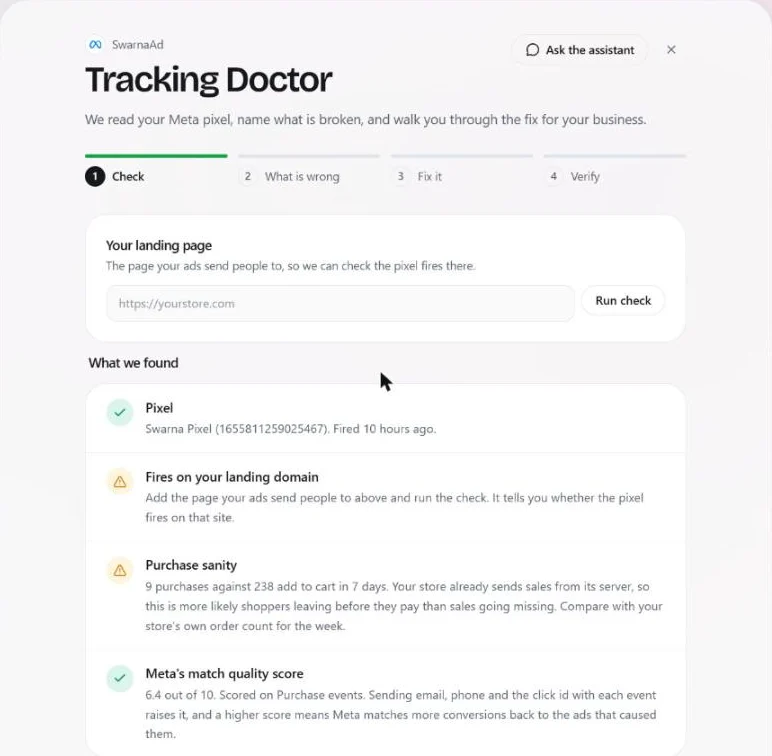
- What is wrong. A pixel that never fired or has been silent for a day, one missing from your landing page or set up twice, purchases without a value, browser and server events at risk of being counted twice, or another tool also sending server events.
- Fix it. Your own copy of every tag and URL for Shopify, WooCommerce or a custom site. Each server event carries the same id as the browser's copy, so Meta counts the sale once.
- Verify. Place a test order and press Done, verify it. The order appears in Meta Events Manager within minutes.
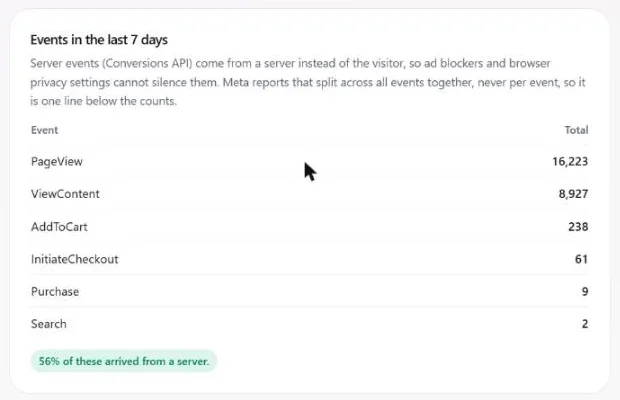
The check then runs again every few hours. If tracking degrades, the campaign page says so and Ad Autopilot stops scaling on purchase counts it cannot trust, and you see your store's own orders by ad click next to Meta's count. The Tracking Doctor is part of Ad Autopilot, which comes with the Studio plan, from $99 a month with 330 credits; open it from Connections, on your Meta account. It covers Meta and Google Ads, not TikTok, Pinterest or Snapchat pixels.
It does not replace the extension, which stays the quick way to check a page as you click through it. See how the Tracking Doctor finds and fixes Meta pixel and Conversions API problems, or the set-up guide for server events.
For the ads themselves, see our Meta ads specs for every placement and Facebook ads automation.
How we checked
We read Meta's developer page on Meta Ads Data Advisor, its Business Help Centre articles about Meta Ads Data Advisor, testing pixel events with it, Events Manager, the test events tool, diagnostics, pixel error and warning messages, deduplication, event match quality and Conversions API best practices, and Meta's developer pages on deduplication and verifying a Conversions API setup. Publisher and browser details come from the two store listings. One difference between Meta's pages: the Help Centre scores match quality from 0 to 10, the developer page from 1 to 10.
Frequently asked questions
What is Meta Pixel Helper?
Meta Pixel Helper is Meta's free extension for Google Chrome and Microsoft Edge that shows whether a Meta Pixel loads on a web page and which events it sends. It is now called Meta Ads Data Advisor, and existing installs update to the new name on their own. Besides checking a pixel, it can now set up the pixel and the Conversions API through Google Tag Manager, Shopify or WooCommerce, with your approval.
Is there a Meta Pixel Helper for Firefox or Safari?
Meta's documentation names two browsers, Google Chrome and Microsoft Edge, and links a store listing for each. It does not mention Firefox or Safari. In the Chrome Web Store, check that the listing names Meta as the developer, because other developers publish extensions with similar names.
Why does Meta Pixel Helper say no pixel was found?
No badge on the icon means the extension found no Meta Pixel on that page. Turn off your ad blocker for the site, reload the page and check that the extension is switched on: if an old Pixel Helper install shows as deactivated at chrome://extensions/, where it is now listed as Meta Ads Data Advisor, switch it on and accept the updated permissions. If it still finds nothing, check that the pixel base code sits in the head section of that page.
How do I check if my Meta Pixel is working?
Open the page, turn off your ad blocker, open the extension and do the action you want to track, such as adding a product to the cart. The pixel should be found and the event should show as successful. Then confirm in Meta Events Manager: open Data sources, select your pixel, open Test events, enter your website URL and click Open website. Your actions appear in the tab while it stays open.
Can Meta Pixel Helper see Conversions API events?
Partly. Meta says the extension verifies that the pixel and the Conversions API are installed and that events fire, and it can set up the Conversions API through Google Tag Manager, Shopify or WooCommerce. For in-depth checks, Meta's guides use Events Manager: the server events section of the Test events tool shows server events as they arrive, and the Event Deduplication tab in an event's details shows the share of events Meta deduplicated.
What is a good event match quality score?
Meta's developer documentation says it typically recommends 6.0 or higher. The score is out of 10, covers website events sent through the Conversions API and is based on the last 48 hours of data. Sending more customer information parameters can raise it, and Meta ranks email and the click ID as the highest-priority parameters.
How is CamClo AI's Tracking Doctor different from Meta Pixel Helper?
The extension checks a page while you browse it. The Tracking Doctor is CamClo AI's check for stores running campaigns with its Ad Autopilot: it reads your pixel's last 7 days of events, checks that it fires on your landing page, compares purchases with add to carts, reads Meta's match quality score and names what is broken in plain words. Then it walks you through the fix for Shopify, WooCommerce or a custom site. It is part of Ad Autopilot, which comes with the Studio plan, from $99 a month with 330 credits.
See what Meta receives from your store
The Tracking Doctor comes with Ad Autopilot on the Studio plan. Plans start with a 7-day trial for $1 with 20 credits.
See plans and the $1 trial