
Table of Contents
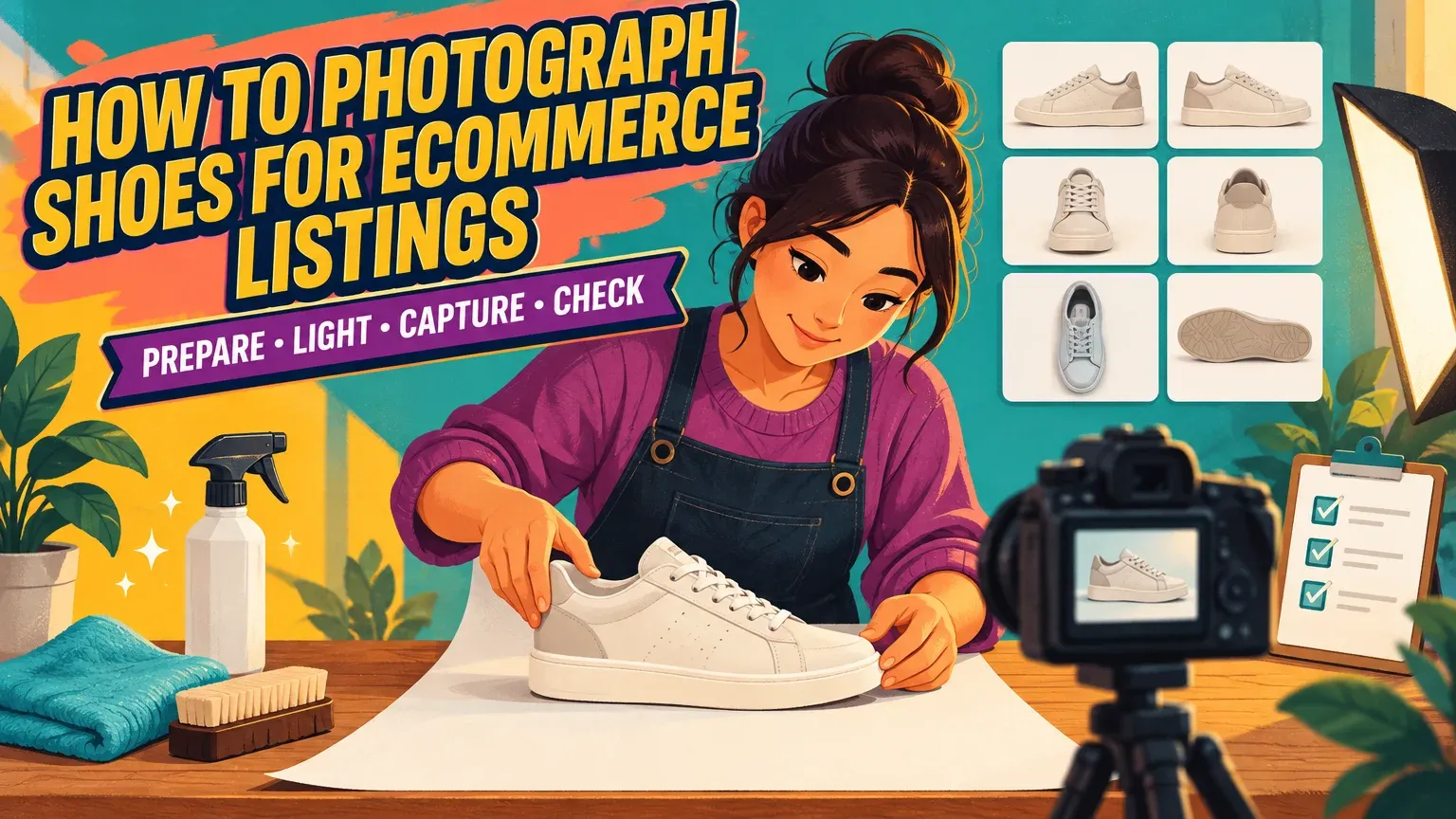
To photograph shoes for ecommerce, clean and naturally support each shoe, use soft light against a white or neutral background, and capture six complementary views: three-quarter, profile, top, sole, heel and detail. These views help customers judge shape, materials and construction. For cameras, Shopify’s shoe photography guide recommends starting around f/8–f/11, then checking sharpness.
1. Clean and support each pair
You’ll need to position a camera or phone, adjust exposure and inspect sharpness. Gather stable camera support, a tabletop sweep, soft light, white card, cleaning supplies, paper stuffing and removable supports.
- Brush loose dirt from uppers, midsoles and outsoles, following Nike’s shoe cleaning guidance. Clean with products appropriate for the material, then let the shoes dry.
- Remove dust, straighten tongues, align laces and conceal removable tags without hiding permanent information.
- Use crumpled paper to restore natural volume, as Shopify recommends. Support boot shafts with tissue or cardboard tubes and sandal straps with discreet clear supports.
- Do not overstretch the shoe. Keep meaningful wear visible on resale products.
2. Build a tabletop shoe photography setup for ecommerce
Use a stable table and a curved white or neutral sweep to create a clean background without a horizon line. Raise the shoe so you can photograph it near its own height, and reserve overhead positioning for top views.
Place a diffused window beside the shoe and white card opposite it. Mount your camera securely in front.
| Left | Center | Right |
|---|---|---|
| Window → diffuser → | Shoe on sweep | ← White reflector |
| Clear working space | Camera facing shoe | Clear working space |
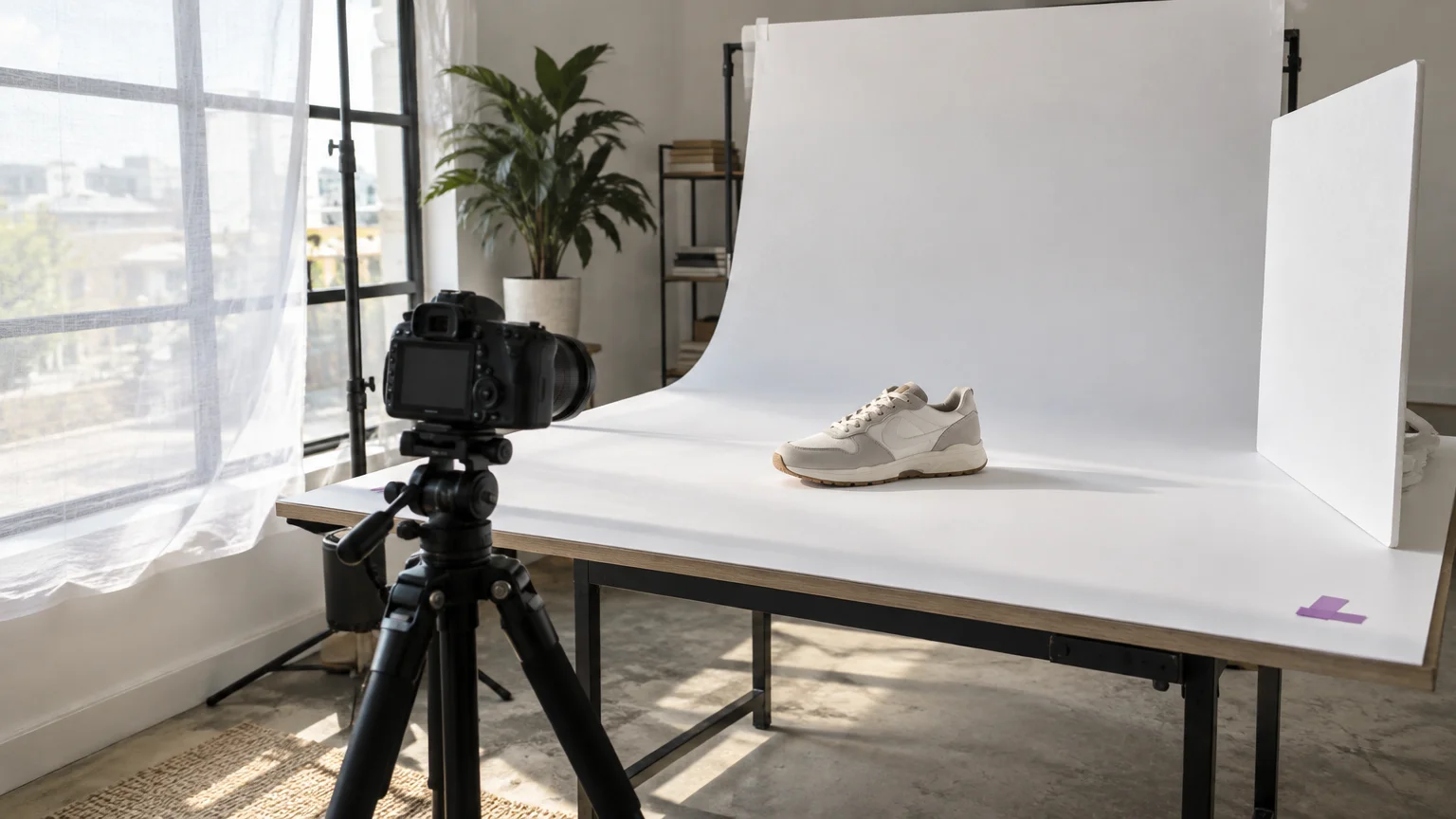
Keep clean listing images separate from lifestyle images. White-background requirements vary by destination; check your channel’s rules with our ecommerce product photography guide.
3. Shape soft light around the shoe’s material
Soft, controlled lighting should reveal texture without washing out color or hiding construction. Turn off competing room lights to avoid mixed light colors.
For a budget setup, Boots, Shoes & Fashion recommends two lights, ideally equally bright. Use lights with matching color temperatures at equal distances, slightly in front of the shoe, aimed diagonally through diffusion.
| Front left | Center | Front right |
|---|---|---|
| Diffused light ↘ | Shoe on sweep | ↙ Diffused light |
| Equal distance | Camera in front | Equal distance |
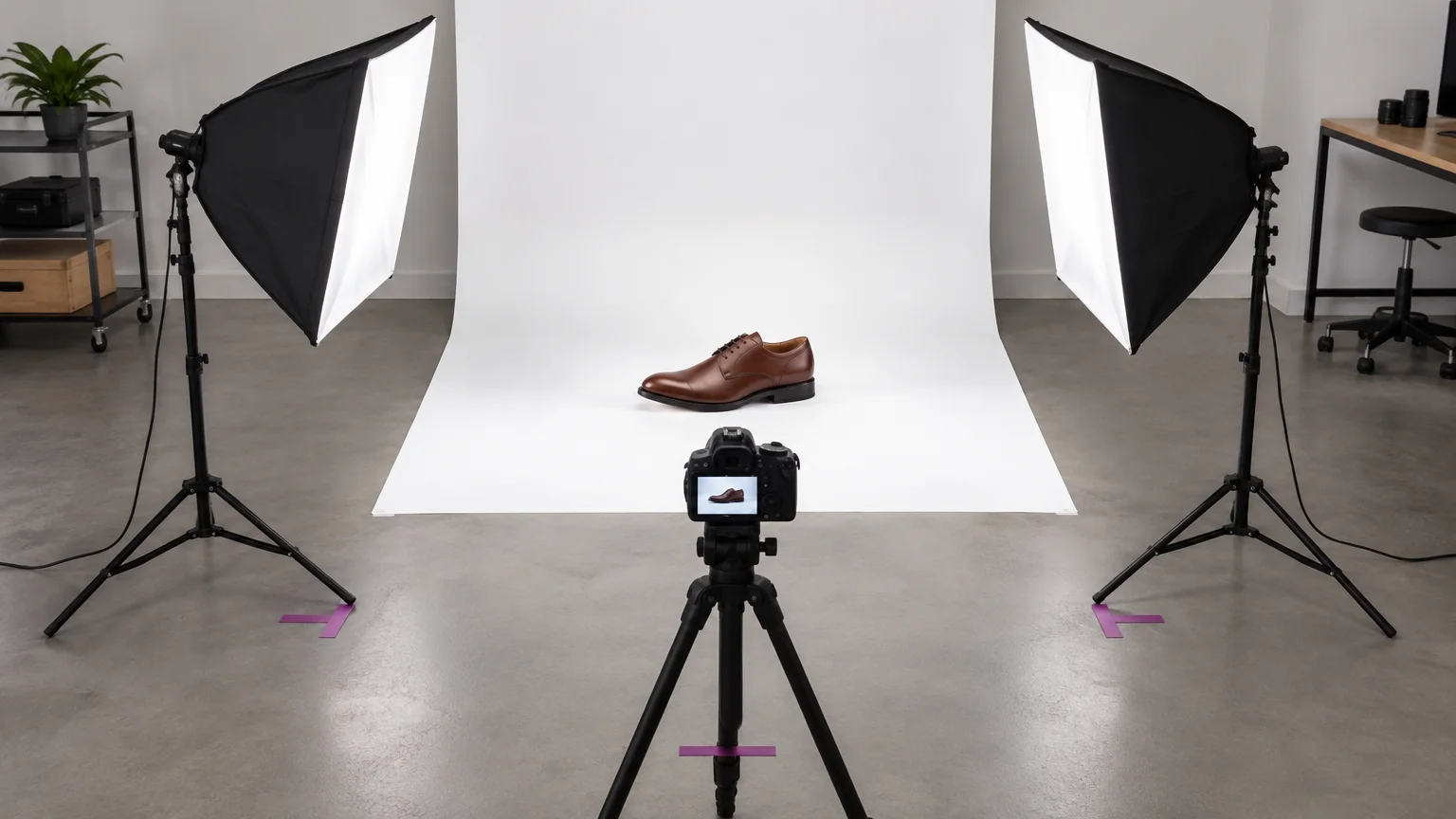
| Material | Visible problem | Adjustment | Preserve |
|---|---|---|---|
| Leather | Glare hides grain | Move a broad soft source until highlights follow curves | Grain and stitching |
| Suede | Surface looks flat | Try directional side light and less fill | Nap and tonal variation |
| Mesh | Weave disappears | Change light angle and background contrast | Openings and weave |
| Patent | Small bright glare spots | Use a very large diffused source | Gloss and curved shape |
| White footwear | Edges merge with background | Add black card outside the frame; protect highlights | Seams and edge detail |
| Dark footwear | Shadows lose texture | Add white-card fill without overexposing | Dark color and sole separation |
Professional Photographers of America recommends very large sources for reflective products. The Society of Photographers recommends off-camera black card for white-on-white separation, while broncolor’s lighting guidance recommends white card for dark, shiny objects. Change one position at a time.
4. Set your camera or smartphone for sharp, accurate shoes
A tripod-mounted camera or stabilized smartphone can produce sharp listing images. Start with controlled perspective, fixed lighting and careful focus.
| Control | Camera starting settings | Smartphone equivalent |
|---|---|---|
| Sharpness | Start around f/8–f/11; inspect toe and heel | Use the main camera; disable portrait blur |
| Exposure | Lowest native ISO; meter shutter speed for the light | Tap the shoe; reduce exposure if highlights lose texture |
| Perspective | Normal-to-short-telephoto lens; step back | Avoid close ultrawide views; move back |
| Focus | Focus on a visible seam midway through the shoe’s front-to-back depth | Lock focus and exposure where supported |
| Color | Fixed white balance from a neutral reference | Manual white balance if available; otherwise keep lighting unchanged |
Distance, angle and camera settings affect sharpness. Inspect the nearest and farthest details at full size; if either looks soft, refocus, increase camera distance or adjust aperture and retest.
Nikon’s white balance guidance favors manual settings for accurate color. Clean your phone lens and include a neutral reference frame. On supported iPhones, Apple’s Camera Control guide explains focus and exposure locking.
5. Capture six complementary shoe views
Print this checklist and check each frame during capture. Add photographs for any features these six views leave unexplained.
| View | Buyer question | Positioning | What to check |
|---|---|---|---|
| Three-quarter hero | What is the overall shape? | Toe turned toward camera, side visible | Natural proportions; whole shoe sharp |
| Profile | What are the sole and heel proportions? | Camera square to outer side, near mid-height | Clear sole profile and side construction |
| Top | How are the opening and closures arranged? | Camera directly overhead | Toe, tongue and fastening visible; supports hidden |
| Sole | What does the tread look like? | Secure shoe with outsole facing camera | Tread and markings sharp, unobstructed |
| Heel | How is the rear constructed? | Directly behind an upright shoe | Counter, rear seam and heel shape clear |
| Detail | What material or feature matters? | Close framing of grain, stitching, mesh or hardware | Sharp texture; color matches wider views |
Add front views for toe design, medial-side views for asymmetry, pair views for complementary designs and open/closed views for complex fastenings. Photograph both shoes when condition or design differs. Never mirror an image to substitute for an unseen physical side.
6. Record a repeatable catalogue setup
Consistent sneaker photography starts with marked positions and an approved reference image. Tape the tripod feet, shoe position and light positions; record camera height and shoe-to-camera distance.
Example: completed catalogue setup card
For a black sneaker, a completed setup card could look like this. Set exposure for your lighting before approving the reference.
| Field to record | Completed example |
|---|---|
| SKU, category, reference | SKU123, black sneaker, approved hero |
| Camera and geometry | 70 mm lens; 10 cm above table; 150 cm from shoe |
| Exposure and focus | ISO 100, f/8, 1/4 s; focus on a central seam |
| White balance and lighting | Neutral-card setting; diffused window left, white card right |
| Background and orientation | White sweep; toe toward frame left |
| Crop and export | Square, reference-matched margins; 2,400 × 2,400 px sRGB JPG |
| Exceptions | Overhead top view; repositioned outsole view |
Keep this order: three-quarter, profile, top, sole, heel, detail, then extras. Name files consistently, such as SKU123_black_01_three-quarter.jpg and SKU123_black_02_profile.jpg. Separate originals from exports.
Recheck lighting for each material and record any changes. When expanding into garments, learn how to photograph knitwear accurately.
7. Retouch truthfully and export for the destination
Remove temporary dust and supports, correct exposure and white balance, and clean backgrounds without changing the product. Preserve construction, texture and meaningful creases. Do not slim soles, reshape toes, invent detail or erase wear buyers will receive.
| Optional workflow | What it provides |
|---|---|
| Our free Background Remover | Local browser processing, no sign-up; transparent PNG or white JPG; longest side 1,000–3,000 pixels |
| Our AI Suite Remove Background | Upload, Generate, download; 0.5 credits per image; saved generation history |
Choose transparent PNG for compositing or white JPG for a white-background destination. Add a white background to transparent files when the destination requires one. Inspect strap gaps, laces, mesh openings, translucent parts and sole edges against contrasting backgrounds.
- Match crop, margins and aspect ratio to the approved reference.
- Export in the destination’s accepted color profile, format, dimensions and file size. Inspect the compressed file for halos, blockiness and lost texture.
- Verify filenames, SKU mapping and image order. Retain originals and required provenance metadata.
Check current channel requirements before publishing. Google Merchant Center’s image guidance sets a 500 × 500 pixel minimum beginning January 31, 2027. Its additional image guidance permits up to 10 additional images, including staging or in-use views.
8. Add optional on-foot context and inspect every result
Use real on-foot photography when the physical relationship between wearer and shoe matters. Baymard’s product image research recommends human-model imagery for wearable products to communicate scale. Generated images offer styling context, not proof of sizing, fit, comfort or performance.
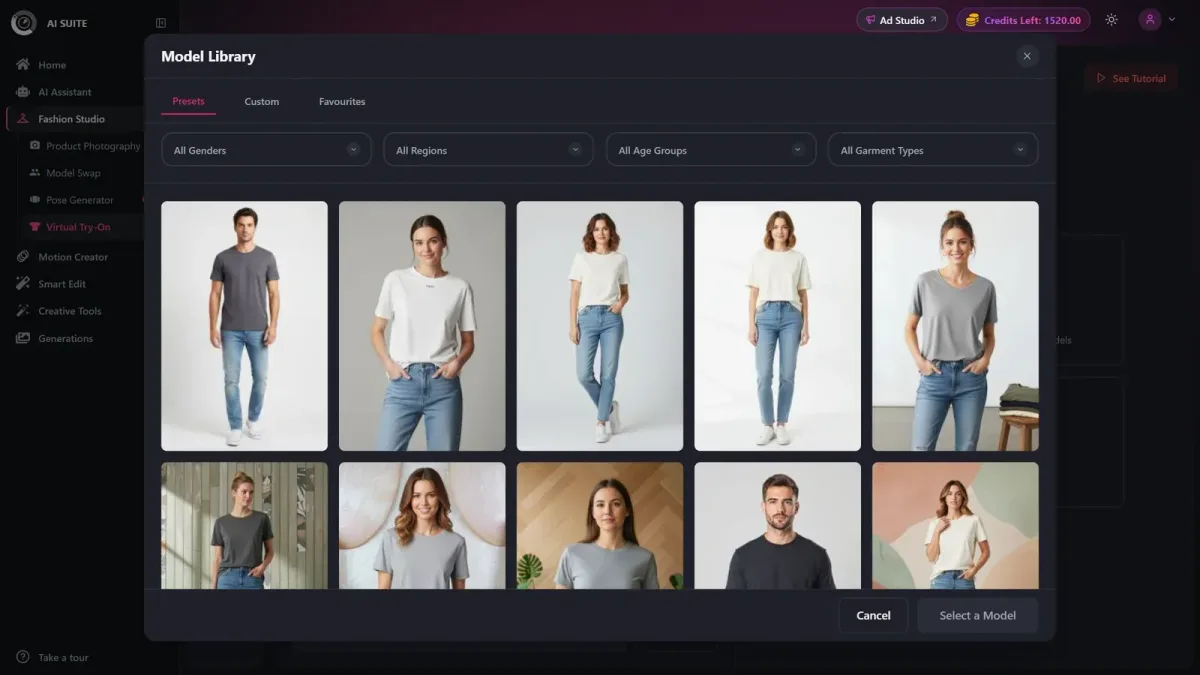
In our Virtual Try-On workflow, upload up to four wearable-item photos, including your footwear, choose a library model or upload your own, select 1K, 2K or 4K, then generate. Items are placed automatically. Generation costs 0.5–1 credit, depending on resolution.
Compare every result with your real product views:
- Check toe shape, sole profile, heel height, visible tread, lacing, logos, hardware, seams and color.
- Check foot contact, orientation, left/right consistency and obscured details. Reject invented or distorted features.
The ShoeFit footwear try-on study identifies mismatch between the source view and target pose as a cause of missing texture and distorted details.
For Google Merchant Center, Google’s AI image rules require the IPTC DigitalSourceType TrainedAlgorithmicMedia metadata tag. Preserve it through export.
Before publishing: run the shot and export checklist
- Confirm hero, profile, top, sole, heel, detail and necessary extras.
- Check sharpness, natural shape, accurate color and visible texture.
- Verify matching crops, clean edges, correct SKUs and destination specifications.
- Retain originals; inspect generated images and provenance metadata.
Avoid mixed lighting, wide-angle toe distortion, overstuffing, clipped whites, crushed dark detail and excessive retouching. Reshoot when the source lacks sharpness, accurate shape or recoverable detail.
Choose specialist photography for difficult patent or translucent materials, demanding color matching, premium campaigns or physical fit demonstrations.
Capture and approve the real product images before adding on-foot styling. For that optional step, explore our footwear virtual try-on.