

Table of Contents
Yes, you can turn an image into a video with AI for free in 2026, but every free tier has a catch: a daily or monthly cap, a watermark, low resolution or no commercial rights. The most useful no-cost options are Viggle (5 videos a day), Magic Hour (3 short clips a day with no account), Adobe Firefly (free daily generations with no watermark) and Canva (up to 20 AI uses a month), while Wan 2.2's open weights are free with no cap if you have a capable GPU.
If you want to make product videos or ads, CamClo AI has a 7-day free trial with 20 credits. Below are the exact allowance and the catch for every image to video AI free option that shows up when you search for one.
We read every free plan on the vendor's own pricing page, help center or FAQ. Here is how we checked.
The five kinds of free
"Free" means different things on different sites. Knowing which kind you are getting tells you how far it will go:
- Free trial: a set of credits to use for a short time, then a paid plan unless you cancel (CamClo AI).
- Daily allowance: a few clips or credits that come back every day (Magic Hour, Viggle, PixVerse, Adobe Firefly).
- Monthly allowance: a cap that resets each month (Canva, HeyGen, Kling).
- One-time credits: a starter balance that does not refill (Runway, plus PixVerse's 60 starter credits).
- Open weights: the model itself, free to run on your own hardware (Wan 2.2).
On top of the cap, most free tiers add a watermark, limit resolution or keep commercial use for paid plans. That matters if the clip is for a store, a product page or an ad.
Quick picks by use case
A 7-day free trial with 20 credits.
Free daily generations, no watermark, commercially safe on Firefly models.
Free image to video AI tools compared
| Tool | Kind of free | Free allowance | The catch | Paid plans from |
|---|---|---|---|---|
| CamClo AI | Free trial | 7-day free trial with 20 credits | Can seem a little expensive next to a single video model, but the credits also cover finished video ads | $49/mo |
| Canva | Monthly | Up to 20 AI uses a month, shared with other AI tools | 5-second clips with no sound | See vendor site |
| Adobe Firefly | Daily | Free daily generations (number not published) | No stated limit to plan around | See vendor site |
| Magic Hour | Daily, no account | 3 clips a day, 3 seconds each | 480p, watermark, personal use only | See vendor site |
| Kling | Monthly | Monthly free credits on login (amount not published) | Watermark; commercial use on paid plans only | $6.99 first month, then $8.80/mo |
| HeyGen | Monthly | 3 videos a month, up to 1 minute each | Watermark removal is paid | $29/mo ($24/mo billed yearly) |
| Viggle | Daily | 5 videos a day | Watermark | $9.99/mo ($7.99/mo billed yearly) |
| PixVerse | Daily credits | 60 starter credits, then 30 a day | Up to 540p, watermark | $8/mo billed yearly |
| Vidu | Login bonus | Bonus credits (amount not published) | No 720p, no commercial use, watermark | $10/mo ($8/mo billed yearly) |
| Pixlr | Free account | Not published | Allowance unknown before you sign up | $2.49/mo |
| Runway | One-time credits | 125 credits, once | About 10 seconds of Gen-4.5; watermark removal is paid | $15/mo ($12/mo billed yearly) |
| Wan 2.2 | Open weights | No cap on your own hardware | Needs a GPU with 24GB or more, plus setup | Free (Apache 2.0) |
Entry paid plan on each vendor's official site, in US dollars, billed monthly unless marked. "See vendor site" means the vendor shows prices in the visitor's local currency and we could not confirm a US dollar price on an official page. "Not published" means the vendor does not state the number. Promotions change often, so confirm before you buy.
The free tools, one by one
Each entry gives the free allowance, the catch, the cheapest paid plan and who the tool suits.
1. CamClo AI
Best for: product videos and video ads from a product photoCamClo AI is an AI studio for ecommerce teams. Its Image to Video tool animates a product or model photo with several current video models in one place, and its Video Ads tool turns the same photo into a finished ad with the script written for you.
- Free: a 7-day free trial with 20 credits. Trial credits work on every model in the picker.
- What 20 credits make: for example, ten 5-second Kling 2.5 Turbo clips (2 credits each), five 8-second 720p Veo 3.1 Lite clips with sound (4 credits each), or four 5-second 720p Gemini Omni Flash clips (5 credits each).
- Models: Seedance 2.5 (4 to 30 seconds, up to 1080p), Seedance 2.0 (4 to 15 seconds), Veo 3.1 (4, 6 or 8 seconds, up to 4K), Kling 3.0 (5, 10 or 15 seconds), Gemini Omni Flash (3 to 10 seconds, up to 4K) and earlier Kling versions. Several models also take a last frame, so you decide where the clip ends.
- Video ads: 15 formats, including UGC, Unboxing, Product Demo, UGC Virtual Try-On and ASMR, from 4 to 30 seconds at 480p, 720p or 1080p. Remix Ads rebuilds a proven ad around your product, up to 90 seconds.
- After the trial: plans from $49 per month with 150 credits.
Strengths
- Starts from your product photo, so the product in the clip is the one you sell
- Veo 3.1, Kling 3.0, Seedance 2.5 and Gemini Omni Flash in one place
- Clips up to 30 seconds, and up to 4K on Veo 3.1 and Gemini Omni Flash
- The same photo can become a finished video ad
Limits
- Can seem a little expensive next to a single video model, but the credits cover several current models, the ad formats and scripts, and the sizing for each placement, not just a raw clip
To animate product photos, start with the AI image to video tool for product photos. For finished ads with a script, see the video ad maker that starts from a product photo.
2. Canva
Best for: short clips inside a design you are already makingCanva's Image to Video tool animates a photo or graphic inside the Canva editor. Smart mode adds motion automatically; Custom mode lets you describe the motion you want.
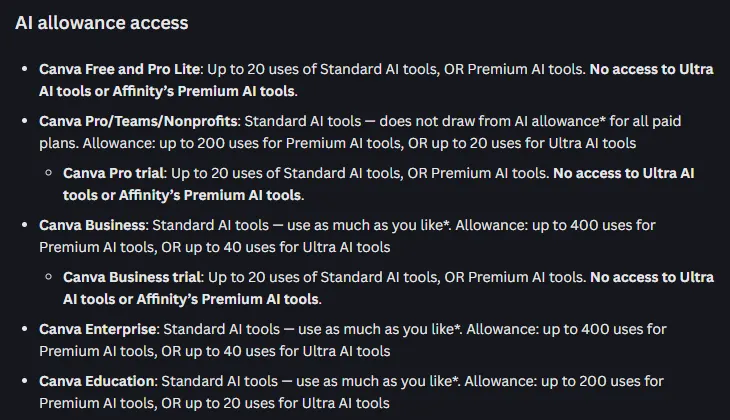
- Free: Canva Free includes up to 20 uses a month of Standard or Premium AI tools, shared across all of them, and Canva calls Image to Video a premium feature that counts toward that allowance. The free allowance resets at 12:00 a.m. UTC on the first of each month.
- The catch: clips are fixed at 5 seconds (Canva notes some come out at 3), have no audio and keep the image's aspect ratio. Canva also says face animation is not fully supported.
- Paid plans: Canva shows prices for the visitor's region, so for US dollar prices see vendor site. Canva Pro raises the allowance to up to 200 uses of Premium AI tools a month.
Pick this if you already design in Canva and want a few moving images for a post or a slide, with music and text added in the same editor.
3. Adobe Firefly
Best for: commercially safe clips with no watermarkFirefly is Adobe's generative AI app. Its image to video tool animates an upload or an AI image with Adobe's own Firefly Video Model, and Adobe's page also lists partner video models from Google, Runway, Luma and OpenAI.
- Free: Adobe says you can use the tool free with an Adobe account and get free daily generations with the Firefly Video Model. Its plans page adds that limits refresh every day. Adobe does not publish the daily number.
- No watermark: Adobe says Firefly "does not add a watermark to any videos you generate", whether you use its own model or a partner model.
- Commercial use: Adobe says videos made from your image with Adobe Firefly models are commercially safe, as long as the image you upload does not violate anyone's rights.
- Paid plans: prices show in the visitor's local currency, so see vendor site. Firefly Standard has 2,000 credits a month and up to 20 five-second videos; Firefly Pro has 4,000 credits and up to 40.
Pick this if you want clean clips you can use in commercial work, and an unstated daily limit is fine.
4. Magic Hour
Best for: trying image to video without an accountMagic Hour is a browser-based AI video studio. Its free image to video tool works without sign-up and runs on the LTX-2.5 model, which makes sound along with the picture.
- Free: 3 generations a day, 3 seconds each, with audio and no account. Signing up adds account credits and rewards.
- The catch: free exports are 480p with a watermark, and without a subscription or credit pack Magic Hour allows only personal, non-commercial use. Kling, Veo and Seedance need a paid plan.
- Paid plans: Magic Hour shows prices in the visitor's currency, so see vendor site. On paid plans each frame costs 1 credit at the base rate; Magic Hour's own example is 180 credits for a typical 5-second 720p Kling 2.6 video.
Pick this if you want to see what image to video can do before creating any account.
5. Kling
Best for: trying Kling's own modelsKling is Kuaishou's video platform and the home of the Kling models, including Kling 3.0, which makes video with sound. For the paid tiers in detail, see our Kling AI pricing guide.
- Free: the Basic plan is $0. Kling's pricing FAQ says non-subscribers claim monthly free credits when they log in, valid for 31 days. It does not say how many.
- The catch: brand watermark removal, 1080p and 4K video, and commercial use are listed for paid subscribers only.
- Paid plans: Standard is $6.99 for the first month, then $8.80/month on monthly billing (list price $10), with 660 credits a month.
Pick this if you want to test Kling's motion for personal projects before paying.
6. HeyGen
Best for: talking photos with a voiceHeyGen is best known for AI avatars. Its image to video tool adds pans, zooms and motion to a photo and can make a portrait speak, with lip sync. Our HeyGen pricing guide covers what its credits buy.
- Free: 3 videos a month, up to 1 minute each, with no credit card needed.
- The catch: watermark removal starts on the paid Creator plan.
- Paid plans: Creator is $29/month, or $24/month billed yearly, with 600 credits.
Pick this if you want a photo of a person to talk to camera rather than just move.
7. Viggle
Best for: character motion from a template or your own clipViggle maps motion from a template, or from a video you upload, onto the person or character in your photo, so the image dances, walks or gestures on cue.
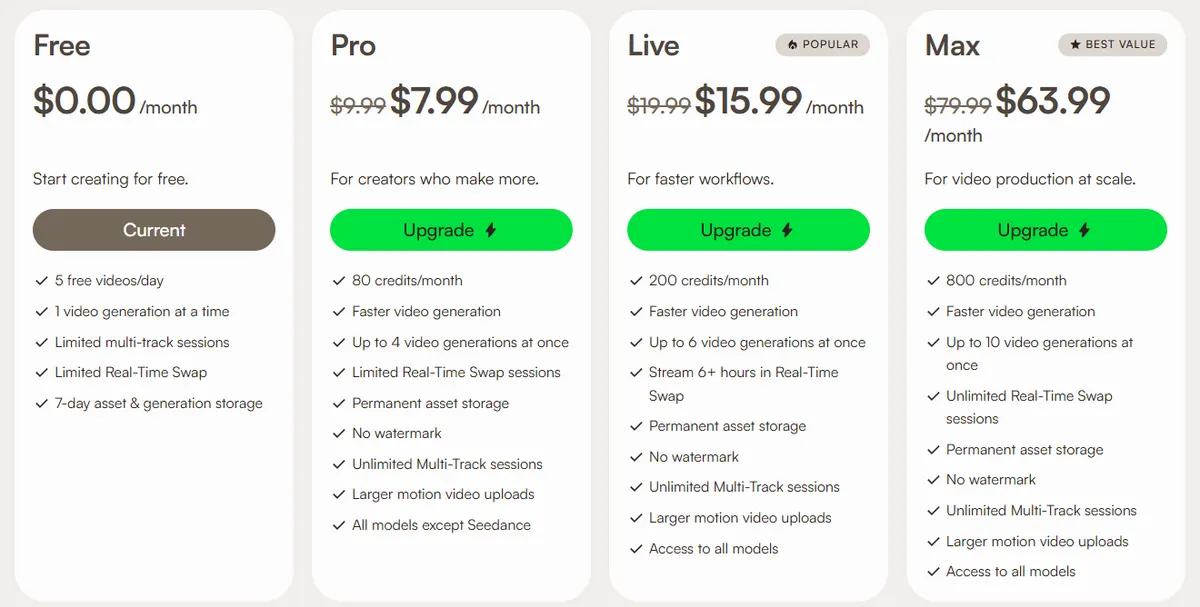
- Free: 5 videos a day after sign-up, one generation at a time, with 7-day storage.
- The catch: free exports carry a watermark.
- Paid plans: Pro is $9.99/month, or $7.99/month billed yearly, with 80 credits a month, no watermark and every model except Seedance.
Pick this if you want a person or character in a photo to copy a specific move.
8. PixVerse
Best for: a daily credit top-upPixVerse is an AI video app with its own models. From the Pro plan up, it adds third-party video models such as Seedance 2.5, MiniMax H3 and Wan 3.0.
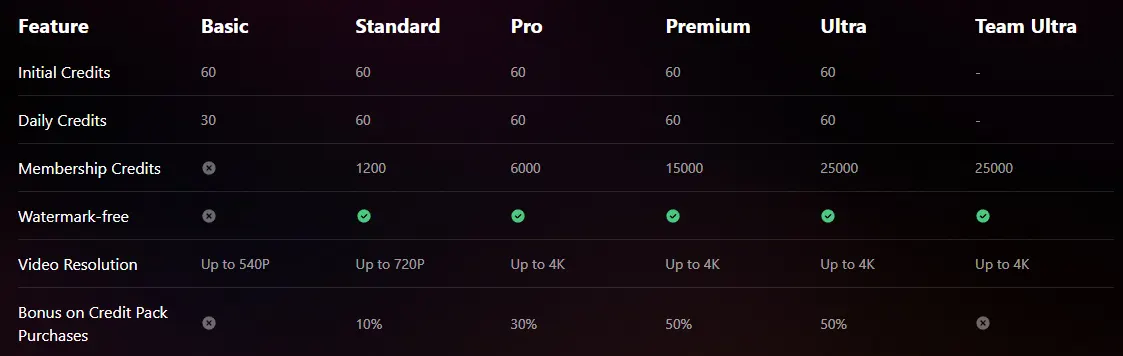
- Free: the Basic plan gives 60 initial credits plus 30 daily credits that reset each day, with video up to 540p and 2 generations at once.
- The catch: Basic output is watermarked, and the plan page does not say how many credits a clip uses.
- Paid plans: Standard is $8/month billed yearly ($96), with 1,200 credits every 30 days, 60 daily credits and video up to 720p.
Pick this if you want to come back each day for a few more test clips.
9. Vidu
Best for: first and last frame controlVidu's image to video tool can take a first and a last frame and animate the motion between them, which helps when a clip has to start and end on specific shots.
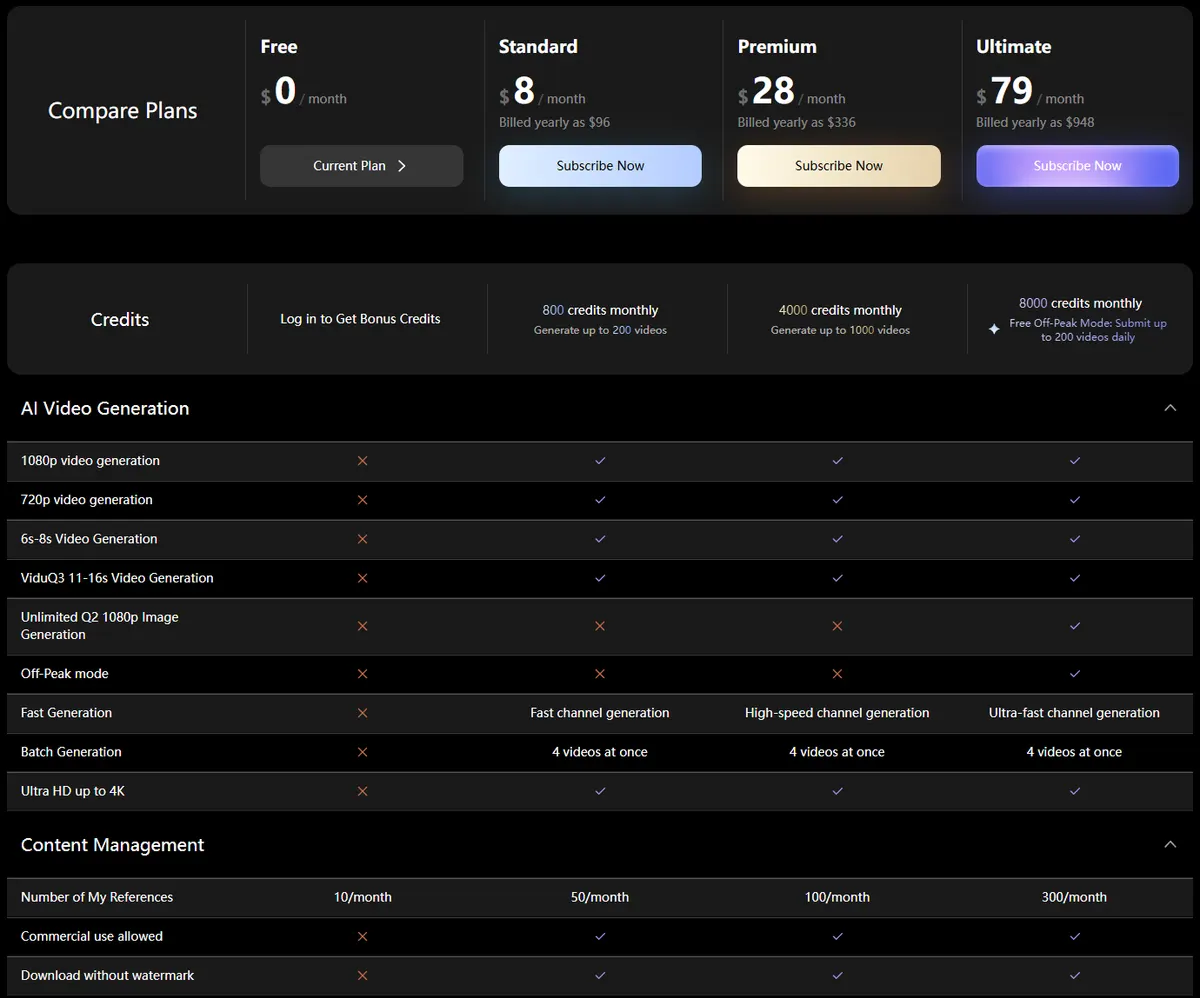
- Free: a $0 plan. The pricing page says "Log in to Get Bonus Credits" but does not give a number.
- The catch: the Free column shows no 720p or 1080p video, no 6 to 8 second clips, no commercial use and no downloads without a watermark. Vidu also says its plans will be upgraded on October 6.
- Paid plans: Standard is $10/month, or $8/month billed yearly ($96), with 800 credits a month, which Vidu puts at up to 200 videos, and commercial use.
Pick this if you need a clip to move between two set frames and are only testing.
10. Pixlr
Best for: watermark-free tests on a small budgetPixlr is an online photo editor with an AI Video Generator that offers three models: Fast (Seedance Lite), Pro (Kling V2) and Ultra (Google Veo).
- Free: Pixlr's FAQ says "You can generate videos on a free account and there are no watermarks on any exports." It does not say how many.
- The catch: the free allowance is not published, and even the paid Plus plan covers only about 4 fast AI videos a month by Pixlr's own estimate.
- Paid plans: Plus, the lowest paid price on this list, is $2.49/month with 80 AI credits a month (about 4 fast AI videos, Pixlr estimates). Premium is $9.99/month with 1,000 credits (about 50).
Pick this if you want a few clean clips and already use Pixlr for photo edits.
11. Runway
Best for: testing a professional video studio before you payRunway is a creative video studio with its own Gen-4.5 model and, on paid plans, third-party models such as Kling 3.0 and Seedance 2.5. Our Runway pricing guide breaks down each plan.
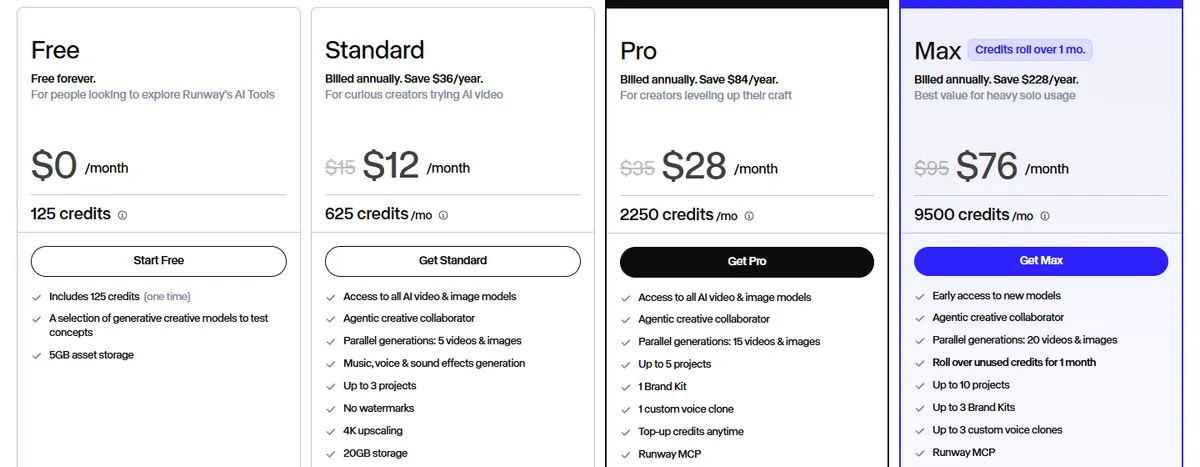
- Free: 125 one-time credits and "a selection of generative creative models". The credits do not refill.
- The catch: at Runway's own rate on the Standard plan (625 credits for 52 seconds of Gen-4.5), 125 credits is about 10 seconds of Gen-4.5 video. "No watermarks" is listed as a Standard plan feature.
- Paid plans: Standard is $15/month, or $12/month billed yearly, with 625 credits a month.
Pick this if you are weighing a paid Runway plan and want to try the interface first.
12. Wan 2.2 (open weights)
Best for: unlimited free use on your own GPUWan is Alibaba's family of video models. Wan 2.2 is published as open weights on GitHub under the Apache 2.0 license, so you can run it yourself with no per-clip fee and no daily cap.
- Free: the image to video model I2V-A14B (480p and 720p) and the smaller TI2V-5B, which makes video from text or an image at 720p and 24 fps.
- The catch: the 5B model needs a GPU with at least 24GB of memory, such as an RTX 4090, and takes under 9 minutes for a 5-second 720p clip. The 14B models need at least 80GB on a single GPU. Setup takes technical skill.
- Newer versions: Wan 3.0 is available in hosted apps such as PixVerse; the open weights on Wan's GitHub are Wan 2.1 and Wan 2.2.
- Why it is different: no cap and no per-clip cost, your images stay on your own machine, and the Apache 2.0 license permits commercial use.
Pick this if you have the hardware and the skills, and want unlimited clips with no account anywhere.
What is not free: Gemini, ChatGPT and Grok
Three big names come up in almost every search for free image to video AI. Here is where they stand:
- Google Gemini and Veo. Google says Gemini Omni will replace Veo in the Gemini app. It makes 10-second videos with sound, including from up to five photos, but Google's page says: "Not on a paid plan yet? Upgrade to unlock access to Gemini Omni and more." The US page also offers college students a free Pro plan for one year, which unlocks Omni. In the Gemini API, Google's pricing page lists no free tier for Veo 3.1 or Gemini Omni Flash; paid use starts at $0.05 per second for Veo 3.1 Lite at 720p. Our Veo 3 pricing guide has the full rates.
- ChatGPT and Sora. OpenAI's help center says the Sora web and app experiences were discontinued on April 26, 2026, and the Sora API on September 24, 2026.
- Grok Imagine. xAI's FAQ says every image and video Grok makes carries a Grok watermark that cannot be removed, and that 720p videos drop to 480p once you hit your tier's 720p cap. It does not publish a free-tier limit for Imagine.
How to get the most from a free allowance
- Start with the right photo. A sharp, well-lit image at the aspect ratio you plan to post works best. Canva, for example, keeps your image's aspect ratio in the clip.
- Describe motion, not a new scene. "Slow push-in, fabric moving in a light breeze" keeps the product intact. Asking for a new setting invites the model to redraw it.
- Draft on free, finish on paid. Use free allowances to test prompts at low resolution, then render the keeper at full quality.
- Check the rights before you post. Magic Hour's free output is for personal use, Kling and Vidu keep commercial use for paid plans, and Adobe says Firefly-model video is commercially safe.
- Check product details frame by frame. Prints, logos and labels are where video models slip. Our piece on why general video models struggle with exact product detail goes deeper.
If you sell products and want paid tools compared on quality and workflow, see our guide to the best AI image to video tools for ecommerce, or try animating a product shot in CamClo AI's photo to video generator.
How we checked
We pulled Google's live US results for "image to video ai free" and three related searches, and chose the tools that ranked on the first page, appeared in Google's AI overview or were covered by ranking roundups. For each one we read the official pricing page, help center or FAQ and recorded the free allowance, how often it resets, the watermark, resolution and commercial-use terms, and the entry paid plan in US dollars. We saved screenshots of the pages we could reach without logging in.
Where a vendor does not publish a number, we say so instead of estimating. Some vendors show prices in the visitor's local currency; where we could not confirm a US dollar price on an official page, we wrote "see vendor site". We did not score output quality, and free tiers often run older or smaller models than paid plans, so test with your own images before you commit.
Frequently asked questions
What is the best free image to video AI?
It depends on the catch you can live with. For no account at all, Magic Hour gives 3 short clips a day. For the highest stated daily count, Viggle gives 5 videos a day, with a watermark. For clips with no watermark and clear commercial terms, Adobe Firefly has free daily generations. For product videos and ads, CamClo AI has a 7-day free trial with 20 credits. For no limits, Wan 2.2 runs free on your own GPU.
Is there a completely free image to video AI?
Not in the cloud. Every hosted tool caps its free tier by the day, the month or a one-time balance, and most add a watermark or limit commercial use. The only option with no cap is an open-weight model such as Wan 2.2, which is free under the Apache 2.0 license but runs on your own GPU: its smaller 5B model needs at least 24GB of video memory.
Which free image to video AI has no watermark?
Adobe Firefly says it adds no watermark to any video you generate, and Pixlr says free exports carry no watermark. Magic Hour, Viggle, PixVerse, Vidu and Grok watermark free output, and Kling, HeyGen and Runway list watermark removal as a paid feature.
Can I use free AI videos commercially?
Check each tool's terms first. Magic Hour allows only personal, non-commercial use without a subscription or credit pack, and Kling and Vidu list commercial use for paid plans only. Adobe says videos made with its Firefly models are commercially safe as long as your image does not break anyone's rights, and Wan 2.2's open weights are under the Apache 2.0 license.
Can ChatGPT turn an image into a video?
Not through Sora any more. OpenAI's help center says the Sora web and app experiences were discontinued on April 26, 2026, and the Sora API on September 24, 2026. Google's Gemini app makes video from photos with Gemini Omni, but only on paid plans.
How do I turn a product photo into a video for free?
Upload a sharp, well-lit photo to a tool with a free allowance, describe the motion you want (a slow turn, a push-in, fabric moving), keep the product in frame and check prints and logos before you post. For a store or an ad, confirm the free tier allows commercial use. CamClo AI has a 7-day free trial with 20 credits. The credits work on current models such as Veo 3.1 and Kling 3.0.
Turning product photos into video?
CamClo AI comes with a 7-day free trial with 20 credits.
See plans and the free trial