

Table of Contents
For white background product photography, either light a white sweep separately from the product and clean up selectively, or photograph against a plain contrasting background and remove it afterward with our free background remover. Both routes can preserve product color, texture and edges. Pure white is RGB 255/255/255 (#FFFFFF), as defined by W3C’s RGB reference.
Before starting: learn to lock focus and exposure, and gather a stable phone or camera, a suitable surface, soft light and editing access. Allow time for preparation, setup, capture, cleanup and export inspection.
1. Assess the product and choose your workflow
Choose the method based on the product’s edges, materials and available lighting equipment. Identify its defining features, most informative angle, true color and texture before arranging the background.
White reduces distractions and makes catalogue images consistent. Opaque apparel with clear edges suits either route. White clothing needs tonal separation; reflective items need reflection control; transparent and sheer materials require careful treatment of what shows through them.
| Decision factor | Controlled white lighting | Background removal |
|---|---|---|
| Opaque apparel | Repeatable with stable positioning | Good starting case for clear cutouts |
| White clothing | Preserve edges with controlled spill | Use a contrasting capture background |
| Lace, fur and sheer fabric | Can preserve naturally captured detail | Needs close mask inspection and correction |
| Reflective or transparent items | Shape reflections and transmitted light carefully | Removal cannot repair poor source reflections |
| Setup effort | More positioning and lighting control | Simpler backdrop, but careful capture still matters |
| Equipment cost | Potentially higher with dedicated lights | Potentially lower using existing capture equipment |
| Per-image cleanup | Background patches, marks and unevenness | Mask edges, missing detail and halos |
| Space and repeatability | Benefits from room and fixed light positions | Useful in tight spaces; correction effort varies |
Compare the time each route takes to produce finished images that pass inspection: total labor = setup time + image count × average capture-and-cleanup time. Test both routes with a simple product and a difficult one, taking each through export and inspection. There is no single product-count cutoff that makes one route faster.
2. Choose a white backdrop, base and equipment
Choose the vertical backdrop and horizontal base
The backdrop sits behind the product; the base supports it. A curved sweep joins them without a visible horizon seam. A white wall can serve as the backdrop, but still needs a suitable base.
Visual Education’s backdrop guide identifies acrylic, paper rolls, MDF and wooden boards as useful options. Choose according to reflections, cleaning and whether you need a continuous curve.
| Material | Appearance and joins | Care and limitations |
|---|---|---|
| Seamless paper | Curves into a continuous sweep | Creases and marks; replace dirty sections |
| White foam board | Flat backdrop, base or reflector; panel edges create a join | Dents easily; replace damaged panels |
| Matte acrylic | Restrained reflections; a backdrop-to-base join may show | Wipe clean; inspect for scratches |
| Glossy acrylic | Visible product reflections | Shows dust, fingerprints and scratches |
| Painted MDF or wood | Reusable flat surface; texture or joins may show | Clean and repaint when marked |
Assemble a minimal or controlled setup
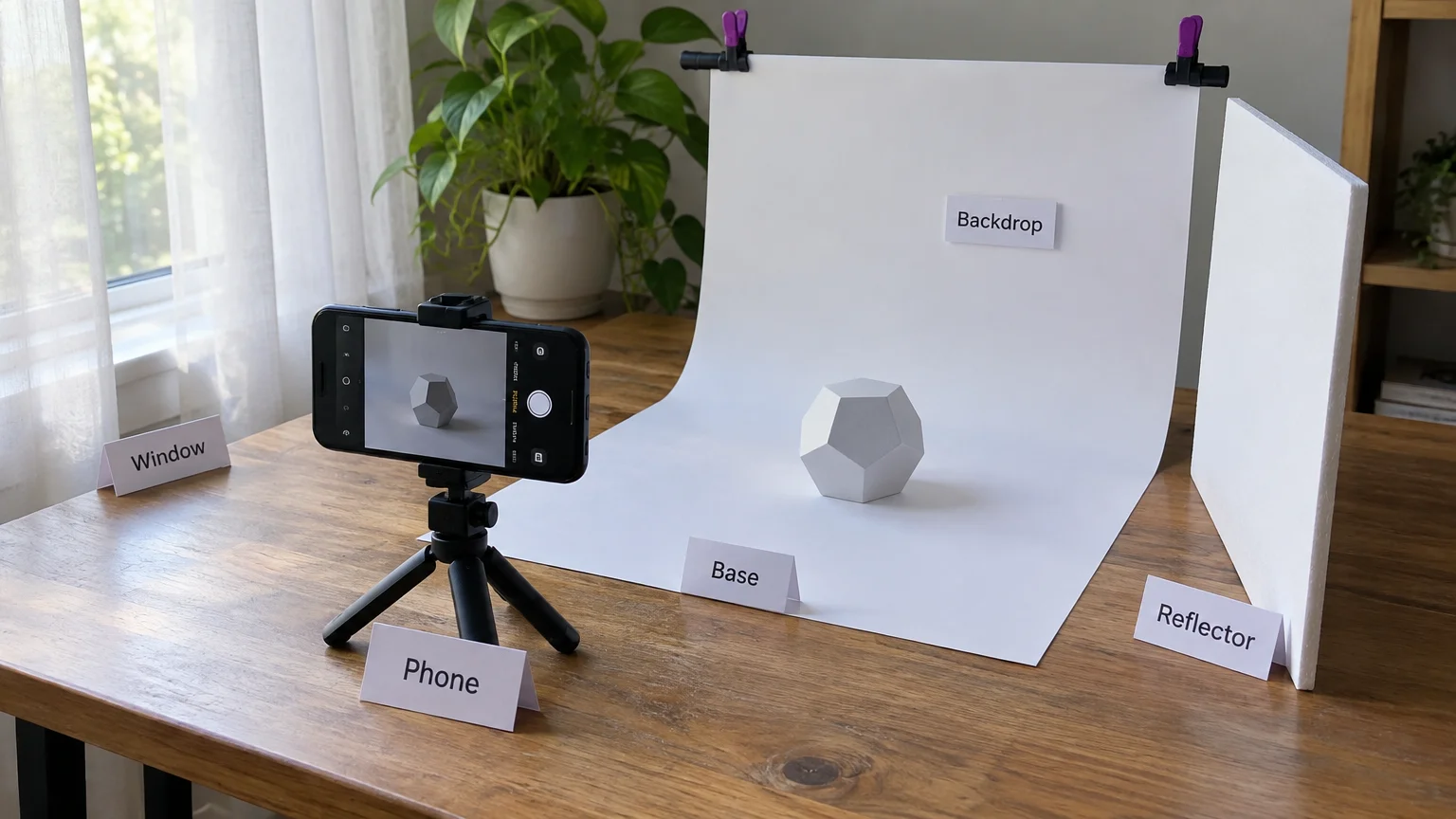
A phone and indirect window light can work well when the product stays still and the light remains consistent.
- Minimal phone kit: phone, stable support, sweep, indirect window light or diffusion, white reflector, optional black cards and editing access.
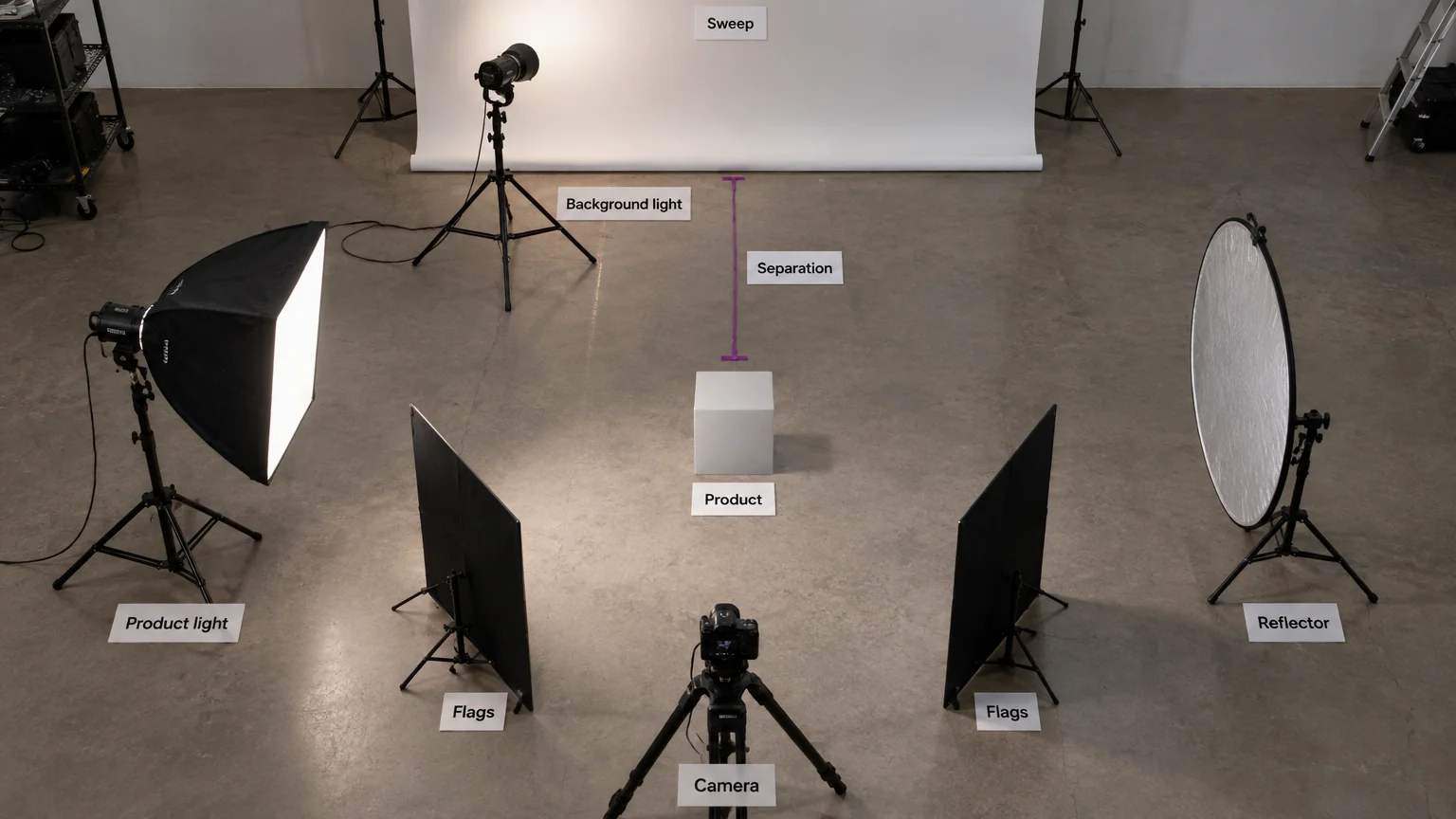
- Controlled camera kit: camera and suitable lens, tripod, sweep, diffused product light, reflector, optional dedicated background light, flags or black cards and editing access.
For the window setup, face the phone toward the sweep, place the window to one side and the reflector opposite it. Avoid patches of direct sunlight across the product or background.
3. Set up for white background product photography
Light the product first, then adjust the background without sacrificing the product’s detail.
- Prepare the item. Remove dust and lint, polish appropriate surfaces, and steam or iron garments according to their care instructions. Straighten straps without changing the item’s construction or shape.
- Build the sweep. Secure a smooth curve, remove wrinkles and position the product at its chosen angle. Keep unnecessary props out.
- Set soft product light. Place a diffused light beside and slightly in front of the product. Use the opposite reflector to soften shadows without flattening every contour.
- Control the background light. Where space permits, put a background light between the product and sweep, aimed away from the camera. Inspect coverage across the center and corners. Moving it closer to the backdrop reduces its spread.
- Manage spill. Increase product-to-background separation when reflected light washes out edges. In tight spaces, use flags and plan selective cleanup instead of adding more power.
Keep background light out of the lens. Flags help prevent the flare and overexposure addressed in Visual Education’s lighting lesson. For white clothing, a black card beside the garment can define edges through controlled negative fill.
4. Lock exposure, focus and color, then clean selectively
White paper looks gray when exposure or illumination makes it record darker than white. Increasing brightness everywhere may fix the paper while destroying a white garment’s weave and seams.
- Camera: start below ISO 200 and around f/8 to f/11, following iPhotography’s camera guidance. Adjust aperture for the required depth of field. Choose shutter speed for continuous light or your flash’s synchronization limits, accounting for movement and camera stability.
- Phone: stabilize it and lock focus and exposure where available. On iPhone, touch and hold the focus area until AE/AF Lock appears, following Apple’s camera instructions. Do not try to copy a camera aperture setting onto a fixed-aperture phone.
Record raw image files where available and photograph a gray card under the product lighting to set white balance, following Canon’s product photography guide. Keep white balance consistent across the sequence.
Check bright garment areas for visible weave, seams and folds. Correct product exposure and color first, then use a background selection or mask to whiten remaining gray areas and remove marks. Avoid indiscriminate global brightening.
Even a well-lit white background may need selective retouching. Save the original and reusable adjustments, but review each image before applying a batch correction.
5. Remove the background when that workflow fits
Use removal when a plain contrasting capture background produces cleaner, more repeatable results than lighting the background white.
- Capture carefully. Use soft light, keep the entire product in frame and avoid a background that merges with fine edges. Strong background color reflected onto fabric creates extra correction work.
- Generate the cutout. Add the image, run removal and compare the result with the original before choosing framing.
- Inspect before flattening. Check for missing product detail and unwanted background, place the accepted cutout on pure white, then export.
Our free browser background remover processes images locally without uploading them. It downloads an approximately 100 MB model on first use and exports at 1,000 to 3,000 pixels on the longest side. Choose white JPG or transparent PNG. Allow for initial loading and device performance when timing the workflow.
Our paid Remove Background runs in the cloud, accepts JPG, PNG and WebP uploads up to 20 MB, and offers white or transparent output. Its erase/restore brush workflow lets you correct missing product areas or retained background. Neither route replaces garment inspection.
6. Inspect clothing edges before accepting the cutout
Compare the original and cutout at 100% zoom, then inspect against both white and a contrasting dark background. Adobe’s zoom guidance identifies 100% as the pixel-for-pixel view; its hair-masking guidance recommends inspecting edges against black.
| Detail | Look for | Correction |
|---|---|---|
| White seam | Lost outline or pale halo | Restore the seam; refine residual background |
| Lace openings | Filled holes or missing threads | Erase trapped background; restore real threads |
| Sheer panel | Opaque patch or abrupt transparency | Refine translucency with careful local masking |
| Fur or hair | Softened, clipped or missing strands | Refine locally; compare with the source |
| Narrow strap and gaps | Broken strap or filled spaces | Restore continuity; clear gaps between parts |
Sheer fabric includes the appearance of what was behind it, so a hard cutout is often insufficient. Use restraint with smoothing, feathering and edge shifting: broad corrections can erase real fibers.
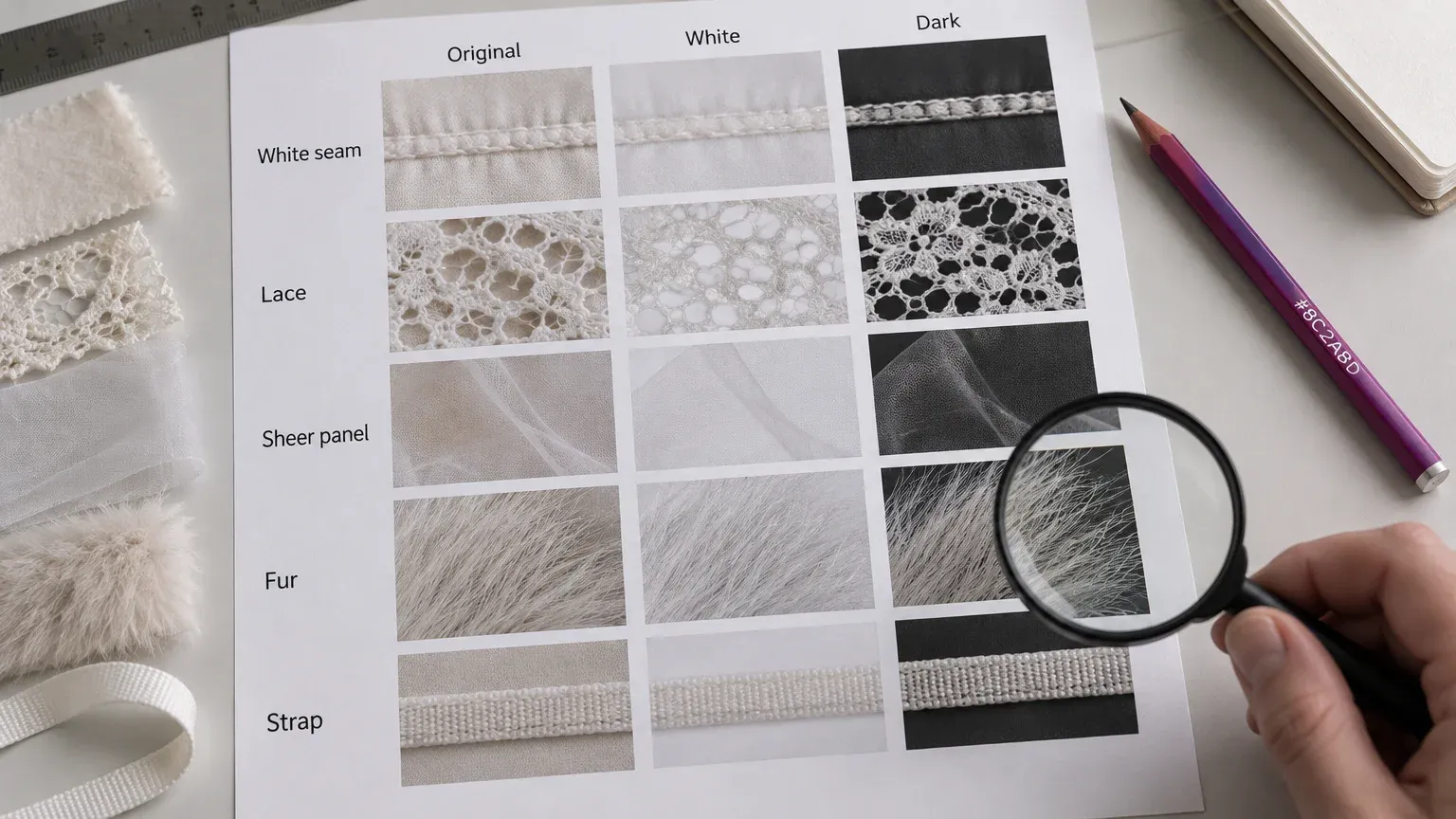
Choose manual masking or a professional retoucher for persistent fine-edge failures, translucency, complex reflections or color contamination. Reshoot when the original lacks usable detail.
7. Standardize the catalogue and verify the exported file
Keep framing and shadows consistent
Use consistent crop, product scale, margins, alignment and aspect ratio without stretching the product. Retain a restrained contact shadow when it grounds the item and suits the destination. Remove distracting cast shadows, dirty patches and inconsistent shadow directions.
Check the exported pixels and marketplace requirements
Reopen the saved file and check the following before uploading:
- Background: sample multiple empty areas, including corners and spaces near the product, for RGB 255/255/255. Near-white is not numerically pure white. Adobe’s pixel-sampling instructions explain how to inspect values.
- Edges: inspect at 100%. Do not mistake intentional shadows or antialiased edge pixels for empty background.
- Product fidelity: compare color, texture, seams, openings and white highlights with the original.
- Catalogue consistency: compare framing and shadows with neighboring images.
- Export: verify that the file meets the destination’s dimensions and format requirements.
Marketplace requirements: Amazon versus Google
Amazon: its published 2021 listing guidance specifies pure white, RGB 255/255/255, for MAIN images. That is not a blanket rule for every image type.
Google: Google Merchant Center guidance recommends a clean, solid white or light neutral background for the main hero image, not a universal pure-white requirement.
Check current destination and category rules before uploading. Background is only one part of marketplace image compliance. See the Amazon product photography requirements for broader preparation.
Recap: protect the product, then perfect the white
Choose the workflow that produces accurate, finished images with the least total effort, not just the fastest capture or cutout. The complete ecommerce photography guide connects these steps to a broader production workflow.
Once the accurate white-background master is approved, explore background ideas for other placements. For optional lifestyle variants, use our Change Background tool in our creative studio as a separate creative step.