
Table of Contents
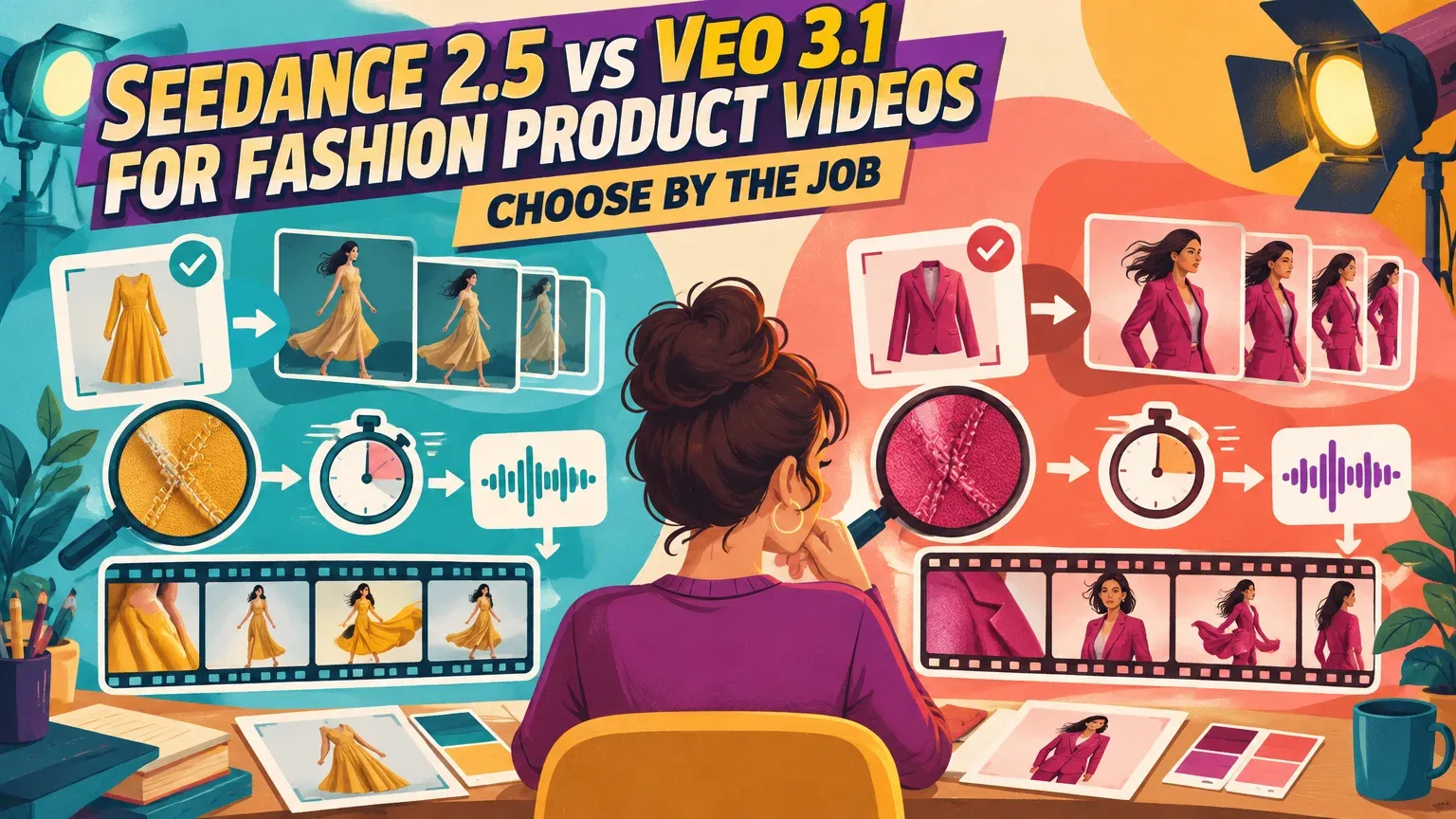
Choose Seedance 2.5 or Veo 3.1 by the job. Start with Seedance for longer takes and multimodal references: BytePlus supports 4–30-second generation and up to 50 references. Start with Veo 3.1 Standard or Fast for Google’s 720p, 1080p and 4K output and DeepMind’s first/last-frame workflows, with Google Cloud’s clip lengths of 4, 6 or 8 seconds. To judge garment fidelity, test both with the same approved image.
Our Image to Video offers both model families. For a broader shortlist, compare ecommerce image-to-video tools.
Seedance 2.5 vs Veo 3.1: specifications and starting model
Longer takes and extensive references favor Seedance; high-resolution output and first/last-frame control favor Veo. Use the specifications below to plan your test, then select the controls available in your application.
| Capability | Dreamina Seedance 2.5 | Google Veo 3.1 Generate |
|---|---|---|
| Provider and version | ByteDance model through BytePlus, version 2.5 | Google, version 3.1; Standard and Fast have different prices |
| Inputs | Text with image, video and audio references | Text, image-to-video, reference-image and first/last-frame workflows |
| Native duration | 4–30 seconds | 4, 6 or 8 seconds; reference-image generation requires 8 seconds |
| Resolution | 480p, 720p, 1080p on the current product page; the offers page lists a 720p maximum | 720p, 1080p, 4K for Standard/Fast |
| Audio capabilities | Up to 10 audio-reference files | Native generated audio, including dialogue, ambience and effects |
| Reference capacity | Up to 30 images, 10 videos and 10 audio files | 1–3 images in Google’s reference-image workflow |
| Access | BytePlus, subject to country and real-face restrictions | Gemini API and Google interfaces, with controls that vary by interface |
In the Gemini API, Veo 3.1 Lite Preview lacks reference-image support, 4K output and extension. Use Standard or Fast for reference-image generation.
Our Image to Video offering includes the following models and output options:
| Workflow | Models and capabilities |
|---|---|
| Image to Video | Seedance 2.5 and Veo 3.1 |
| Veo Image to Video | Up to 4K output |
| Video Ads | Seedance 2.5 |
| Generation cost | Exact credit quote on Generate before generation |
| Fashion task | Motion | Acceptable product changes | Audio and delivery | Starting choice and review |
|---|---|---|---|---|
| Catalogue motion | Locked camera, small weight shift | No material garment changes | Silent; crop matched to placement | Test both; inspect the full garment |
| Fabric close-up | Gentle camera move | No weave, seam or print changes | Optional ambience; resolution that preserves detail | Test both; review texture closely |
| Promotional scene | Walking, camera or background changes | Background changes only; garment remains accurate | Music/dialogue; portrait or landscape ad | Seedance for longer takes; Veo for first/last frames or 4K; review continuity closely |
Native duration, resolution and framing
Plan delivery around the output settings available in your chosen interface. BytePlus’s current Seedance product page lists 480p, 720p or 1080p, with 24 FPS and MP4 or MOV output. Its offers page instead lists a 720p maximum. Select the required output setting before planning delivery.
Google Cloud supports Veo framing at 9:16 or 16:9, with 24 FPS. Reference-image generation requires 8 seconds.
The Google Gemini extension guide allows 7-second additions up to 20 times, extending an 8-second clip to 148 seconds. Vendor guidance generally specifies 720p for extension. Each addition creates another continuity boundary to inspect.
Extension controls differ by interface: Google Flow’s feature guide requires Lite to extend an 8-second Veo 3.1 video, while the Gemini API Lite documentation excludes extension. Use the controls supported by your chosen interface.
- Compose for the intended portrait or landscape placement first.
- Keep garment edges, logos and detail areas clear of captions and platform overlays.
- Inspect the opening, middle, final frame and every turn in each intended crop.
- Use multiple approved shots when they communicate the product better than a long take.
Choose take length around your hook, detail shot and review budget. A finished ad can combine several approved clips.
Source images, reference controls and audio
Prepare the image and choose the control
Start with a sharp, approved image whose garment details are clearly visible. Preserve the original file, prompt and settings. Use the selected interface’s accepted upload format and dimensions.
BytePlus’s Seedance reference limits allow 30 images, 10 videos and 10 audio files; Google’s reference workflow accepts 1–3 images. Choose consistent product and identity references. More references do not replace frame-by-frame garment inspection.
Reference images guide a subject. First/last frames set the transition endpoints. Inspect the movement between them, especially when hands, hair or turns obscure the garment.
Separate native sound from ad audio
Veo generates audio; Seedance accepts audio-reference inputs. Test dialogue, ambience and effects separately. Google’s audio prompting guide recommends separate sentences describing sound.
Check synchronization, pronunciation, unwanted speech and sound continuity. Catalogue motion often needs no dialogue. Our Ad Studio can add music and voice-over after you approve the footage.
Test garment fidelity before choosing a winner
Run the same brief with equal budgets
Use the same approved image and equal attempt budgets to compare acceptance rates. Inspect product details through the full movement before approving a clip.
- Match duration, resolution and aspect ratio wherever both interfaces support them.
- Run a baseline image-to-video test first. Follow with dedicated reference, first/last-frame and extension trials.
- Keep rejected outputs as well as accepted ones. Record charges, review time and repair time.
Run these three matched briefs on both models. In every prompt, require the original logo, seams, print scale, color, silhouette, fit, closures and accessories to remain unchanged.
- Catalogue pair: Locked camera. The model makes a small weight shift. Keep the full garment visible.
- Fabric pair: Make a gentle close-up camera move across the fabric. Preserve weave, print alignment and seam placement.
- Promotional pair: The model walks slowly through a modest background transition. Preserve the outfit and identity throughout.
Inspect details and reject material changes
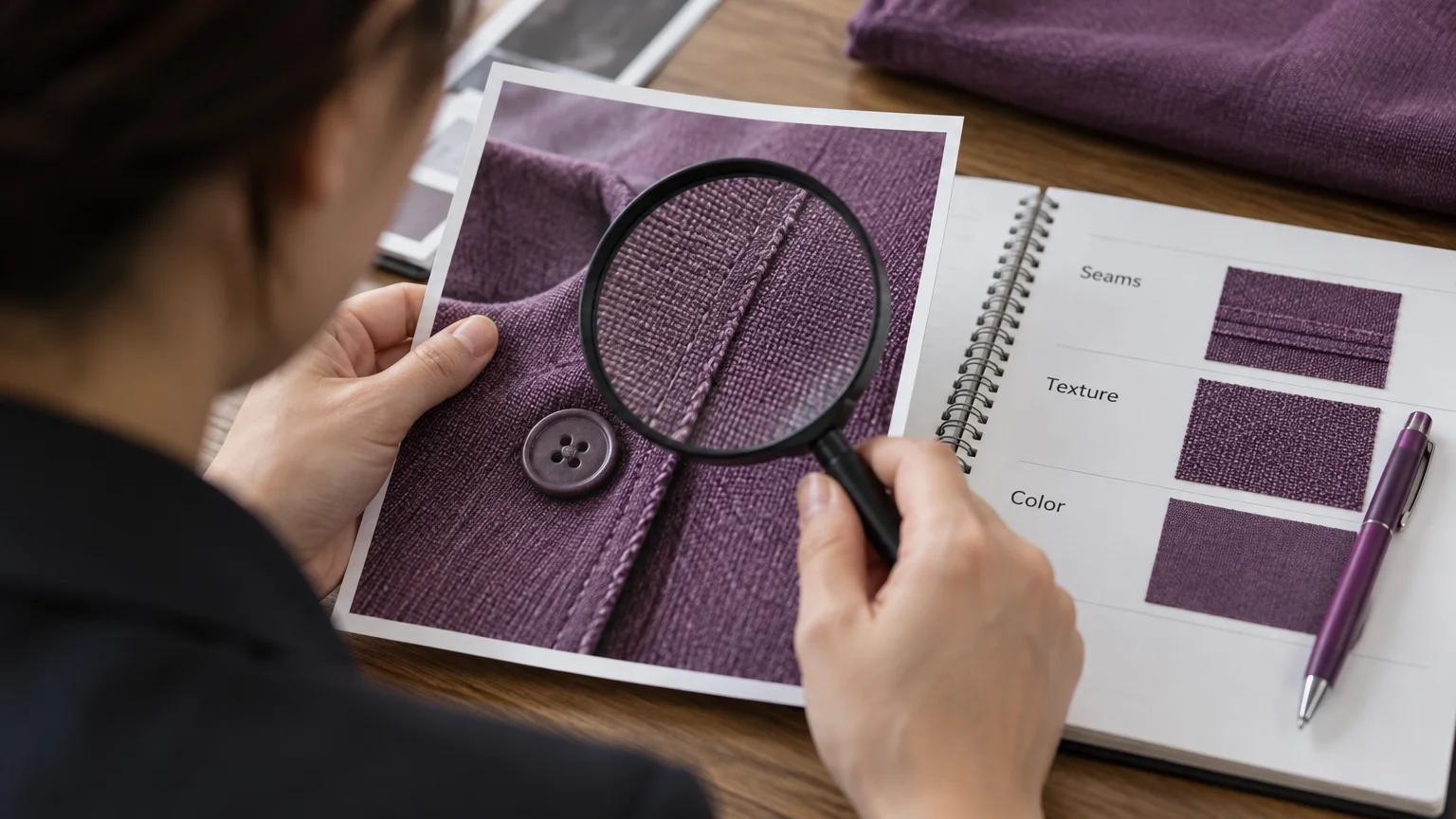
Reject a material product change even if the clip looks polished. Score each criterion: 2 means preserved, 1 means a minor discrepancy needing review, and 0 means a material change requiring rejection.
| Criterion | What to inspect |
|---|---|
| Logos and lettering | Shape, spelling, placement and stability |
| Seams and closures | Construction lines, buttons, zippers and pockets |
| Texture and print | Weave, pattern scale, alignment and shimmer |
| Color | Product color versus plausible lighting changes |
| Silhouette and fit | Hemline, sleeve shape, drape and body relationship |
| Additions and removals | Invented accessories or missing garment details |
| Occlusion continuity | Details reappear correctly after hands, hair or turns |
Compare the number of accepted clips, rejection reasons, how well clips hold up in each crop, and repair minutes.
Keep a record of each attempt:
| Record | What to enter |
|---|---|
| Run details | Provider, exact model/variant shown, interface and date |
| Generation setup | Source filename, complete prompt, settings and attempt number |
| Production cost | API charge or credits used, review minutes and repair minutes |
| Approval result | Each criterion’s score, crop result and accept/reject reason |
Compare access and cost per accepted clip
Compare total production cost per accepted clip, including rejected attempts and labor. Google’s Gemini Developer API bills video with audio per generated second.
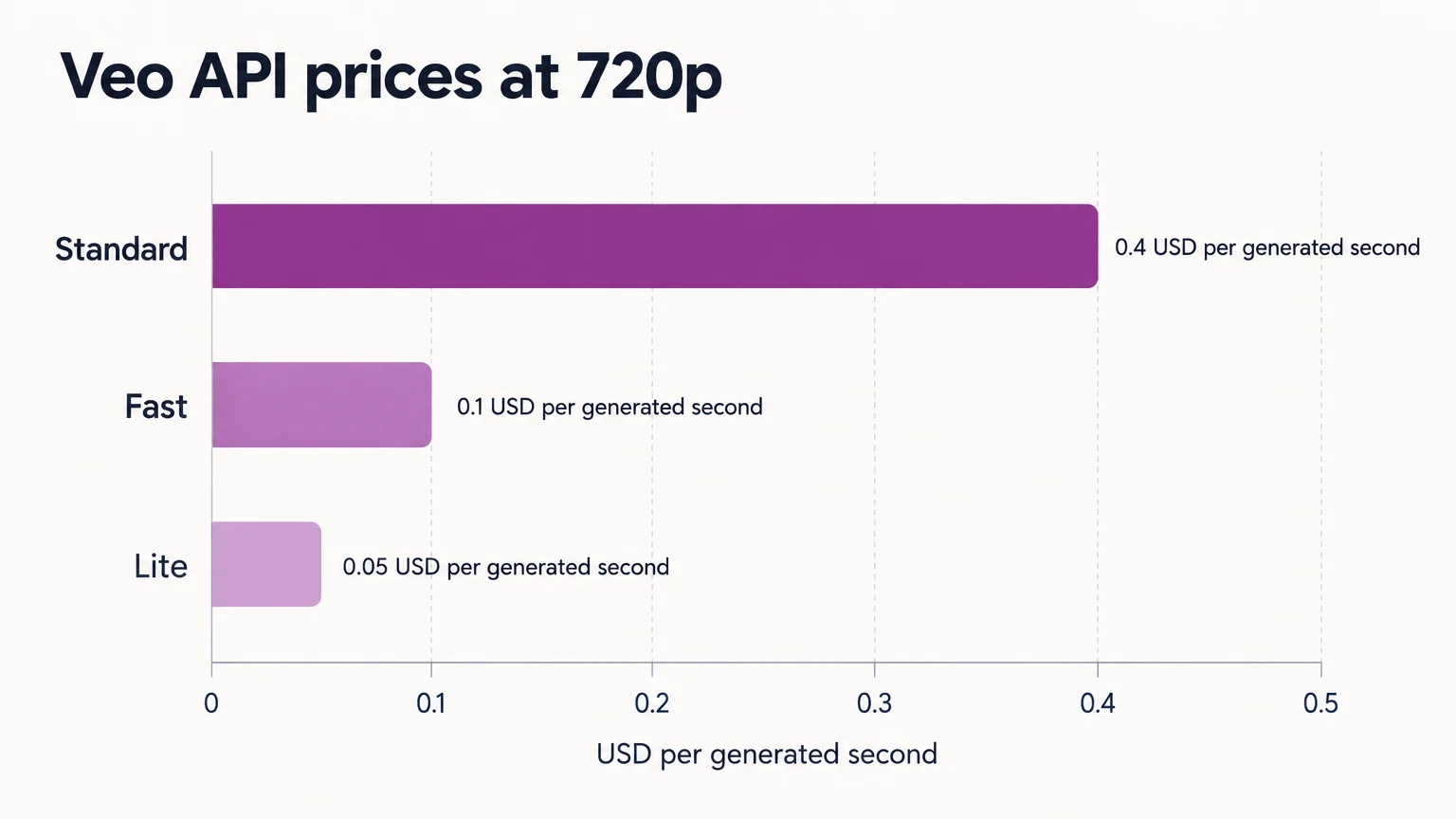
| Google Gemini API variant | 720p per second | 1080p per second | 4K per second |
|---|---|---|---|
| Veo 3.1 Standard | US$0.40 | US$0.40 | US$0.60 |
| Veo 3.1 Fast | US$0.10 | US$0.12 | US$0.30 |
| Veo 3.1 Lite (no reference-image support in the Gemini API) | US$0.05 | US$0.08 | Not supported |
Our plans start at US$49 monthly with 150 credits; see our image-to-video pricing comparison. Length, resolution and audio affect the platform credit quote shown before generation.
Cost per accepted clip = (total generation charges + review and editing labor) ÷ accepted clips.
Example: retries and editing change the cost
Assume four 8-second Veo Fast 720p attempts, one accepted clip, and 12 minutes of review and editing at US$30 per hour. At Google’s API rate:
- Generated duration: 4 × 8 = 32 seconds.
- Generation charge: 32 × US$0.10 = US$3.
- Review and editing labor: 12 ÷ 60 × US$30 = US$6.
- Accepted-clip cost: (US$3 + US$6) ÷ 1 = US$9.
Include all charged rejections. Keep API billing, Flow credits and subscription credits in separate budgets.
BytePlus’s Seedance 2.5 launch announcement excludes United States availability and describes restrictions on real-face inputs. Before uploading on-model assets to a provider, verify country access, account eligibility and applicable commercial terms.
From approved product image to finished fashion ad
Approve the garment before adding branding or assembling an ad. Follow this sequence:
- Approve the still: confirm product details and source permissions.
- Generate motion: select the model and output settings, write a restrained brief, and review the quoted charge.
- Inspect the garment: reject material changes before adding captions.
- Apply branding: add approved copy, colors, fonts, captions, music or voice-over.
- Assemble the ad: use the shots needed for the hook, product detail, benefit and end card.
- Export and review: inspect the rendered crop, sound, accuracy and permissions.
Track generation quality, editing effort and campaign performance separately. Measure advertising return from campaign results.
Frequently asked questions
Are Flow and Veo the same thing?
No. Veo is Google’s video-model family; Flow is an application that uses those models. Controls differ between Flow and API interfaces: Flow supports a Lite extension workflow, while the Gemini API’s Veo 3.1 Lite Preview excludes extension.
Which is better, Veo 3.1 Fast or Standard?
Fast is the lower-priced API option; choose Standard when a matched-image test justifies its extra cost. Use the same approved image, matching settings and equal attempt budgets. Compare accepted clips and repair time.
Can either model reliably preserve garment logos, seams, prints and fit?
Judge garment preservation with a matched-image trial. References and first/last frames guide generation, but every clip needs inspection through movement and moments when the garment is obscured. Reject material changes before approval.
Choose by the job, then approve a small batch
For subtle catalogue motion and fabric details, scale the model that produces more approved clips in your matched test. Longer promotional takes favor Seedance; high-resolution output and first/last-frame control favor Veo Standard/Fast.
Before batching, confirm the selected interface, output, charge and crop. Recheck logos, seams, texture, color, silhouette, fit and continuity when the garment is obscured. Confirm asset permission, applicable likeness consent, access restrictions and commercial-use terms.
Start with a small approved batch in our product image-to-video workflow before expanding to a full catalogue.