

Table of Contents
Choose an AI product photo editor by what must stay unchanged. Choose Photoshop for selection-led correction with Adobe’s selection tools, Photoroom for brush cleanup with Photoroom’s adjustable brush, and Claid for localized removal with Claid’s feathering controls. Our Smart Edit photo editor supports up to 10 input images on some models and up to 4 on others, with 1 to 4 variations (2 on some models). For background-only changes, keep the isolated source product intact. Product accuracy matters more than an attractive scene.
We publish this guide and include our editor. This is a documentation-based comparison, not hands-on testing, checked in October 2026.
The selection criteria are local edit control, reference handling, product-detail retention, revision workflow and production access. Use your own source image as the acceptance test.
Which AI photo editors are best for making precise changes to fashion product images?
Photoshop is the strongest documented fit for selection-led correction. Photoroom suits brush cleanup, Claid offers feathered erasing, and our CamClo Smart Edit supports reference-led editing across five models. Google AI Studio and ChatGPT provide direct provider interfaces. For background-only work, favor source-preserving composition; for lifestyle scenes or broader on-model changes, inspect every regenerated product detail.
| Application and route | Model or editing feature | Best job and local control | References and revisions | Production route or restriction |
|---|---|---|---|---|
| Photoshop desktop | Model-dependent Flux and Gemini options | Narrow correction; active selections | Flux: up to three references; Gemini: up to eight; revise selected area | Selection-led desktop workflow |
| Photoroom app | Retouch, an application feature | Cleanup; adjustable brush | Paint the correction area and adjust brush size | Add mode restricted to iOS and Android; background API has its own billing |
| Claid web editor | Erase Brush, an application feature | Localized erasing; brush size and feathering | Adjust the painted area and blending boundary | Web access and dedicated API plans |
| Our Smart Edit, browser | Five-model inventory below | Reference-led transformations; text instructions | Multiple inputs; Previous Edits and generation history | Model-dependent input and variation limits |
| Google AI Studio | Google model access; Nano Banana 2.1 capabilities below | Evaluate reference-led generation | Model-level multi-image reference support | Interface access and API usage have their own quotas and billing |
| ChatGPT | Images 2.5 service | Conversational revisions; highlighted selections | Revise through conversation and image-editor highlights | Desktop, mobile and web; edits can extend beyond highlights |
Before paying, confirm current regional prices, free-tier quotas, export dimensions, watermark treatment and commercial-use rights for your chosen account and access route.
Photoshop, Photoroom and Claid: picks for localized correction
Adobe Photoshop: best for selection-led correction
Best for: correcting a small area while protecting the surrounding image. The standout control is an active selection defining the Generative Fill area. Adobe’s reference-image guide documents up to three references for Flux and eight for Gemini.
Drawback: you must manage selection boundaries and model-specific behavior. Keep the original and compare each revision.
Photoroom: best for brush cleanup and ecommerce finishing
Best for: painting over a distraction or a small area needing correction. Photoroom’s Android instructions recommend adjusting brush size for precise painting.
Drawback: Retouch’s Add mode is restricted to iOS and Android. Retouch is a free utility and requires no AI credits. Paid-plan credit and export allowances appear below. Reinspect neighboring edges after every brush revision.
Claid: best for feathered erasing and a dedicated API route
Best for: localized removal where the transition into surrounding fabric or background needs adjustment. Brush size and feathering are the documented standout controls.
Drawback: web editing and API access have their own purchasing arrangements. Claid’s pricing page offers a free API trial with 50 credits and says a dedicated API plan can be purchased independently of a paid web plan. Use that page to choose web or API access and review its paid pricing.
Which models does our Smart Edit actually offer?
Nano Banana 2 is an offered option for reference-led editing, alongside Nano Banana Pro, original Nano Banana, GPT Image 2 and Seedream 4.5. GPT Image 2.5 and Google’s Nano Banana 2.1 fall outside this five-model inventory.
Best for: teams wanting several models within one prompt-led editing workflow. The standout control is switching models while supplying source and reference images. Drawback: the workflow uses text instructions, so preservation prompts still need visual verification.
- Inputs: some models accept up to 10 images, others up to four.
- Outputs: up to two or four variations, depending on the model.
- Revisions: results remain in Previous Edits and generation history.
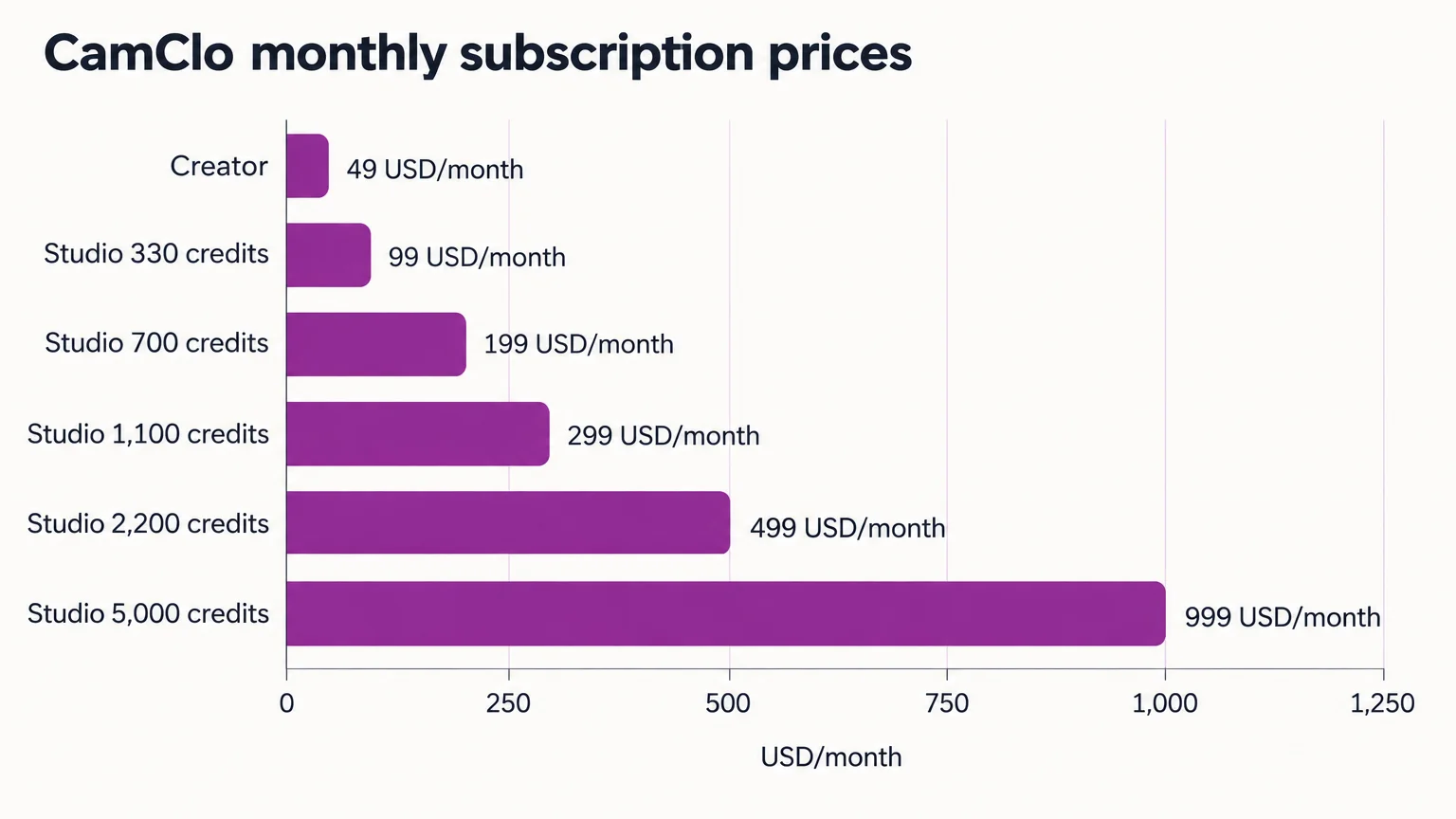
Smart Edit starts at 0.5 credits per image; check the displayed cost before generating. Our current subscription pricing spans US$49–US$999 monthly, with a paid evaluation trial.
Generation time covers image creation; allow additional time for upload, review, retries, correction and export. Our platform-wide capacity of up to 500 products applies to the AI Assistant workflow. Smart Edit’s input-image counts cover references within an edit.
Google AI Studio and ChatGPT: direct interfaces, not interchangeable apps
An application supplies controls, history and exports; a model generates the image; an access route determines billing and available integrations. Check which model capabilities your chosen application exposes.
Google AI Studio: for evaluating Google’s model capabilities
Best for: evaluating Google’s reference-led model route directly. Google’s Nano Banana documentation lists Nano Banana 2.1 support for up to 14 references, consistency for four characters and fidelity for 10 objects.
Drawback: that model-level capacity still leaves per-SKU acceptance review to your workflow. Review API rates for the selected model when planning an integration.
ChatGPT: for conversational image revisions
Best for: revising an image through conversation. OpenAI’s Images 2.5 announcement, dated September 8, 2026, announced rollout across all account tiers on desktop, mobile and web.
Drawback: OpenAI’s image-editor guidance warns that highlighted selections are not always precise and edits can extend beyond them. API usage has its own billing.
When should I preserve the original product pixels instead of regenerating the garment?
Preserve the original product pixels when only the background, layout or surrounding scene must change. Follow these three editing paths: source-preserving composition for backgrounds, selections for small corrections, and reference-led regeneration for broader transformations, such as new poses or on-model imagery.
- Background only: isolate the existing product, refine its edges, then replace the background behind it. Compare product photo background removers for this narrower job.
- Small correction: use a brush or selection for a loose thread or distraction. Protect nearby seams and fasteners.
- New pose or model: expect newly generated garment areas and changed occlusion. Check those areas against the source.
After isolation, inspect halos, fine straps and translucent fabric. After composition, check light direction, contact shadows, shadow softness, perspective, product scale and scene color cast. If relighting would require changing product pixels, treat that as a separate retouching decision.

A believable scene still needs a product-fidelity check. Reject invented construction details. A recolor belongs in a listing only when it accurately depicts an actual offered variant.
How can I check whether AI changed a logo, seam, button or fabric texture?
Compare source and output at matching scale, then inspect each protected detail individually. Reject any output that changes the product, even if its lighting looks convincing. Google Merchant Center’s requirements say variant images must accurately reflect exact color, pattern, finish and material.
Use side-by-side views and aligned overlays where available. Inspect both the whole silhouette and detailed crops. Copy this evaluation record into your review document:
| Field | What to record |
|---|---|
| Source identifier | SKU, variant and original filename |
| Intended change | One bounded editing instruction |
| Protected details | Logo, construction, material, silhouette and color |
| Application and model/version | Exact application, selected model and review date |
| References | Reference filenames and their intended roles |
| Attempts | Generated outputs, retries and correction time |
| Accepted output | Approved filename, or “none” |
| Rejection reason | Specific failed detail, or “no failure found” |
For each protected detail, enter Pass, Reject or Not applicable and add your observation in the notes field.
| Protected detail | Result to enter | Reject when | Notes to record |
|---|---|---|---|
| Logo | Pass / Reject / Not applicable | Lettering, placement or proportions change | Observed difference or “none” |
| Seams | Pass / Reject / Not applicable | Seam paths shift or appear | Observed difference or “none” |
| Buttons | Pass / Reject / Not applicable | Count, spacing or shape changes | Observed difference or “none” |
| Hardware | Pass / Reject / Not applicable | Fasteners disappear or are invented | Observed difference or “none” |
| Fabric texture | Pass / Reject / Not applicable | The apparent material changes | Observed difference or “none” |
| Silhouette | Pass / Reject / Not applicable | Strap width, hem shape or fit-defining features change | Observed difference or “none” |
| Color | Pass / Reject / Not applicable | The image depicts the wrong variant color | Observed difference or “none” |
Record product fidelity and scene realism separately. Any protected-detail failure rejects the output. Only after fidelity passes should you approve edges, lighting, shadows, scale and perspective. Before export, verify dimensions, file format, watermark status, commercial-use entitlement and destination-specific image rules.
Free access, subscriptions and the cost of an accepted image
Compare accepted-image cost, including retries and review. Compare subscription allowances, API charges, exports and commercial rights on their own terms.
Photoroom’s published plans provide these annual-billing examples, with monthly prices rounded to dollars.
| Plan | Monthly equivalent, USD | Billing commitment | Listed AI credits | Listed exports |
|---|---|---|---|---|
| Pro | About $8 | Yearly | 8,000 | 1,000 |
| Ultra | About $83 | Yearly | 75,000 | 10,000 |
Photoroom’s API pricing specifies US$0.02 per image for background-removal calls charged at the Basic rate from a Plus plan. This rate applies to that operation and access route.
Our monthly plan pricing is in US dollars. Plans include the following credit allowances:
| Plan | USD per month | Included credits |
|---|---|---|
| Creator | $49 | 150 |
| Studio | $99 | 330 |
| Studio | $199 | 700 |
| Studio | $299 | 1,100 |
| Studio | $499 | 2,200 |
| Studio | $999 | 5,000 |
Current pricing specifies a seven-day US$1 trial with 20 credits. Our trial and output terms, updated October 1, 2026, require a card and restrict trial/free-credit outputs to watermarked, non-commercial evaluation. New accounts start without free credits. Paid plans advertise watermark-free exports; failed generations receive automatic credit refunds.
Example: cost per accepted image
Assume 20 generated images yield 10 accepted outputs. Generation charges, including rejected attempts, total US$12; a subscription allocation costs US$8; review and correction labor costs US$30. The generation charges cover usage outside the allocated subscription, avoiding double-counting.
- Generation plus subscription: $12 + $8 = $20.
- Add review labor: $20 + $30 = $50.
- Divide by accepted outputs: $50 ÷ 10 = $5 per accepted image.
These assumed costs illustrate the calculation. Measure production time through acceptance and export, including every retry and correction.
Catalogue production: repeat references, not unchecked mistakes
Localized edits can be repeated across a catalogue only with per-image acceptance checks. Assess batch availability, individual corrections, reference reuse, revision history and API access individually. Reference-input capacity measures guidance for an edit; batch capacity measures independent products processed.
Pilot difficult examples containing logos, textured fabrics, fine straps and hardware before expanding. Reuse approved references and record model versions.
- Upload: retain the untouched source and variant identifier.
- Constrain: name the intended change and protected details.
- Generate: record model, references and settings.
- Compare: inspect protected details before scene quality.
- Reject or revise: save failure reasons and restart drifted garments from the source.
- Export: approve rights, watermark treatment, dimensions and format.
Choose the smallest change that preserves the product
Choose selections for narrow corrections, source-preserving composition for backgrounds and references for broader transformations. Test one difficult source before buying a catalogue workflow. If multi-model, reference-led editing matches your job, follow our Smart Edit workflow guide and use product fidelity as the acceptance gate.