
Table of Contents
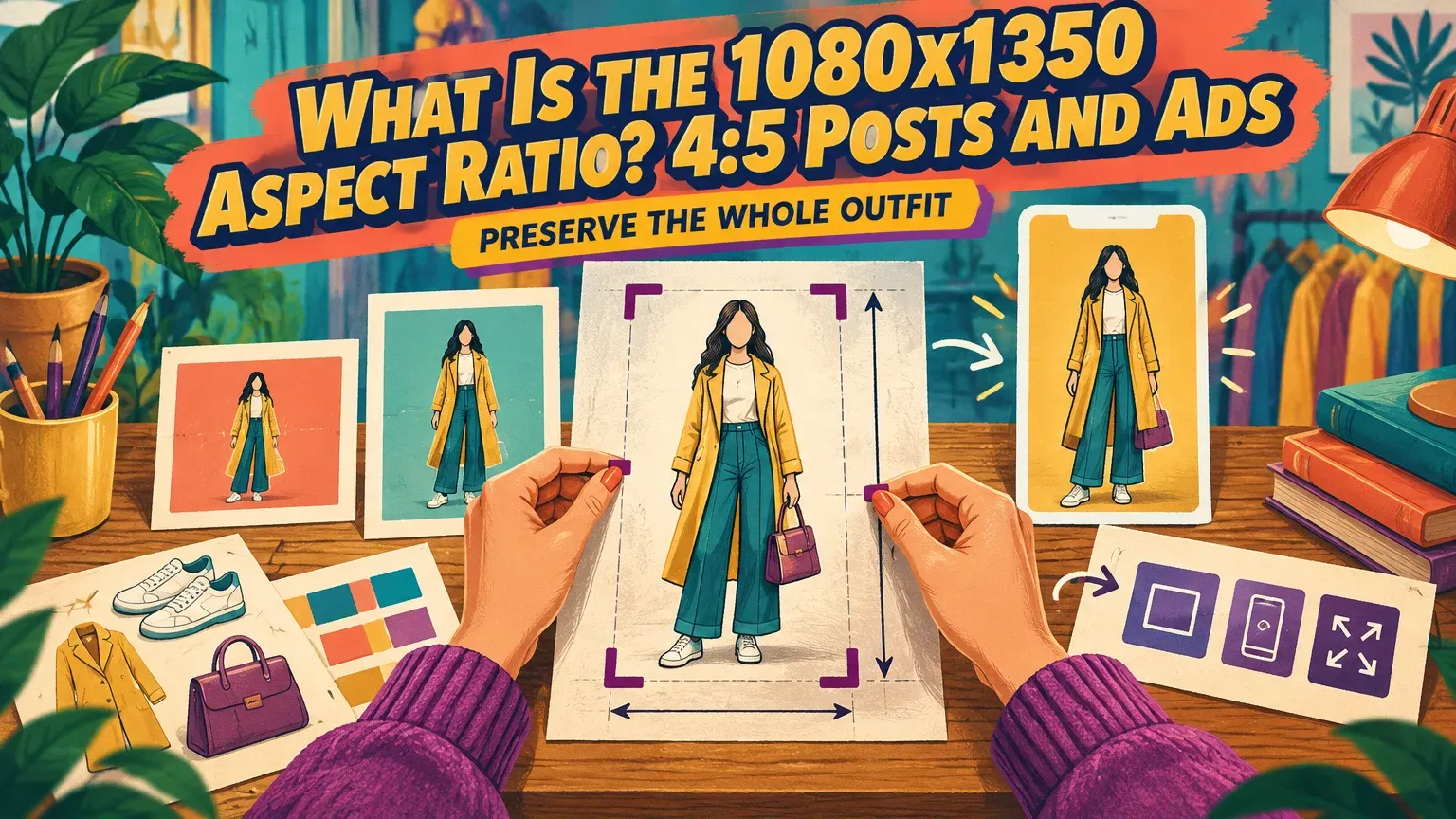
The 1080x1350 aspect ratio is 4:5 portrait: 1080 pixels wide by 1350 pixels high, a size listed in Purdue University’s Instagram guide. Pixel dimensions describe size; aspect ratio describes shape. For an outfit photograph, a correctly sized crop can still cut off shoes or hems.
A calculator gives you the aspect ratio, while a resizer crops or fits your photograph. When adapting it across ad creative formats, choose the destination before changing the framing.
How do you calculate the 1080x1350 aspect ratio?
Divide both dimensions by 270: 1080 ÷ 270 = 4 and 1350 ÷ 270 = 5, giving a 4:5 portrait image. Width comes first and height second in MDN’s ratio definition.
The width-to-height decimal is 1080 ÷ 1350 = 0.8. To calculate a missing side:
- Height = width × 5 ÷ 4: 1080 × 5 ÷ 4 = 1350.
- Width = height × 4 ÷ 5: 1350 × 4 ÷ 5 = 1080.
Portrait 4:5 is not landscape 5:4. At 1440 × 1800, an image has the same 4:5 shape but more pixels. Our aspect ratio calculator calculates ratios or missing sides in your browser without uploading an image.
Is 1080 × 1350 still suitable for Instagram posts and ads?
Yes, 1080 × 1350 suits portrait posts and feed ad placements that accept 4:5, but it is not the tallest organic-photo format. Instagram also supports 3:4 photos alongside 1:1 and 4:5, as reported by Social Media Today.
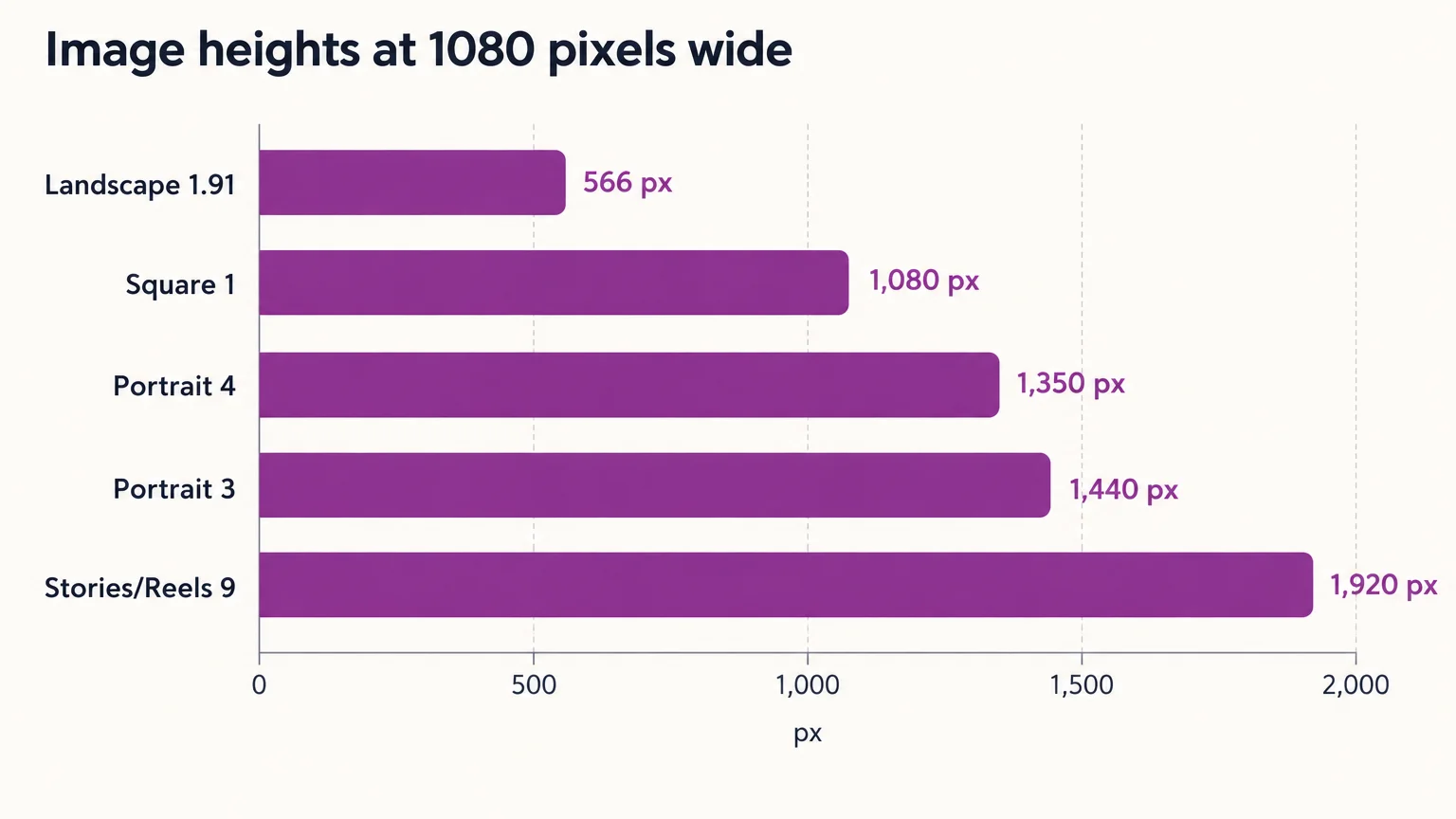
Choose the shape for the placement: 3:4 offers a taller organic photo, while 9:16 is commonly used for Stories and Reels.
| Format | Example dimensions | Ratio | Typical destination |
|---|---|---|---|
| Portrait (University of Michigan) | 1080 × 1350 | 4:5 | Organic feed post |
| Square (University of Michigan) | 1080 × 1080 | 1:1 | Organic feed post |
| Landscape (University of Virginia) | Approximately 1080 × 566 | Approximately 1.91:1 | Organic feed post |
| Full-screen vertical (University of Virginia) | 1080 × 1920 | 9:16 | Stories and Reels |
| Taller portrait | 1080 × 1440 | 3:4 | Organic photo |
At the same width, 1080 × 1440 is 90 pixels taller than 1080 × 1350. A 3:4 photo’s width is three quarters of its height. The landscape ratio is approximate because pixel counts use whole numbers.
Our resizer has separate presets for a 1080 × 1350 portrait post, a 1080 × 1440 tall portrait post and a 1440 × 1800 Feed and Explore ad. A 4:5 master can serve Instagram and Facebook feed placements that accept it. Check the selected placement’s current resolution requirements and preview the export before publishing.
Purdue’s Instagram guide lists a 3:4 profile-grid preview, so review that framing as well as the feed placement.
At equal displayed width, 4:5 provides 25% more height and area than square. The extra space alone does not mean better reach, engagement or ROAS.
Convert an outfit photo to 4:5 without losing merchandise
Crop only when every essential product detail survives; otherwise preserve the complete image with padding or background extension. Before positioning the frame, identify shoes, hems, sleeves, hands holding products, and the full outline of bags.
What each source shape loses
A square loses side content, while taller 2:3 and 9:16 originals lose content vertically when cropped directly to 4:5.
Example: three originals cropped to 1080 × 1350
Start with the original dimensions below and crop directly to 1080 × 1350, without resizing first.
| Source ratio | Original dimensions | Pixels removed | Area lost | Centered edge loss |
|---|---|---|---|---|
| 1:1 | 1350 × 1350 | 1350 − 1080 = 270 horizontally | 270 ÷ 1350 × 100 = 20.0% | 135 px per side |
| 2:3 | 1080 × 1620 | 1620 − 1350 = 270 vertically | 270 ÷ 1620 × 100 = 16.7% | 135 px top and bottom |
| 9:16 | 1080 × 1920 | 1920 − 1350 = 570 vertically | 570 ÷ 1920 × 100 = 29.7% | 285 px top and bottom |
Equal edge losses apply only to centered crops. Repositioning changes which edges lose pixels, not the totals above. Moving a crop downward may save shoes but cut the head or shoulders.
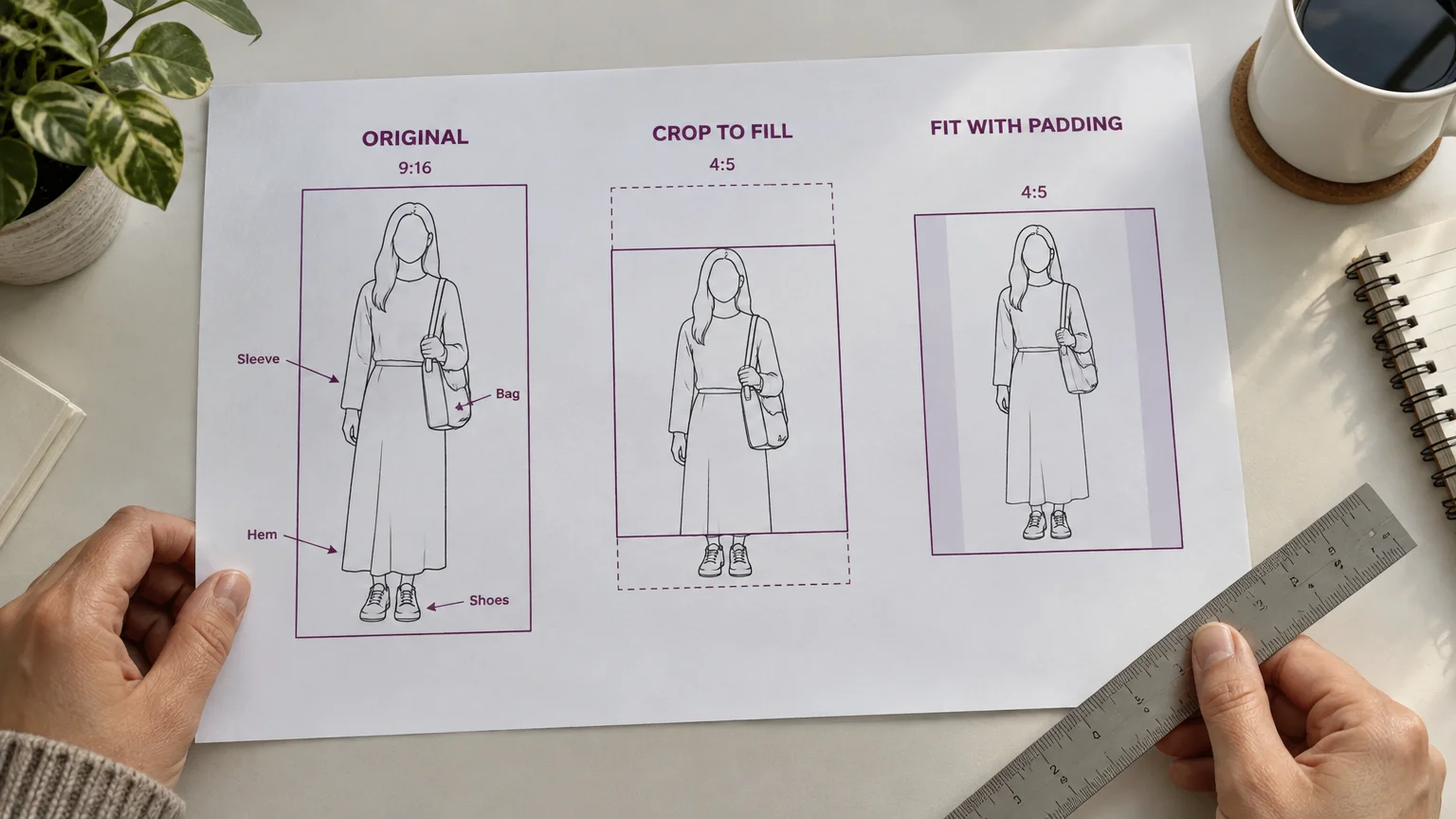
Choose crop, padding or background extension
Proportional resizing changes dimensions without changing shape. Keep width and height linked, as Adobe’s resizing instructions recommend. Stretching them independently distorts garment proportions.
- Crop: discard edges to fill the destination.
- Pad: preserve the whole image and add surrounding canvas, an approach covered in MDN’s image-fitting guide.
- Extend: generate additional background with a tool such as Adobe’s expansion workflow. Inspect hems, straps and sleeves so generated surroundings do not change the product.
Place text, prices and logos around the garment
Frame the merchandise first, then place overlays in the remaining background space, not over fabric, fastenings, garment edges or accessories.
Use a 60-pixel inset on a 1080 × 1350 layout as a design starting point, not an official universal feed safe zone.
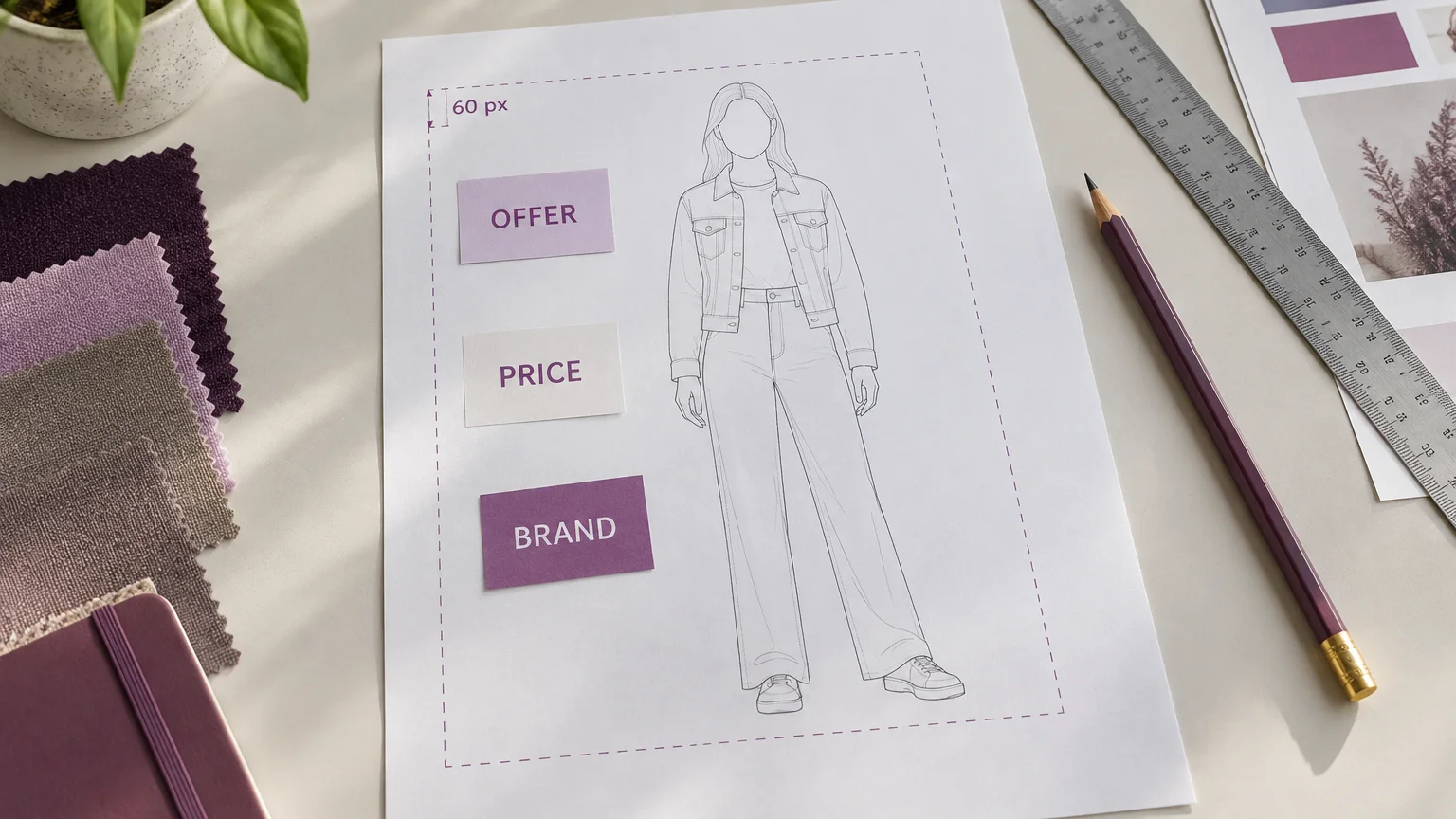
Check that prices and logos are readable without obscuring merchandise in both the intended feed placement and profile-grid preview. Stories and Reels also need interface-overlay checks.
Frequently asked questions
Is 11 × 14 the same aspect ratio as 4:5?
No. The proportions are close but not identical: 11 × 5 = 55, while 14 × 4 = 56. Converting an 11 × 14 image to 4:5 requires a small crop, padding or background extension.
Is 1920 × 1080 a 16:9 aspect ratio?
Yes. The dimensions simplify to 16:9 landscape. Reversing the dimensions to 1080 × 1920 produces 9:16 portrait.
Export and preview the finished creative
Export for the destination, then inspect the actual file before publishing:
- Start with an adequate-resolution original. Upsampling cannot add missing original detail, including textile detail, as Adobe’s resampling guidance explains.
- Choose destination-specific dimensions. Do not assign 1080 × 1350 to every placement.
- Choose crop or fit. Position the outfit before finalizing overlays.
- Inspect at exported size. Check shoes, hems, sleeves, bags, fabric, text, prices and logos.
- Export a suitable JPG or PNG. Avoid repeated lossy re-exports; keep carousel slides on a consistent canvas for predictable framing.
- Preview in the publishing interface. Check the intended organic post or ad placement.
Our browser resizer accepts up to 10 JPG, PNG or WebP images at a time, offers Crop to fill and Fit with padding, and produces the exact selected dimensions.
Calculate the shape with our aspect ratio calculator, then create the final file with our Instagram image resizer.