
Table of Contents
As of November 12, 2026, Google Merchant Center image requirements set minimums of 250 × 250 px for apparel and 100 × 100 px for other products, according to Google Merchant Center Help. From January 31, 2027, every product image must be at least 500 × 500 px. Google recommends approximately 1,500 × 1,500 px or larger, within 64 megapixels and 16 MB, under its image_link specifications. Images must accurately show the sold product; added promotional text and watermarks are prohibited.
You can fix many presentation problems without a reshoot, but editing cannot reliably recover missing garment details. You’ll need original product files, an image editor, Merchant Center access, and access to your feed or ecommerce integration. Basic export and feed-editing skills are enough for straightforward repairs. How long a fix takes depends on the correction and Google’s processing.
| Check | Quick answer |
|---|---|
| Current apparel minimum | 250 × 250 px |
| Current non-apparel minimum | 100 × 100 px |
| Minimum from January 31, 2027 | 500 × 500 px for all products |
| Recommended dimensions | Approximately 1,500 × 1,500 px or larger, a quality recommendation |
| Resolution ceiling | 64 megapixels |
| File-size ceiling | 16 MB |
| Supported formats | JPEG, WebP, PNG, non-animated GIF, BMP and TIFF |
| Added promotional content | No promotional text, retailer-logo overlays or watermarks |
The filename extension must match the actual image format; renaming a file does not convert it.
1. Check Google Merchant Center image requirements against the enforcement date
Prepare replacements for the upcoming minimum now, while keeping today’s eligibility rules separate from future requirements. Google began issuing upcoming-size warnings in July 2026.
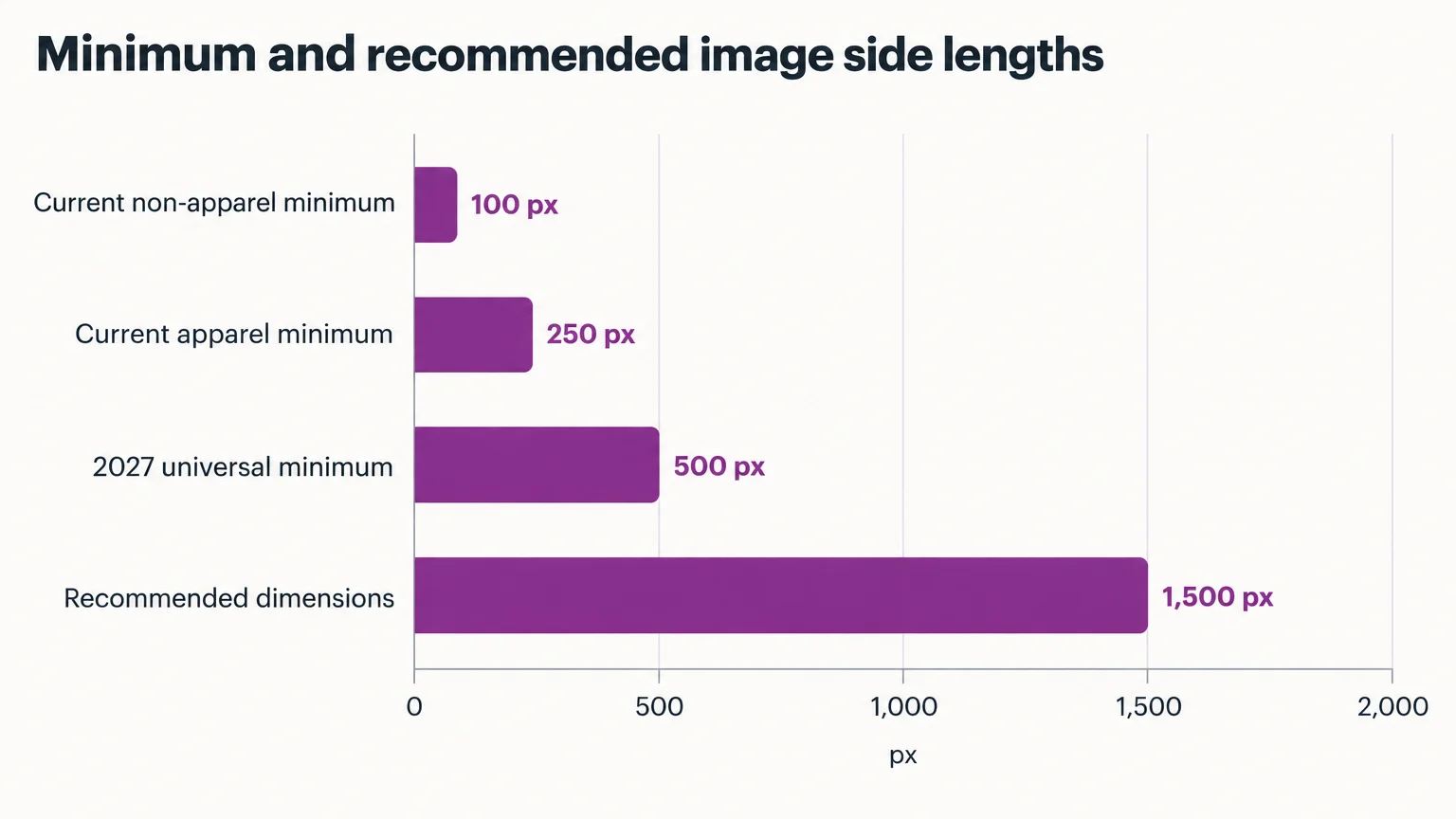
Minimum and recommended image side lengths
| Image category or target | Current: November 12, 2026 | From January 31, 2027 |
|---|---|---|
| Non-apparel minimum | 100 px on each side | 500 px on each side |
| Apparel minimum | 250 px on each side | 500 px on each side |
| Recommended quality target | Approximately 1,500 px on each side or larger | Approximately 1,500 px on each side or larger |
Check both width and height in your editor’s pixel-dimensions display. Rectangular images are eligible when both sides meet the minimum.
Worked example: checking a 500 × 333 px image
A 500 × 333 px source falls short of the upcoming 500 px height minimum. Enlarging it by 1.5× produces a 750 × 500 px export.
That export meets the minimum dimensions, but publish it only if lettering, seams and texture still match the source. Replace the source if enlargement alters those details. At approximately 0.4 megapixels, it also falls below the resolution ceiling. Check the exported file size separately: dimensions measure side lengths, megapixels count pixels, and megabytes measure file size.
2. Assign main, additional and lifestyle images correctly
An accurate on-model clothing image can serve as your main image when it clearly shows the sold product. Use up to 10 supporting images in additional_image_link, under Google’s additional-image rules.
| Apparel image | Attribute | What to check |
|---|---|---|
| Clear on-model front view | image_link | The sold garment and variant are easy to identify |
| Fabric or fastening close-up | additional_image_link | Detail belongs to the exact product |
| Back view or another angle | additional_image_link | Color, construction and variant match |
| Environmental outfit scene | lifestyle_image_link where supported, or an eligible additional image | Product identity and included items remain clear |
Choose supporting views that add useful detail or context rather than repeating the main image.
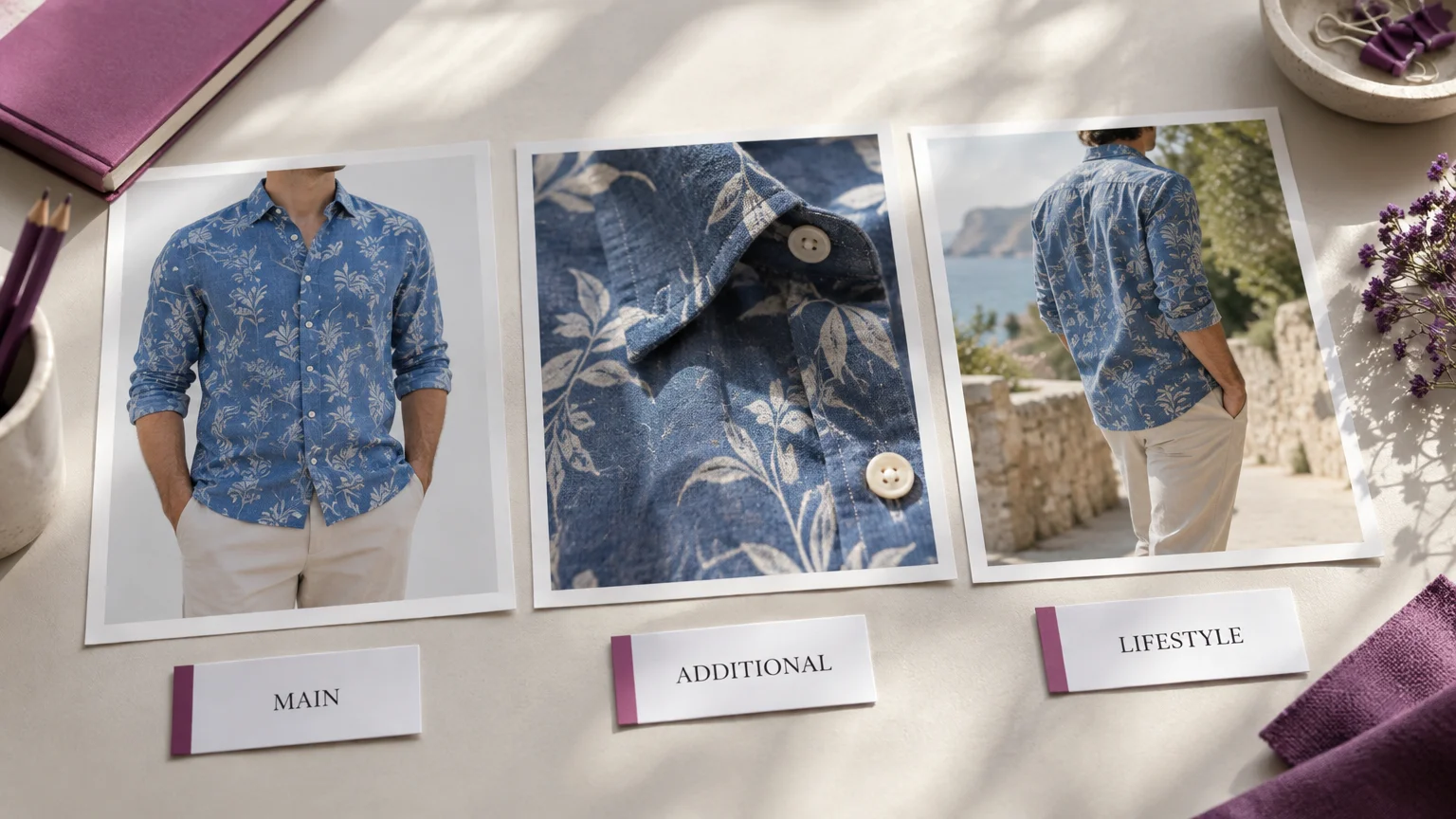
Additional images may show staging, close-ups and partial product details; promotional text and added watermarks remain prohibited. Split a multi-view canvas into individual additional_image_link assets, keeping within the 10-image limit.
Google recommends white or transparent backgrounds and clear framing for main images. Other backgrounds can qualify when the product remains clear and accurate. Keep clean catalog assets in a dedicated workflow for feed use. Check promotional ads and social layouts against all image requirements before using them in Shopping.
3. Fix the presentation problem without changing the garment
Start with the exact issue wording in Merchant Center. Wherever possible, recover the clean original or remove the added design layer before using generative cleanup.
| Visual problem | Apparel trigger | Least destructive action | Accuracy check | Replace when |
|---|---|---|---|---|
| Promotional overlay | Sale copy covers the garment | Recover the clean source or remove the text layer | Print, stitching and texture remain unchanged | Text hides detail you cannot verify |
| Watermark | Added store name or retailer logo | Use a clean export; erase only where verifiable | Physical garment branding stays intact | Underlying product detail is unknown |
| Placeholder | Generic silhouette or missing-photo graphic | Upload a real sold-variant image | Product and color match the listing | A genuine product source is unavailable |
| Undersized image | Small catalog thumbnail | Retrieve a larger original; upscale cautiously | Inspect lettering, seams, print and texture | The source lacks usable detail |
| Added border | Decorative frame around the photo | Re-export without the frame | Hem, straps and sleeves remain visible | The product was already cropped |
| Collage-style main image | Several views share one canvas | Choose one clear main view; export supporting views individually | Every view shows the same variant | Tiles are too small and originals are unavailable |
When removing store watermarks, leave logos printed, embroidered or attached to the garment intact. Physical branding is product information, not an added overlay.
Our Magic Eraser lets you remove objects and text by brushing over areas to replace them with generated background fill. It accepts JPEG, PNG and WebP uploads up to 20 MB. Export the finished image within Google’s 16 MB ceiling, and use generated fill only when you can verify the resulting product details.
Our Background Remover exports transparent PNG or white-background PNG/JPG files. Inspect lace, sheer fabric, straps and hems for lost edges. If essential detail is obscured or missing, replace the source or use a retoucher or photographer to produce a verifiable image.
4. Verify on-model accuracy and preserve AI-source metadata
AI-generated apparel images can qualify, including as main images, when they accurately represent the sold variant and meet the applicable image rules. Compare the source and export for:
- Surface details: color, texture, print placement and physical logos.
- Construction: seams, fastenings, hems and silhouette.
- Included items: styling must clearly identify which garments and accessories are included.
A changed pocket, invented fastening or shifted print calls for a replacement image.
Our on-model product photography accepts flat-lay, hanger and packshot sources. AI Assistant batches support up to 500 products on Studio and 50 on Creator. Check that each source is assigned to the correct product before generation, then verify outputs before publishing a batch.
Generative-AI images must carry metadata identifying their AI origin under Google’s additional-image rules. Preserve embedded IPTC DigitalSourceType tags through background removal, upscaling, model swaps, export and hosting.
The IPTC Digital Source Type property identifies an image’s source. The IPTC trainedAlgorithmicMedia code identifies media created using a trained AI model.
Inspect the source, final export and downloaded hosted file with a metadata viewer. If required disclosure is missing, correct the metadata workflow before publishing. IPTC metadata is editable, as Google Photos Help explains.
5. Preflight the exported file and its public image URL
Check both the finished file and its delivery path against Google’s image_link requirements. An eligible image must also be accessible to Google.
File and content checks
- Both dimensions meet the applicable minimum; megapixels and file size remain within their ceilings.
- The encoding is supported and the filename extension matches it.
- The sold variant is accurate, added promotional overlays are absent, and required AI-source metadata survives export.
Mapping and hosting checks
- image_link points to the intended main view. Supporting images use the correct attributes and stay within the additional-image limit.
- Every URL serves the image file directly and opens in a logged-out browser session; use a persistent public URL.
- Robots rules, CDN restrictions and access controls allow both Googlebot and Googlebot-image to retrieve the asset successfully.
Inspect the hosted download as well as the editor preview: optimization can change encoding, compression and metadata. Save verified originals and exports to protect image quality during future repairs.
6. Replace affected image links and monitor processing
Find image warnings and disapprovals under Products > Needs attention, then open affected items to inspect their details.
- Identify the scope. Select the issue, inspect item-level details and download the affected-item list for bulk work. Group items by shared image URL or repair type.
- Check upcoming failures. Review View history for upcoming-size warnings and prioritize assets that will miss the new minimum.
- Correct the source. Fix the ecommerce product image, feed file, integration mapping or other data source supplying the image attribute.
- Publish changed content at a new URL. Upload and test the corrected asset, then update the appropriate image attribute. Keep URLs stable between genuine asset changes.
- Resubmit or synchronize. Refresh the data source and confirm that the corrected image link appears on the item.
- Check the outcome. Return to item details after processing. Resolve any remaining image, policy or product-data issues.
Allow up to three days for a new-image crawl, according to Google’s feed-correction guidance. An unchanged image URL may take up to six weeks to recrawl, according to Google’s image-status guidance. Overwriting the file at the old URL can therefore delay detection. Approval still requires both the image and product data to meet all applicable requirements.
Repair presentation; replace missing or inaccurate product detail
Repair when accurate product information exists and the problem is presentation, export or mapping. Replace the source when essential details are missing, obscured or wrong.
Avoid these common mistakes:
- Confusing quality recommendations with eligibility requirements.
- Moving sale overlays into additional images or erasing physical garment logos.
- Stripping AI-source metadata or expecting an overwritten URL to refresh immediately.
If you also sell on Amazon, see our separate Amazon product photography requirements. Those marketplace rules are not interchangeable.
With an accurate source ready, explore our on-model product photography for your next catalog image.