

Table of Contents
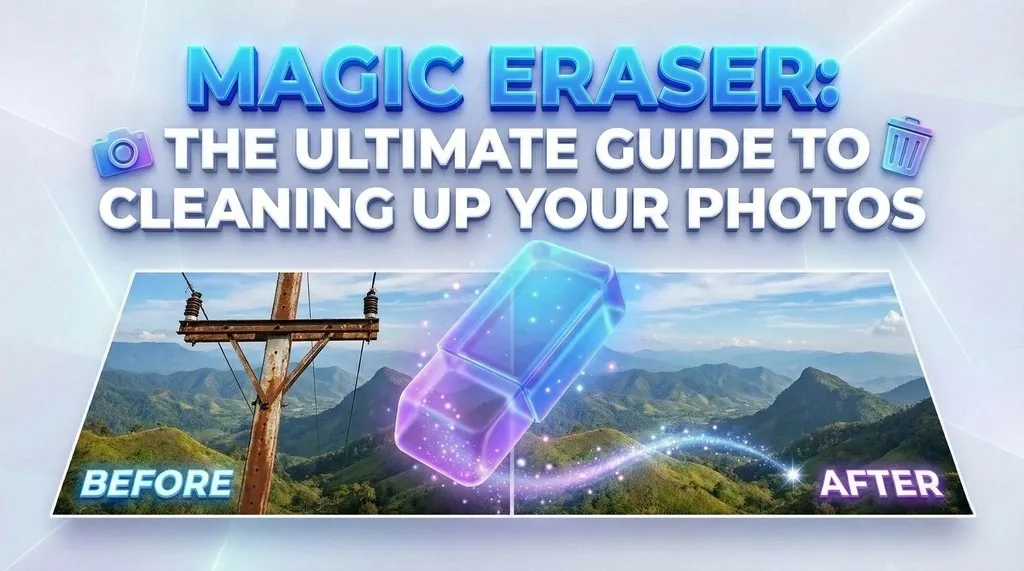
Magic eraser tools have changed how we edit photos. You no longer need complex software to fix a picture. If you have a photo with a stranger in the background or a trash can ruining the view, you can fix it. This guide will show you how to remove unwanted objects and compare the top tools available today. We will look at Camclo and other popular options like Canva and Magic Studio to help you choose the right one.
Why You Need a Magic Eraser Tool
Photos rarely come out perfect. You might take a great shot of a landmark, but a crowd of people blocks the view. Or perhaps you take a product photo for your online store, but there is dust on the table. A magic eraser tool solves these problems. It uses artificial intelligence to look at the pixels around an unwanted object. Then, it fills in the space to match the background. The result looks natural, as if the object was never there.
This technology is useful for many people. Real estate agents use it to clean up property photos. E-commerce sellers use it to make products look professional. Casual photographers use it to save vacation memories. You do not need to be a pro to get pro results.
How to Remove Unwanted Objects from Photos
Removing objects is simple when you use the right tool. Since high-quality editing requires precision, we recommend doing this on a desktop or laptop computer. Here is the process using a web-based tool.
Upload Your Image
Go to the tool website on your computer. Drag and drop your photo into the upload box. Most tools accept JPG and PNG files.
Select the Brush Tool
You will see a brush icon. Click it. Adjust the size of the brush. A mouse or trackpad gives you the control you need to paint accurately around small details.
Mark the Object
Paint over the item you want to remove. You usually see a colored highlight where you paint. Be sure to cover the object and its shadow. If you leave the shadow, the photo will look fake.
Erase
Click the "Erase" or "Remove" button. The AI will process the image. This takes a few seconds.
Check the Result
Look at the edited area. If it looks good, you are done. If not, try painting over the area again. Sometimes the AI needs a second pass to get it right.
Download
Save the clean image to your hard drive.
Comparing the Best Object Removal Tools
There are many tools on the market. Some are free, while others cost money. Some are part of larger design suites. We will compare Camclo with major competitors like Canva and MagicEraser.io to see which one fits your needs.
1 Camclo Magic Eraser
Camclo offers a powerful magic eraser designed for speed and accuracy on the web. It focuses on high-quality output for users on desktop browsers.
Ease of Use: The interface is clean. You do not have to dig through menus. The tools you need are right in front of you.
Performance: It handles complex backgrounds well. If you remove a person standing in front of a patterned wall, Camclo attempts to rebuild the pattern correctly.
Best For: Professional quality with simple controls on desktop2 Canva (Magic Edit)
Canva is a massive design platform. Their "Magic Edit" and eraser tools are popular because so many people already use Canva for graphics.
Ease of Use: Very high. If you know how to use Canva, you know how to use this.
Performance: It is good for general design work. However, the Magic Eraser is often locked behind their "Pro" subscription. If you are a free user, you might not have access to the best version of their removal tool.
Best For: Social media managers with Canva Pro3 MagicEraser.io (Magic Studio)
This is a very specific tool that does one thing: removes objects. It is known for being quick and accessible.
Ease of Use: Extremely simple. It is a "one-page" website style.
Performance: It works fast. However, users often find that the free version limits the resolution of the download significantly. If you need a high-quality image for a website header or print, the low resolution might be an issue.
Best For: Quick, low-resolution edits for personal use4 Adobe Photoshop (Generative Fill)

Photoshop is the industry standard. Its new Generative Fill is powerful but complex.
Ease of Use: Low. You need to learn the interface. It is not a "click and go" tool for beginners. You also need a paid subscription which is expensive.
Performance: It is unmatched for heavy edits. It can not only remove objects but replace them with new ones.
Best For: Professionals who need total control5 Cleanup.pictures
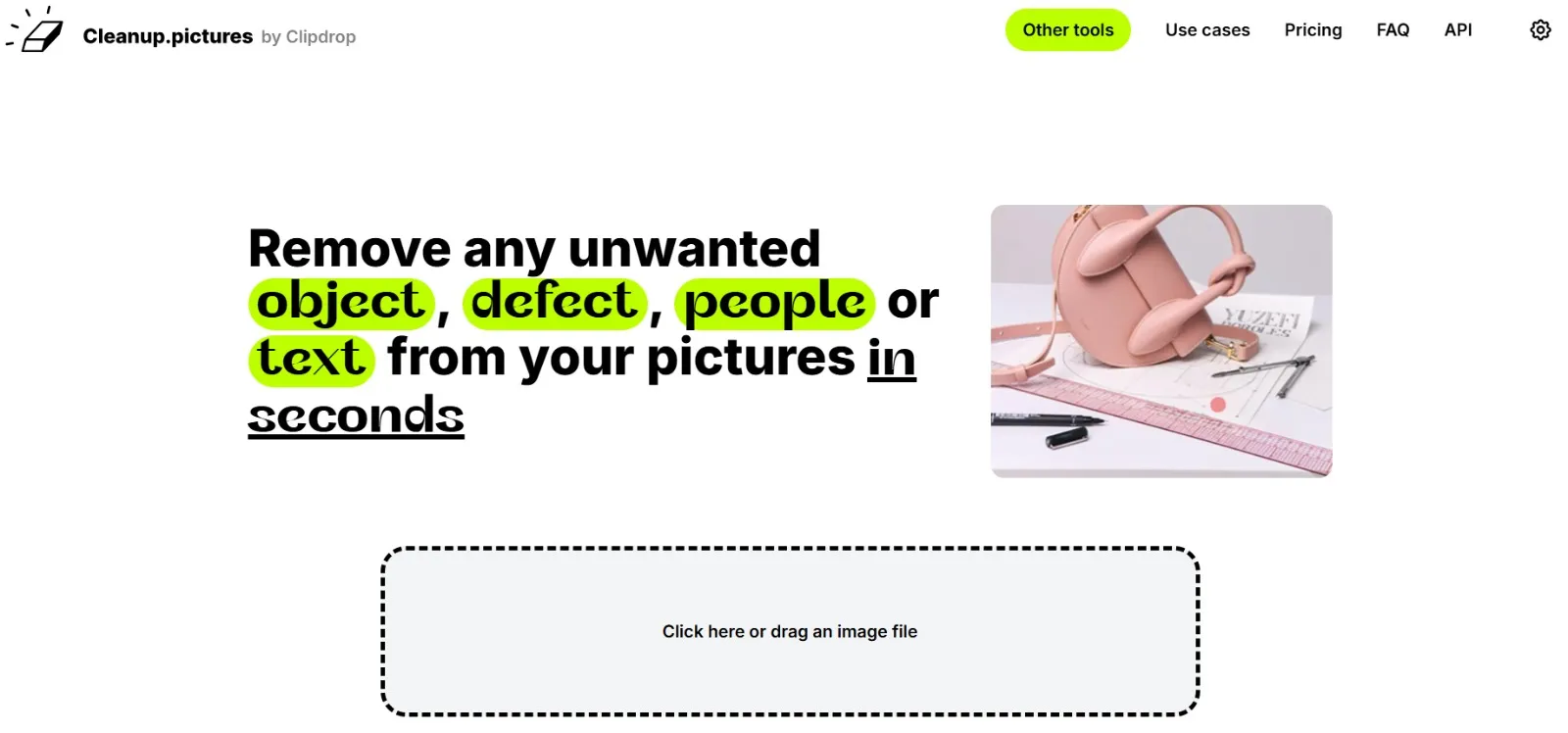
Cleanup.pictures is another popular choice for quick edits.
Ease of Use: It is very simple. You just upload and brush.
Performance: It works great for small defects. Similar to Magic Studio, the free version often lowers the resolution of your image.
Best For: Quick social media postsDetailed Feature Breakdown
To help you decide, we will look deeper at specific features. We will see how these tools handle different scenarios.
Removing People from Backgrounds
This is the most common use case. You take a photo at the beach, but it is crowded.
- Camclo: You paint over the strangers. The AI understands the texture of the sand and ocean. It fills the gaps smoothly. The focus stays on you.
- Canva: Good for general removal, but sometimes struggles if the background is very complex.
- Adobe: Excellent, but takes more time to set up.
Cleaning Up Product Photos
If you sell items online, your photos must be clean. A stray hair or a scratch on the table can ruin a sale.
- Camclo: Sharp edges are key here. Camclo respects the boundaries of your product. It removes the dust without blurring the product edge.
- MagicEraser.io: Can be hit or miss with sharp product edges, sometimes blurring the item you want to keep.
Text and Watermark Removal
Sometimes you need to remove a date stamp or unwanted text from a meme or stock photo (if you have the rights).
- Camclo: Very effective. It reads the texture behind the text.
- Competitors: Most tools handle text well, but some leave a "ghost" image where the text was.
Real-World Use Cases
Understanding when to use these tools will save you time. Here are common situations where people use magic eraser tools daily.
Real Estate & Housing
Agents take photos of houses and apartments. Often, there is clutter. A tenant might have left a box in the hallway. A car might be parked in the driveway. Use Camclo to remove distractions. Clean photos get more clicks on listing sites.
E-Commerce & Reselling
Many people sell clothes on apps like Poshmark or Depop. You might notice a stain on the rug next to the shirt. You do not need to retake the photo. Use a magic eraser to wipe the stain. It makes your listing look professional.
Travel Photography
You visit a landmark. It is packed. You cannot ask everyone to move. Snap the photo anyway. Later, use a magic eraser to remove the tourists. You will have a photo that looks like you had the place to yourself.
Restoring Old Photos
Old family photos often have scratches, dust spots, or stains. Scan them and upload to your desktop. Use the tool to carefully remove the scratches. It is a modern way to preserve family history.
Tips for Best Results
Even the best AI needs some help. Follow these tips to get the cleanest edits with Camclo or any other tool.
- Use a Mouse: For precise editing, a mouse is better than a finger. That is why we recommend using these tools on a desktop. You can trace the object perfectly.
- Brush Size Matters: Do not use a huge brush for a tiny spot. Keep the brush just slightly larger than the object you want to remove.
- Watch the Shadows: If you remove a person, remove their shadow too. A shadow without a person looks very strange.
- Do It in Steps: If you have a big object to remove, try doing it in pieces. Remove the top half, then the bottom half. This sometimes helps the AI process the background better.
- Zoom In: Zoom in close to the object. This helps you paint accurately. If you accidentally paint the background you want to keep, the result will be messy.
The Technology Behind the Magic
You might wonder how this works. It is not actual magic, but it feels like it. It is called "inpainting."
The software analyzes the millions of pixels in your image. It identifies patterns. If you erase a bird from a blue sky, the AI sees "blue sky" around the hole. It copies that pattern into the hole.
Modern tools like Camclo use deep learning. They have seen millions of photos. They know what a rock looks like, what grass looks like, and what a wall looks like. When you erase a car from a road, the AI knows a road should be there. It draws the asphalt and the painted lines to fill the gap.
Common Mistakes to Avoid
- Over-editing: Do not try to remove everything. If you remove too much, the photo starts to look fake.
- Ignoring Resolution: Always check the export quality. Some tools compress your image. Ensure you download the high-quality version if you plan to print the photo.
- Rushing: Take your time to highlight the object correctly. A sloppy highlight leads to a sloppy result.
Why Camclo Stands Out
Camclo focuses on the user experience. We know you do not want to watch tutorials for an hour. You want to open the page, fix your photo, and leave.
Desktop Precision
Our tool is built for the web and optimized for desktop use. Professional photo editing requires the precision of a mouse and a large screen. We built this for users who care about the details.
Privacy
We also value privacy. When you upload a photo to edit, it is yours. We do not use your private photos to sell ads.
Generative Technology
Most importantly, we rely on AI Generative Inpainting. Our AI does not just blur or smudge the pixels to hide a mistake. It generates new, realistic content that matches the scene perfectly.
Conclusion
The ability to clean up photos is a skill everyone should have. It saves low-quality images and perfects high-quality ones. Whether you are fixing a selfie or preparing product images for a store, a magic eraser is essential.
Tools like Camclo make this process easy. You do not need to be a graphic designer. You just need a computer and an internet connection. By choosing the right tool, you ensure your photos look their best.
Ready to Clean Up Your Photos?
We suggest you try a few options. Compare the results from Canva, MagicEraser.io, and Camclo. We are confident that Camclo offers a strong mix of quality, speed, and precision. Start cleaning up your photo library today and see the difference a clear background makes.